ClonBrowser
  • Home
  • Solutions
    • Ad Verification
    • Affiliate Marketing
    • E-commerce
    • Social Media
  • Resources
    • Help Center
    • Blog
    • About Us
  • RPA Market
  • Price
  • Download
  • Get Started
  • EN
    • English
    • 中文(简)
  • Search
ZH
Can I have multiple eBay accounts

eBay account | How to manage multiple eBay accounts?

10/09/2021/in Account Management, All Articles /by Jolian

Everything you need to know about your multiple eBay accounts

With the continuous development of online shopping, many people who want to own their own business empire choose to start their first step online to earn the first buckets of their lives. Some people go to Amazon, some go to eBay. Adaptation is the best survival. After entering eBay, everyone has to obtain their maximum interests in the fierce competition, and I believe you are no exception. Setting up and managing multiple eBay accounts can increase the profit opportunities, but there are risks.

This article will take you through the eBay account management mechanism and teach you how to manage multiple eBay accounts.
eBay shop

Why can’t you have multiple eBay accounts?

To operate on eBay is to know and follow the rules of eBay. eBay has a lot in common with Amazon. eBay also focuses on product quality and user experience. For example, you must upload the goods to the correct category of goods, the location of the goods must be authentic and relevant, and you cannot upload external links on the eBay platform. If you violate the operation rules of eBay, eBay will warn you and freeze your current account, which will not be restored until the problem is solved. At a minimum, your normal operation will be affected, or at worst, your funds may be paralyzed or even bankrupt.

You may ask: What does this have to do with my multiple eBay accounts? No, you have to know it’s a big deal.

First of all, multiple eBay accounts are a factor in getting banned. Because eBay attaches great importance to the management of user experience and account security, the eBay platform hopes that each seller has only one account. Once the situation of opening more accounts is detected, eBay will not hesitate to freeze your account. This is a very headache for sellers, a bad may be closed shop seal.

Second, multiple eBay accounts are linked to each other. If you think you have so many accounts that you don’t care if one gets blocked, that’s a bit idealistic — the interconnection of multiple eBay accounts can spread the contagion and result in your entire account being blocked.

Can I have multiple eBay accounts?

“eBay will freeze them because I have multiple accounts, so can I have multiple eBay accounts or not?”

It’s a potential crisis. And you can certainly have multiple eBay accounts if you do it right.
Can I have multiple eBay accounts

However, please note that one set of registration information can only be used to register one eBay account, and this set of information can not be used to register multiple accounts. The eBay platform helps to determine whether there is a co-operator operation through the information used for account registration. Therefore, sellers must effectively isolate their accounts and accounts in the operation of multiple accounts, so that the platform can judge these accounts as being operated by different people.

If the eBay platform detects that there are multiple accounts registered for the same set of information, these accounts will be punished. Most of those who have multiple seller accounts use someone else’s profile to sign up for an eBay account.


How to manage multiple eBay accounts

Some sellers will ask why they see other eBay sellers running several accounts at the same time and the platform doesn’t punish them. It’s because they manage their own multiple eBay accounts!

Factors related to multiple eBay accounts

Before we figure out what’s causing the account to be linked, let’s correct one misconception: Multi-account association is eBay’s ban on a single seller having multiple accounts in the same location. (A company cannot have two stations in the UK or two in the US). But eBay is encouraging sellers to set up shop on various sites and sell to more regions. If you have a US station and a UK station at the same time, this is allowed.

So what makes eBay decide that our accounts are connected?

1) Sellers’ registration information, background operation records, operation data, etc.

2) Hardware information. This refers to the information about your computer and related connected devices, such as the monitor model and screen resolution, which are important for eBay to distinguish whether an account is managed by a single person.

3) Software information. This refers to browser brands, plug-ins, and so on.

4) Network information. IP addresses, fingerprints, cookies, etc. Ip addresses directly reveal the geographic connections between accounts, while fingerprints and cookies tell eBay what you’re doing, allowing eBay to infer who’s behind your account based on features.

How to prevent the association of multiple eBay accounts

The freezing caused by account association is irreversible, and once the account is blocked, it is difficult to appeal successfully, so it is important to manage your multiple eBay accounts to prevent association.

1) Use different eBay registration information

To set up an eBay account, sellers are required to provide a lot of information, including address, credit card, name, password, and video authentication to set up shop on eBay.

Prepare a new profile for each account you sign up for. When managing multiple accounts, it may be detected by risk control if the account passwords are set in a similar or regular way to save trouble.

2) Pay attention to the Paypal payment method and logistics distribution information.

A Paypal card can be tied to multiple eBay accounts. However, once an account is banned illegally for various reasons, the platform will review the other bound accounts and then make an account association.

Therefore, sellers should not use one Paypal linked to different eBay accounts. When delivering goods from multiple stores, do not use the same delivery address or fill in the same shipper.

3) Highlight the distinctive features of products.

If multiple eBay accounts list the same or very similar products, and the proportion of products and services similar is not desirable.

So you should never upload the same template to more than one store. Product duplication information between stores should not exceed 30% of all products in the store, and differentiation should be achieved. The title, picture, the product description should be adjusted accordingly, even the picture watermark is also best inconsistent, the price, freight are not the same. This won’t make the platform assume that the same person is selling the product.

4) Use separate computers

Your MAC address and screen tell all the information. Try to use a different computer to log in to another account.

5) Use a separate and clean IP address

When we use broadband, no matter how many computers are connected to that broadband, the IP addresses of those computers are the same. Therefore, do not use the same IP to log in to multiple seller accounts on the same platform, nor can you log in to the mailbox associated with the seller account. An account must use an independent system.

However, as we all know, most of the current IP addresses are rotated. It is difficult for us to guarantee that the IP address used in account A yesterday will not be used in account B next time. Even if you don’t reuse an IP, you can be banned if the last person to use it does something illegal and then you have the misfortune to use that IP address for business.

In this case, you need to:

  • Get multiple broadband connections from different providers. Or oneself pull special line, nevertheless price cost is high.
  • Buy a fixed IP, which you buy to avoid being used by others. Buying old IP addresses that have already been used by other vendors can also pose a huge risk.
  • Use eBay’s multi-account, multi-store anti-association tool. Each account opens an independent browser. The browser environment is isolated from each other and cannot be associated.

6) Clear cookies and browser fingerprints, and do not repeat computer configuration Settings.

Caches, such as cookies, record your Internet and browser history and preferences, collecting a lot of personal information about you. Therefore, it is necessary to clean the traces on the computer before logging in to multiple eBay accounts and try to create the cleanest operating environment for each account.

eBay Account Appeal

1) Read the email carefully to find out exactly why your eBay account was closed. Sometimes when your account gets blocked, it could just be because of a misunderstanding.

2) Carefully check the instructions in the email and follow them to the letter. Sellers need to be professional, transparent, and honest, show eBay cooperation, and build eBay’s trust in you.

3) If eBay does not respond to your complaint email within 48 hours, call directly. Make a list of arguable points and keep professional coolness.

4) If the phone calls don’t work,  you’ll have to hang in there until the account is restored because that’s the best thing to do.


The easiest way to operate and manage multiple eBay accounts!

In fact, except for registration information, ClonBrowser can take care of everything!
ClonBrowser

ClonBrowser is a great browser that uses virtual configuration technology to create numerous separate and clean browsing environments for those of you who want to run multiple eBay accounts, simulating thousands of unique computers at your disposal. In the myriad browsing environments created by ClonBrowser, you can freely log in and switch between different eBay accounts. Each account’s data is unique and you don’t have to worry about account association day and night

In ClonBrowser, you don’t have to worry about fingerprints revealing your identity, we mask your real information!

ClonBrowser is your best choice for managing multiple eBay accounts and opening multiple stores!

https://admin.clonbrowser.net/wp-content/uploads/2021/10/Can-I-have-multiple-eBay-accounts.jpg 514 1044 Jolian https://admin.clonbrowser.net/wp-content/uploads/2025/05/ClonBrowser-zh-w.png Jolian2021-10-09 17:37:222024-02-29 15:28:44eBay account | How to manage multiple eBay accounts?
ClonBrowser

How to create multi-profiles in your Firefox?

10/09/2021/in Account Management, All Articles /by Jolian

How can I have many accounts? I’m sure you’ve heard of the term profile while you’re learning about this problem.

In an increasingly informative and busy society, it seems to be normal for everyone to have multiple identities. But when we have many identities, we need them to operate on the Internet, so we have more and more accounts, and we need to use many accounts at the same time. This has caused a lot of user confusion. The topic of browser profiles became increasingly popular when you looked up “multiple accounts” and many of the answers mentioned “profiles”.

This article takes a look at firefox, one of the most popular browser brands, to show you what a profile is and how to create multiple user profiles in Firefox.

So let’s get started.

multi-profile


All you should know about the profile

Quickly understand what a profile is

The word “file” in the profile lets most people know that it is actually a file. Profile = properties + file. Properties file. A lot of information can be stored in this file. Without this file, the computer can’t get information. For example, when you log in to the Windows desktop, you need to load the user profile. In the Windows system, each user account has a user profile directory, which records the Settings parameters of the desktop, system, folder options, self-boot programs, security policies, and so on. If this file is not working properly, the system will not load the configuration file properly after startup, and the system will log in to the desktop with the default configuration file (as on the new system), and sometimes even fail to log in to the desktop.

The same is true of the browser’s user profile. The browser’s user profile stores data for each account, such as a user’s shopping cart for an e-commerce site. A profile is equivalent to an independent browser. A user profile cannot use multiple accounts, so users need multiple profiles.

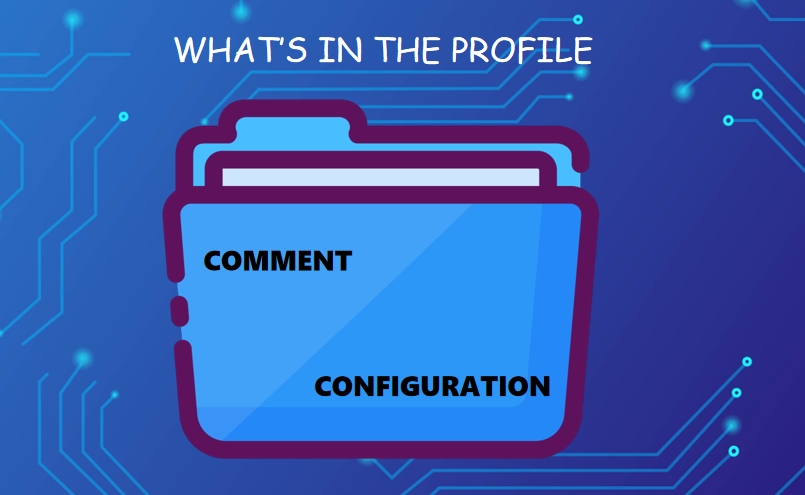
What’s in the profile

A profile consists of two parts:

  1. Comment content: In the sample file it is indicated by a single line comment with # to explain what is necessary.
  2. Configuration items: The configuration items are records of key and value pairs one by one. On the left is the key, and on the right is the value. In the middle of the key-value pair, a symbol = is inserted (optionally) to separate the key from the value.

What's in the profile

Profiles and the operating systems

There are many different profile formats on different unix-like systems, and different applications or services may use separate formats, but most follow the tradition of using plain text files, using simple key-value pair formats, and file extensions such as.cnf,.conf,.cfg,.cg, and.ini. Almost all of these configuration file formats allow comments, so you can turn off Settings by prefixing comment characters. The default profile also usually has detailed internal documentation in the form of comments.

MS-DOS itself relies on only one configuration file: CONFIG.SYS. Before MS-DOS 6, this file was just a simple key-value plain text file (such as DEVICEHIGH=C:\DOS\ANSI.SYS), after which the INI format was introduced. There is also a standard plain-text batch file in MS-DOS called AUTOEXEC.BAT that is used to execute a series of commands at startup. Both files survived to Windows 98SE based on MS-DOS.

The early Microsoft Windows family used a large number of plain-text INI files, which were the primary means of configuring the operating system and application features. Windows still has APIs for reading and writing these profiles, but since 1993 Microsoft has encouraged developers to switch from INI files to registries.


How to open a profile

  • Right-click on the title bar and select the menu bar. Click the help button. Click troubleshooting information. On the troubleshooting information page, locate the configuration folder and click to open it.
  • Press WIN+R at the same time to open the Run dialog box;%AppData%\Mozilla\Firefox\Profiles is the environment variable of The Firefox browser. Press Enter to open it and go directly to the Firefox configuration folder.


How to create multi-profiles in Firefox

Create multiple profiles in Firefox

Firefox has a concept of a “user profile” in which sessions are stored. However, for each user profile, more than one site is not possible, so you need to create multiple user profiles, and then open them separately. I’m going to introduce you to two similar approaches.

1) Close all Filefox browsing Windows to run Firefox Manager: Click On Windows “Start” –> “Run”, then enter firefox.exe -ProfileManager in the input box, click on the “OK” button to create a new profile, just click on the “Create Profile” button, in the wizard window that appears next to enter the Profile name. You have now created a separate Firefox Profile.

2) on the Windows10 system desktop, right-click the installed Firefox browser icon and choose the “properties” menu item from the pop-up menu. Then in the Firefox browser properties window that opens, we enter the “-profilemanager” parameter (without quotes) in the target. Once the setup is complete, we double-click to open The Firefox browser, which brings up a window to select a user profile. (We can then create, rename, and delete profiles to suit our needs.) We click the “Create Profile” button. A configuration file creation wizard window pops up. Click the Next button. Then enter the name of the new profile in the window that opens, click on the folder, select the folder to which we want to save the relevant user data, and click the “Finish” button. In this way, when you run Firefox again, you only need to select the file name from the configuration file list.

Warning:  If you want to choose where your user profile will be stored, remember to select an empty directory. If you select a directory that is not empty and you use the “Delete files” option to delete configuration files, all existing files in the directory will also be deleted!

Remove multiple configuration files in Firefox

What if I create too many user-profiles and no longer need them? In fact, the user profile window can also solve this problem! Click Delete profile and an option box will pop up.

If you select “Do not Delete files,” you simply delete the new file in the user profile window, and your data is still on your computer. If you select “delete files” then it is really deleted all files, if you click it, then it will be an irreversible action, please choose carefully.

Using Plug-ins

Profile Switcher for Firefox Can be used only in Firefox to create and change browser profiles.


Use ClonBrowser to set up your Multi profile!

We understand your desire to create multi-profiles and achieve account freedom! So we’re here to help you deal with it!

As mentioned earlier, we can look at a profile as a browser, so you have multi-profile means you will have multiple browsers. If there was a way to have many browsers directly, you wouldn’t have to worry about setting up and managing multi profiles, would you?

In fact, ClonBrowser really gives you multiple browsers! ClonBrowser is a virtual browser that simulates hundreds of unique computers in the world for you to use. With ClonBrowser, you can manage your account as you like. I’m sure it will simulate a lot more computers than you have accounts!

ClonBrowser

ClonBrowser can not only simulate a lot of computers for you, it also has many surprising features, such as:

  • Easy browser configuration for file sharing and transfer
  • The most comprehensive system customization service
  • Very simple and smooth interface

And so on.

Want to know about it? Here’s the shortcut to it!

We are happy to meet you!

https://admin.clonbrowser.net/wp-content/uploads/2021/10/ClonBrowser.png 413 655 Jolian https://admin.clonbrowser.net/wp-content/uploads/2025/05/ClonBrowser-zh-w.png Jolian2021-10-09 16:06:042024-02-29 15:29:00How to create multi-profiles in your Firefox?
multiple accounts

4 ways to Manage Multiple Google Accounts!

10/08/2021/in Account Management, All Articles /by Jolian

Why do you need to Manage Multiple Google accounts?

Why do you have Multiple Google Accounts?

Nowadays, with work and life getting busier and busier, everyone seems to have become superman with many different identities — including on the Internet. If you use Google products and services, I guarantee you probably have two or more Google accounts.

Of course, you may have multiple Google accounts just to do things you want to do but are forbidden by Google Apps and its administrators. Such as:

  • Want to log into your Google Space app?
  • Want to export your data using Google?

In this case, you have to have two or more Google accounts.

multiple accounts

Why do you need to Manage Multiple Google Accounts?

Managing multiple Google accounts is a real nightmare.

When you have several or even dozens of Google accounts, it’s not easy to consolidate them all into one account. You need to log in and log out constantly. You can have dozens of accounts, and there’s no limit to the number of accounts you can have on Google, but it must be a pain for you.

If Google closes your account the next morning after you’ve worked so hard to coordinate all your accounts, the next morning and informs you that it appears to be linked to multiple other accounts, it violates Google policy. Is there nothing more desperate than it?

In this way, having multiple Google Accounts is not something to be happy about, it’s just the beginning of trouble. Let me tell you the best way to manage Multiple Google Accounts!

With this article, you can manage all your Google accounts more efficiently. You can quickly and easily create new accounts and link these accounts to existing accounts so that you can easily switch between accounts.


How to Manage Multiple Google Accounts?

1) Use Chrome profiles to manage your accounts

  • To use a Chrome configuration file, you need to configure the main account

Some people think that creating multiple Google accounts is as simple as opening Google, clicking on the profile icon in the upper right corner, and choosing to add another account. It does allow you to log in to multiple accounts, but when you switch accounts, the browser opens a new TAB for you and restricts sharing, making it difficult to use.

Profiles can maintain bookmarks, passwords, plugins, and more for each Google account without affecting the expansion of other functions. This also makes it a good choice for switching between different Google accounts.

Before using Chrome profiles to manage multiple accounts, you need to determine which account is your main account.

By default, Google uses the first account you log in to as your primary account. This is the rule you’ll see every time. The Google menu in the upper right corner also suggests the default account when you log in multiple times. If you click the profile icon in the top right corner, it will bring up your main account. If another account is displayed, do the following:

  • Log out of all Google accounts. Select your profile picture in the upper right corner and click Exit from the menu.
  • Click “Delete Account” at the bottom of the page to delete all other accounts.
  • Re-log in to your main account. (Generally, it syncs all Chrome extensions and bookmarks)

After login, check whether you have logged in to the main account in “Settings”.

  • Log in to the system using a Chrome configuration file

  1. Click the Chrome profile icon next to the three dots in the upper right corner of the Chrome browser to access the personnel management page.
  2. Click Add Person and name your profile to help you identify the account. You can also add a fun icon if you are interested. After setting up your account, click Add to create your account.
  3. A new window will open and prompt you to log in to your account.
  4. Log in to your secondary account and select sync preferences.

Since each Chrome profile is synchronized to its own account, you may need to spend some time adding bookmarks, passwords, extensions, and so on to the new profile. When you want to switch accounts, simply click on the Chrome Profile icon and select a profile from the list to open a window for your other accounts.

2) Use the Chrome plugin to manage your account

Sometimes using plug-ins is a good option.

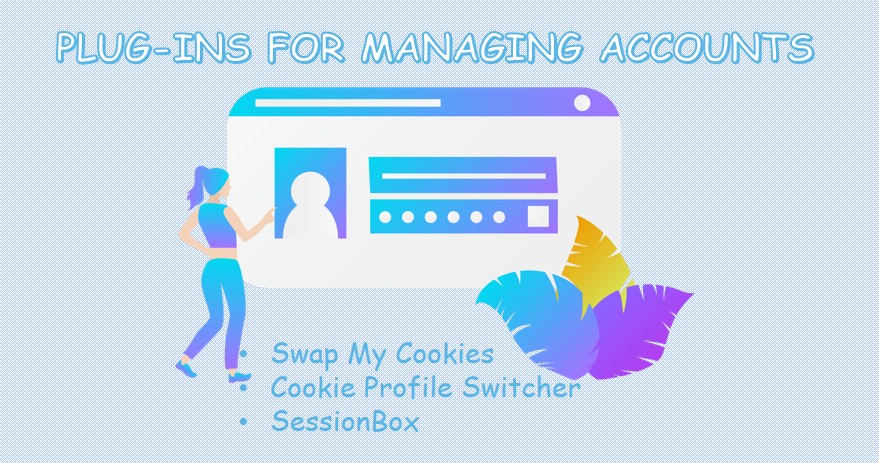
  • Swap My Cookies

Swap My Cookies is a plugin for managing sessions that helps you manage Cookies and makes it possible to have lots of different accounts — just need to switch profiles!
It’s an alternative to Google’s multiple logins. You don’t have to log on your account twice.

  • Cookie Profile Switcher

Cookie Profile Switcher is similar to Swap My Cookies. It also helps you solve the problem of multiple accounts from Cookies. If you are interested, you can try it.

  • SessionBox

SessionBox lets you browse multiple active sessions per site using one browser, log in to multiple accounts on the same site at the same time, and support private sessions.

Plug-ins for managing accounts

3) Use privacy mode for temporary access

Chrome’s privacy window lets you log in using different Google accounts without affecting other configurations on your computer or leaving a record. If you only have two Google accounts and only need temporary access to take care of things, this method is also suitable for you. Only two accounts can coexist in this way because they share the same set of cookies. Note that if you accidentally close the privacy window, you will need to log in again.

4) Use a separate browser

If you don’t want to try all of the above, you still want to be able to use multiple accounts for activities, such as accessing both work and personal accounts. In fact, there is an easy way – use two different browsers! One for your work account and the other for your personal account.

Matters needing attention:

1) Use a different profile picture for each Google account when setting up your profile.

2) To facilitate switching, log in to your Google account in the preferred order when you sit down to work.

3) You can set sharing permissions for files and folders that are frequently used between two accounts. This eliminates the need for edit permissions for shared files or folders to open both accounts.

4) Google Backup and Sync only allow you to log in with three accounts. Select the preferred accounts and change the location of the Google Cloud Drive folder for each account so that they do not conflict.

5) Beware of Google account associations. It can be a real blow if you’ve managed to manage so many accounts only to find them suspended. Association means that multiple accounts are associated with each other, which leads to account closure. This is directly related to the hardware device, registration information, browser, cookies, and so on that you use to log in to your account. Therefore, if possible, it is better to choose to create a separate and clean environment for each Google account.


Better multiple Accounts options!

I should congratulate you on finding a great way to manage multiple accounts! In the previous chapter on how to manage multiple Google Accounts, we talked about configuring user files and preventing accounts from being associated with each other. In fact, this is exactly what ClonBrowser has been trying to provide for you!

ClonBrowser is a privacy browser that uses virtual configuration technology to serve users. As long as you have ClonBrowser, connect to the Internet, it is like having thousands of computers in an instant, each computer is different and unique. Why? Because ClonBrowser provides a completely separate, virtual browsing environment for each profile, the utility is equivalent to several computers. Here, you can have multiple profiles and log in with multiple accounts. Data between accounts is completely isolated, and cookies, cache, and other information cannot be disclosed to each other.

With ClonBrowser you no longer need to worry about the link between the account number, no need to seal the number and fear. Our simulated computer is unique, and information such as a browser fingerprint won’t be a factor in the association – because we use a “mask” fingerprint instead of your real one, preventing the platform from analyzing your information.

ClonBrowser

This is just the tip of the ClonBrowser iceberg. Want to really understand how powerful ClonBrowser is? Please click here to have a detailed view and start your free experience tour!

https://admin.clonbrowser.net/wp-content/uploads/2021/10/multiple-accounts.png 557 827 Jolian https://admin.clonbrowser.net/wp-content/uploads/2025/05/ClonBrowser-zh-w.png Jolian2021-10-08 16:32:022024-02-29 15:29:174 ways to Manage Multiple Google Accounts!
session

Multi-Session Browser | How to Manage Multi-Sessions?

09/27/2021/in Account Management, All Articles /by Jolian

What is Session

In computers, especially in network applications, sessions are called “session control.” A session is simply a data storage technology that can sustain server-side data storage. It is a technology that temporarily stores data based on a back-end that is different from a database.

You can think of a session as the process from when we use a browser to surf the Internet to when we close the browser.

The Session object stores properties and configuration information required for a specific user Session. Without sessions, we would not be able to complete online shopping, because the server cannot keep track of what you want to buy, and when you are ready to check out, you will find the cart empty.

When a user requests a Web page from an application, a chunk of memory is created on the server-side, which is associated with the browser window or child window of the browser. This piece of memory is called the session. Other browsers on the same machine cannot access this session. Variables stored in Session objects are not lost and persist throughout the entire user session when a user jumps between the application’s Web pages.

session

When a session expires or is abandoned, the server terminates the session. One of the most common uses of the Session object is to store user preferences. For example, if the user indicates that he does not like to view graphics, that information can be stored in the Session object.

Please note that:

1) Session state is reserved only in browsers that support cookies.

2) Two pages in the same browser do not necessarily have the same session. If you open two tabs in the same browser, then the pages of the two tabs are one session. But if you open two different Windows in the same browser, then the two pages are not one session.

How sessions work

Since the HTTP protocol is non-connectivity, when the browser finishes fetching content, it disconnects from the server. How does this work if you want to access other content or sub-windows of the site, and the page needs to know the original session?

In this case: The first time you visit the page where the session was created, you create a unique number for the browser and give the session the same number as the browser. Then record a series of selections on the server-side. When you visit the second page, you send the number to the second page, and the second page finds the number and the session corresponding to the original session. You can find the original session. So each window has a unique number. This number is the session-id.

  1. The first step is to bring the session id, user name, and password in the local cookie to the background
  2. In the second step, the background checks whether the corresponding session-id exists
  3. If not, create a new session. If yes, check whether the corresponding file exists and is valid. In case of failure, we need to clear the session and generate a new session. If valid, use the current session.

The characteristics of Session

  1. The session is stored on the server
  2. The session is generally used in conjunction with cookies. If the browser disables cookie, only URL rewriting can be used to realize session storage
  3. If sessions are only used to maintain user status, the query will be slow when a large number of users log in at the same time or a large number of sessions exist.


Session and cookie

session and cookie

Why did sessions come into being?

One of the main reasons is HTTP’s statelessness.

What is statelessness? That is, this request and the last request are unrelated. But the advantage of stateless is fast. Because of the stateless nature of HTTP, there is no way to know the state of the current user when an HTTP request is sent.

So because of this appeal, a new way for clients to store data has emerged: cookies.

A cookie is to store a small amount of information on the user’s own computer. By setting its storage path under a domain name, the user can read the information from any page in the domain when accessed through a browser.

While this is a great solution, and it’s quick and convenient, it’s very insecure. This is because cookies exist on the client-side and are themselves stored in a limited size. The key reason is that it is visible to the user and can be modified at will. So how to make it safe and easy to read information globally? Thus, at this time, a new storage session mechanism was born, called the session.

Differences and relations between Session and cookie

If a store has a gift-giving campaign for five purchases, then you need some way to keep track of how many purchases customers make. This leads to the following situations:

1) The clerks in this store have a very good memory and can remember the consumption times of each customer. As long as the customer enters the store, the clerks know whether they should give gifts or not. This is the state of the protocol itself.

2) Give the customer a card that records the number of purchases. Each time a customer shows the card, the purchase will be linked to a previous or future purchase. The practice is to maintain the state on the client-side. That’s what cookies do.

3) The customer is given a membership card, which does not record any information except the card number. Every time the customer shows the card, the shop assistant will find the corresponding record of the card number in the store record book and add some consumption information. This is done by maintaining the state on the server-side. This is similar to the mechanism of the session.

In short, the cookie mechanism adopts the scheme of maintaining the state on the client-side, while the session mechanism adopts the scheme of maintaining state on the server-side.

At the same time, we also see that since the scheme of maintaining state on the server-side also needs to save an identity on the client-side, so the session mechanism may need to resort to the cookie mechanism to achieve the purpose of saving the identity — cookies store the coding information of the session. Cookies are stored in the session.

Why doesn’t the product you put in your cart disappear every time you log back into the shopping mall?

Because when you log in, the server can use the cookies carried by the browser to find the session that saved your shopping cart information.

How to choose cookies and sessions

1) Security: Cookies are not very secure. Cookie spoofing can be carried out by analyzing cookies stored locally. The session should be used for security.

2) Performance: Session will be stored on the server for a certain period of time. Cookies should be used to reduce server performance when the number of accesses increases.

3) The data saved by a single cookie cannot exceed 4K. Many browsers limit the maximum number of cookies saved by a site to 20.

Therefore, important information such as login information can be stored as SESSION, and other information can be stored in cookies if necessary.

Misunderstandings:

“Does the session disappear as soon as I close the browser?”

No. In the case of sessions, the server will remain in place until the application notifies the server to delete a session. Generally, the application sends a command to delete a session when the user logs off.

It is because closing the browser does not delete the session that forces the server to set an expiration time for the session. When the expiration time has passed since the last session used by the client, the server can consider that the client has stopped activities and delete the session to save storage space.


Multi-session browser

Why can’t you have multiple sessions in the browser?

Most browsers now share session ids, so when multiple sessions are opened in a browser, the new content overwrites the original content with the same key.

How to create multiple sessions?

1) Use multiple browsers.

2) Modify the conf file to create localhost1 and locaohost2.

3) Store user information in the front-end HTTP Session with the user ID (unique) as the key, so that each time does not overwrite the last content. The user ID can be transmitted in the front end through URL parameter parsing.

4) The global variable is defined in the front-end JS file to get the userID, but the new formula may be overwritten after the refresh.

5) Multi-session browsers: You need a virtual browser! It’s kind of like a sandbox, where you can create a new environment that’s completely isolated from the previous environment, that’s not related to each other, so that login credentials don’t get replaced, and you can log into multiple accounts.


ClonBrowser—the best multi-session browser!

ClonBrowser

ClonBrowser is the virtual browser you can’t miss! As long as you have a computer connected to the network, it can provide you with thousands of completely independent virtual browsing environments! You can easily handle multiple accounts across all platforms through ClonBrowser.

To use ClonBrowser, you just need to:

1) Install the client and register your ClonBrowser account

2) Create your profile. You can quickly create browser profiles as needed. CB provides you with the most complete profiles!

Start your free trial now!

https://admin.clonbrowser.net/wp-content/uploads/2021/09/session.png 520 794 Jolian https://admin.clonbrowser.net/wp-content/uploads/2025/05/ClonBrowser-zh-w.png Jolian2021-09-27 12:23:182024-02-29 15:29:35Multi-Session Browser | How to Manage Multi-Sessions?
facebook account

The best way to manage multiple Facebook accounts

09/18/2021/in Account Management, All Articles /by Jolian

Why need to manage multiple Facebook accounts?

I believe you must have a Facebook account if you read this article! Whether you’re an employee or a student, you will share your life with some people in your account. These people could be your family, your classmates, your colleagues, or even your boss. Having only one account can cause problems when you want to show different kinds of content to different people, or when you want to keep your life and work separately.

Having a single Facebook account can also be inconvenient for you in business. Now the Internet is increasingly the best means of communicating with customers, and the best channel for product promotion. A single Facebook account brings a lot of uncertainty to commercial activities and product promotion.

Not only that, if you:

  • forget your old Facebook account?
  • want to create a new Facebook account because there are a lot of people you don’t know about the original account, but you’re too embarrassed to delete them?

If so, then you really need to manage multiple Facebook accounts!

facebook account

If you already have multiple Facebook accounts, you will find it very tedious to manage multiple Facebook accounts at the same time. In order for your account to work smoothly and safely, you also need to run many profiles.

You can click here to learn more about the profile, as we have already introduced it in the previous article. Configuring each file is very complicated. If you have multiple Facebook accounts, you need to configure the browser environment, select the proxy, check the account, and remark the account… Doing this many times a day can be boring to the point of madness that feels like you’re turning into a robot.

Don’t worry, this article will help you! In this article, we will bring you the best and most comprehensive method of managing multiple Facebook accounts! This article will introduce how to have multiple Facebook accounts, how to prevent multiple accounts from being associated with each other, how to prevent the closure of accounts, and provide you with the most convenient multiple Facebook account management tool!


How to have multiple Facebook accounts?

Before you can manage multiple Facebook accounts, you need to have them. Let’s take 10 seconds to see how to sign up for multiple Facebook accounts.

1) Create your first Facebook account

Search Facebook in any browser and find the official Facebook website in the search results.

After entering the official website, click Create account and fill in name, contact information (mobile phone or email), password, date of birth and gender in the pop-up registration window. This information is essential for setting up a personal account.

If you agree to all of Facebook’s policies and terms, click Sign up to enter personal authentication. Since you are authenticating your identity through the contact information you previously filled out, be sure to keep your contact information available.

Verifying your identity means you have your own Facebook account!

2) Create and switch multiple Facebook accounts

Having multiple Facebook accounts is easy, as long as you follow the above steps and sign up again. Use a completely different identity, however, or you could cause unnecessary problems with your multiple Facebook accounts.

To quickly switch between multiple Facebook accounts, add all accounts in Add Accounts and click Toggle.


How to manage multiple Facebook accounts?

If you want to manage multiple Facebook accounts, you should pay attention to the security of each account so that each account can run smoothly.

Prevent multiple Facebook accounts correlation

Correlation means that the Facebook platform judges that there is some connection between multiple accounts. Facebook’s rules generally discourage the creation of multiple accounts. The Facebook platform determines that the same person operates is behind this connection, which may bring risks to your Facebook account.

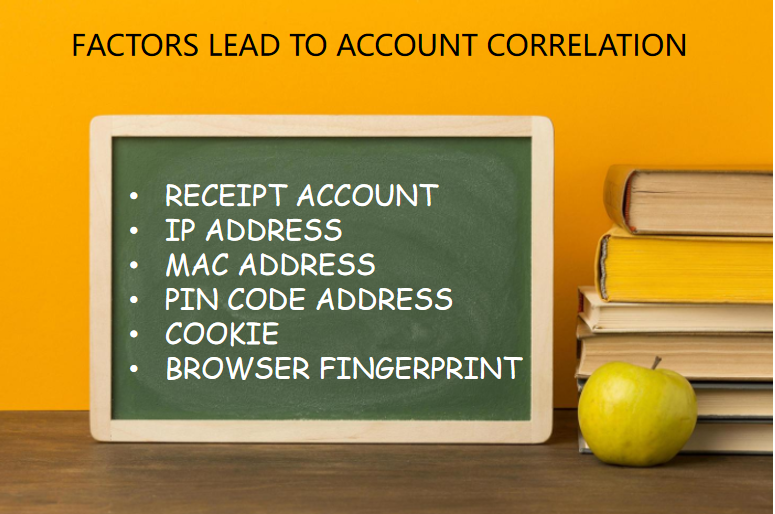
There are actually dozens of factors involved, but the most important are receipt account, IP address, MAC addresses, PIN code address, cookie, and browser fingerprint.

  • Receipt account:

Obviously, even though you used different information to authenticate when you signed up if multiple accounts use the same receiving account, that means they all end up with the same beneficiaries, which means they are most likely controlled by the same person.

Therefore, when managing multiple Facebook accounts, you should try not to bind them to the same bank card.

  • IP address and MAC address:

An IP address is a unified address format provided by the IP protocol that blocks differences in physical addresses by allocating a logical address to each network and host on the Internet. A MAC address is an address used to identify the location of a network device.

If you still don’t know what IP address and MAC address are, and the difference between the two, you can click here to see.

The IP and MAC addresses reveal your computer’s location on the Internet, and when each of your accounts starts from the same PI address, Facebook will no doubt know at a glance that these accounts are a family!

If multiple accounts mix IP and Mac addresses, it is easy to identify the association between these accounts because the IP addresses of these accounts switch frequently and use the same IP and Mac addresses back and forth in the background of the platform. You need to ensure that the IP of each account is different, even if one of the accounts is blocked, it will not implicate other accounts.

When multiple accounts use the same IP, if one account is blocked, in severe cases, all of them are blocked together.

Therefore, rather than using duplicate address information, using proxy servers or VPNs to avoid duplicate IP addresses and binding each account to a fixed device can more effectively manage the security of multiple Facebook accounts.

  • PIN code address:

The PIN code is used to verify your identity. Just like IP addresses and MAC addresses, if the same address is detected, multiple accounts will be affected.

However, although the PIN code-receiving address is one of the factors related to the account number, the residential address is not a piece of one-to-one correspondence information. There are a lot of addresses that are actually companies, rental housing. It often changes frequently. So it is possible to duplicate the PIN code, but it is not recommended that many accounts receive the same PIN code.

  • Cookies and browser fingerprints:

Cookies and browser fingerprints can be used to identify your personality and characteristics. Cookies are stored in a local cache and can be deleted and modified, so as technology has evolved, browser fingerprints have also been used to detect whether multiple accounts are related to each other.

Fingerprint information includes system version, browser version, resolution, IP address, language, setting information, and browser usage behavior tracking information. For example, the skin, font, or page we’ve visited in our browser is recorded on the platform. For more information about browser fingerprints, click here to review.

If you run two or three Facebook accounts, you can run them from one computer through multiple types of browsers to avoid fingerprints. However, it is important to note that downloading multiple types of browsers is a tedious process.

factors lead to account correlation


Prevent multiple Facebook accounts from being blocked

Many users often face the following problem:

“My Facebook account has been suspended.”

“How do I prevent my Facebook account from being suspended?”

“What caused my Facebook account to be suspended?”

Although the interconnection of multiple Facebook accounts may lead to the closure, do you know that in addition to the closure caused by interconnection, some details will also affect your account management, and your account may be closed if you are careless.

  • Beware of false identity:

Facebook is a social platform, where real personal information helps to weight accounts, and if you are blocked, you need to submit your ID card. So it is recommended that you fill in your own information.

Make sure your credit card must have your own photo. Note that too much photoshopping can lead to a ban, and a star’s profile picture is also not recommended.

Replace the device and IP at the same time as changing important information or modifying the code, and you will be blocked. As soon as the account is unblocked, it will be blocked by modifying or supplementing the data and adding friends.

It is recommended that you browse more first, modify the information after three days, and add friends after a week.

  • Batch Operation:

If you have just signed up for a new account, don’t add too many friends, add too many groups, tag too many friends, send the same message to your friends, or log out too often — anything that happens too often in a short period of time can trigger Facebook security.

  • Publish other illegal content:

Posting content will be punished and banned, please pay attention!

1) Racial discrimination (especially black people)

2) Religious discrimination

3) Sexual innuendo

4) False fraud

5) Horror and violence

6) Exaggerated and untrue content, infringement of portrait rights, copyright

7) Complaints about the poor content quality that affects the experience of other users


The best way to manage multiple Facebook accounts!

After reading the above multi-account management method, do you think there are a lot of things to be careful about? We have to admit that managing multiple Facebook accounts takes a lot of patience and time, but if you have a virtual browser like ClonBrowser, it can save you a lot of time!

ClonBrowser

ClonBrowser is a very excellent virtual browser that uses outstanding virtual browsing configuration technology to help you establish countless independent virtual browsing environments so that you do not need to configure multiple files and help you to solve the trouble of running multiple Facebook accounts.

With the help of the simulated independent virtual browsing environment and integrated agent, you will have thousands of unique computers, and you can manage multiple Facebook accounts with completely unique MAC addresses and IP addresses.

You will no longer need to be disturbed by browser fingerprints anymore, and browser fingerprints can no longer be a hindrance to managing multiple accounts! ClonBrowser provides your computer with a “mask fingerprint” to prevent any attempts to snoop on your identity.

So choosing ClonBrowser makes it safe and convenient for you to manage multiple Facebook accounts! It is your best choice! Start your free trial now!

https://admin.clonbrowser.net/wp-content/uploads/2021/09/facebook-account1.jpg 471 703 Jolian https://admin.clonbrowser.net/wp-content/uploads/2025/05/ClonBrowser-zh-w.png Jolian2021-09-18 11:51:462024-02-29 15:29:54The best way to manage multiple Facebook accounts
account correlation

The Best way to create multiple Amazon accounts!

09/18/2021/in Account Management, All Articles /by Jolian

Why do you need multiple accounts?

Is that what you are doing in front of your computer – you keep your eyes firmly fixed on the Amazon account in front of you, not willing to leave for a second. You are always paying attention to and worry about the turnover of the Amazon account. Do you need to pay attention to what’s going on around you and know what’s going on, just to keep your account competitive on Amazon?

If so, maybe someone else is overtaking you! This is because they are trying to operate with multiple Amazon accounts!

user account

Those who have made investments may know that there is a risk nature to property and that they should learn to disperse their capital in the process of financial management, rather than putting all their eggs in the same basket, because if this basket falls accidentally, all the eggs may be broken, which means a huge loss of wealth.

The same goes for Amazon. Amazon sellers, generally choose to open multiple accounts on The Amazon platform, and the larger the team, the more accounts they have.

Because for sellers relying on third-party platforms, if they only have a single account on a separate platform, they are putting all their eggs in one basket, which is a very risky act, just like walking a tightrope on the high ground, and all their efforts may come to nothing once the slightest wind blows.

Multiple stores can reduce the ability to resist risks. For example, store A cannot deliver goods or sell goods due to performance problems, if there are at least two stores, store B can be directly linked with store A to continue sales.

Therefore, from a long-term perspective of stable operations, it is necessary to configure multiple accounts in Amazon!

So how do you know if you need to open multiple accounts? How do you open multiple accounts? The following articles will help you!


What is account correlation?

Don’t rush to open multiple accounts yet. Before we learn how to open multiple Amazon accounts, let’s take a look at amazon’s rules.

Amazon platform typically does not allow the same seller to have multiple accounts. This is because, unlike eBay, Amazon attaches great importance to buyers’ shopping experience. Therefore, in order to ensure fair competition and optimize product quality, Amazon pays more attention to the sales of single products than the importance of stores. It is a single product sales platform. This prevents amazon from allowing sellers to sell duplicate products in its stores. In Amazon’s rules, a product can only appear once on the platform. Therefore, Amazon encourages the emergence of good products, good services, good brands, good logistics, and is very opposed to opening multiple accounts. But Amazon sellers can run multiple accounts on Amazon for a legitimate reason.

account correlation

Therefore, you need to pay attention to Amazon’s principles of determining the relationship between accounts when opening multiple accounts in Amazon. Account correlation means that the Amazon platform obtains information about your computer by technical means and determines whether multiple accounts are operated by the same person (including, but not limited to, phone, address, email, name, card, computer IP, network card, browser, cookie, router, etc.).

Amazon’s judgment on account correlation is irreversible! Once multiple accounts are judged to be interrelated, it can cause you huge losses.

If your account is found to be interrelated, Amazon will send an email informing you that your account has been deactivated. Your products will be removed from the shelves, your sales rights will be removed, and the balance in your account will be unable to be transferred out.

Amazon will give you a chance to appeal. If you fail to appeal successfully, all your accounts will be permanently closed. After the related account has been closed, you will not be able to register a new Amazon account. All your previous efforts will be for naught.

Is it appropriate for me to open multiple accounts on Amazon?

Of course, you can open multiple accounts on Amazon! However, you should decide whether to open multiple accounts based on your own situation.

If your business is going well and economic profits are good, you can try to open multiple accounts to prevent accidents.

But if you’re just starting on Amazon and you don’t have enough money, resources, and energy, running multiple accounts at the same time will put you in a very difficult position- all your accounts will fail to develop, and your store will be deducted monthly rent. If an account is not in operation for a long time, it will become a “new account” that looks very old, which is not good for the overall performance of the account.


How to have multiple Amazon accounts?

1) Create an Amazon account on the Amazon website

To sign up for an Amazon account, you must first visit Amazon’s website using any browser. After entering the website, click “Accounts and Lists” in the upper right corner to enter the login page.

Then click “Create your Amazon Account” and enter your name, email address, password, confirm the password, and other information as prompted. Click the “Create Your Amazon Account” button. Amazon will verify your identity by sending an email containing a one-time password (OTP) to your email address. All you need to do is obtain the OTP from the email and verify to complete your registration.

2) Prevent interrelationships between multiple accounts

To open multiple accounts on Amazon, just follow the steps described above. However, the successful opening of multiple accounts in Amazon requires some conditions to prevent account correlation.

  • Computer: It mainly refers to hard drive information, and browser cookies, flash objects, operating system versions, typing methods, and typing speed are also necessary factors to determine the relationship. Therefore, don’t operate multiple Amazon accounts on the same computer at the same time. It’s also important to thoroughly clean up your browser’s Cookies and Flash objects in Adobe Flash Player.
  • Network line: Basically refers to an external IP address, which is an important factor in determining correlation. Do not manage multiple Amazon accounts under the same IP address. You can switch IP addresses or use VPN However, please note that the time zone, date, language, etc. on your computer must be the same as the VPN.
  • Network-Card MAC Address: For cost reasons, some sellers format their computers after an account is closed, and log in to the new account again after the system is reinstalled. If the computer’s network card is integrated and you have not replaced the new network card,  Amazon will also determine that the accounts are inter
  • Account information: Registered person’s name, credit card holder’s name, collection account information, e-mail address, address information, telephone number, code, etc. should be as different and irregular as possible.

Do you think there are too many conditions that need to be prepared? Don’t worry! In fact, just one ClonBrowser can help you deal with all your worries and save you a lot of time!


Use ClonBrowser to create multiple Amazon accounts!

This is good news for you! ClonBrowser is a privacy browser that can help you solve any problem with a computer connected to the Internet.

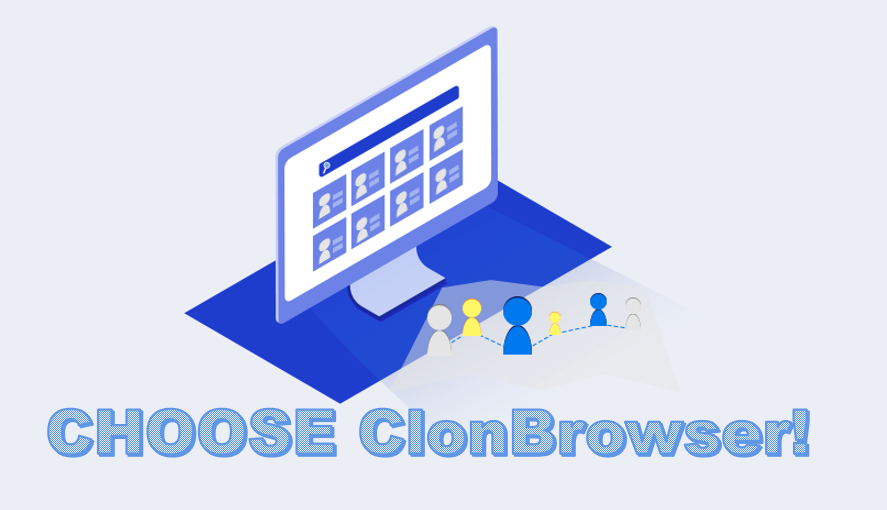
choose clonbrowser

The ClonBrowser enables you to operate safely with multiple accounts. ClonBrowser replaces several computers with a virtual browser to create a completely independent virtual browsing environment for you.

Cookies, local storage, and other cache files for each browser file are completely isolated, and no information can be leaked from one browser profile to other. You don’t have to worry that cookies will betray you when you manage multiple Amazon accounts! It allows you to use anyone computer to simulate hundreds of thousands of new independent and unique computers to manage all your store accounts.

ClonBrowser handles browser fingerprints in the most original way, allowing websites to read “mask fingerprints” that are different from your real fingerprint, instead of blocking websites from reading any fingerprints at all.

ClonBrowser also has a powerful agent integration! The browser supports proxy protocols such as HTTP, HTTPS, Socks5, and ShadowSocks. In ClonBrowser, you can also set up any proxy you want and change IP addresses to prevent multiple accounts from being associated with each other on the Amazon platform. Whether Luminati or Oxylabs, here are nine agents that can help you!

In addition, sharing browser profiles allows multiple teams to share virtual browsers on different devices and manage your store together.

ClonBrowser has already helped more than 200,000 stores stay away from account correlation!

https://admin.clonbrowser.net/wp-content/uploads/2021/09/account-correlation.jpg 509 780 Jolian https://admin.clonbrowser.net/wp-content/uploads/2025/05/ClonBrowser-zh-w.png Jolian2021-09-18 10:19:332024-02-29 15:30:29The Best way to create multiple Amazon accounts!
browser fingerprints bothered you a lot

MultiLogin Vs Kameleo? | The best Gologin alternative

09/17/2021/in Account Management, All Articles /by Jolian

Why do you need an anti-fingerprint browser?

“Let me tell you what kind of man you are. Don’t ask me how I know. I know you, though I don’t know who you are.”

Many of us feel this way when using a browser. Browsers know so much about your tastes and choices that they can make you feel like your privacy is being violated all the time. In fact, that’s what browser fingerprints do.

With big data, tech companies create a general picture of you and push information to your liking. For example, if you browse a product on a website and learn about it, you don’t place an order or even log in. When you visited other websites on the same computer a few days later, you will find many ads for similar products.

Browser fingerprints could be even more dangerous for you in business! If you have multiple accounts on a sales platform, and you use those accounts to increase sales and exposure, then even if you clear cookies, local caches, restart routers, and even use VPNs when switching accounts, you think you’ve been careful. But administrators can still know from browser fingerprints that the same person is operating multiple accounts behind the scenes, leading to penalties or even suspensions.

browser fingerprints bothered you a lot


Whether you use a browser for your daily needs or to run your own business, I’m sure browser fingerprints have bothered you a lot.

So congratulations! Now you’ve found an article that can help you solve your browser fingerprint problem! In this article, we’ll take you closer to browser fingerprints and recommend you an anti-fingerprint browser which is the best alternative to Gologin!


What is an anti-fingerprint browser?

Browser fingerprints are a way of tracking Web browsers through the configuration and settings information that is visible to a Web site. Browser fingerprints, like fingerprints on our hands, are recognizable. Browser fingerprints identify browsers.

Fingerprints on the human hand are unique because each fingerprint has a unique pattern. The pattern of each person’s fingerprint creates its own unique characteristics. The same goes for browser fingerprints, which contain highly identifiable information from the browser. This unique information could be UA, time zone, geographic location, or the language you speak. Using browser information to compute a result that can be considered as the browser’s fingerprint.

Since fingerprint tracking exists in browsers, anti-fingerprint tracking is born. Anti-fingerprinting is basically destroying the browser’s fingerprint image. The anti-fingerprint browser is dedicated to this activity, providing users with a separate browsing platform, allowing each user on the platform to generate a different fingerprint.

The anti-fingerprint browser provides a real, reliable navigation platform that allows users to continue using plug-ins and cookies without forming a real fingerprint.

how does the anti-fingerprint browser break down fingerprint tracking?

In fact, anti-browser fingerprint tracking only needs to break the above three features of fingerprint tracking:

  • Deterministic: However, there’s currently no way to get two browsing platforms to create exactly the same fingerprint.
  • Accessibility: You can use various browser settings or plug-ins in your browser to slow down tracks, but in this way, you may not be able to use cookies and JavaScript and affect your experience.
  • Stability: Researcher Pierre Laprix, from INRIA Rennes University in France, came up with a solution that allows users to build a dynamic browsing platform that creates a different fingerprint each time they visit the web – which is what most anti-fingerprint browsers currently do.

The focus of this approach is on a prototype system called Blink. It uses virtualization and modular architectures to automatically combine and reconfigure different levels of software components, randomly generate browsing environments, and generate random fingerprints for each browsing session to blur the fingerprints of the actual device.

Have you been touched by the above introduction and want to choose the best anti-finger browser for yourself?

Many users choose to use Gologin. Gologin allows users to create as many profiles as they want, allowing you to tweak browser parameters while storing data in the cloud. Gologin hides the data to protect it. Gologin has also created its own private browser, Orbita, to allow you to browse anonymously. Orbita makes it impossible for sites to track your identity.

But now users have more options, and searches for “Gologin’s Alternative” are on the rise. Among the answers given by the Internet, MultiLogin and Kameleo are starting to make their way. Here’s a quick comparison of the two anti-fingerprint browsers.


Some Gologin alternatives

MultiLogin VS Kameleo

1) MultiLogin

MultiLogin is one of the most popular anti-fingerprint browsers on the market. In addition to controlling the browser fingerprint, which is the basic function of every fingerprint browser, it has an additional function. For example, to manage multiple browser files, it is easy to manage each virtual browser through the UI, without having to start up a virtual machine or VPS.

MultiLogin allows you to collaborate as a team and build business workloads. You can assign permissions to employees or keep accounts up to date through data synchronization. Multilogin’s virtual browser configuration can be shared with other users, enabling collaboration between different teams.

Developing network automation is key to Multilogin. The automation of the browser includes automatic account registration, automatic posting, advertising management, and other functions.

In terms of price, Multilogin has two solutions. The first is a teamwork solution, which costs €99, €199, €399. The main difference between these prices is whether the API is used for automation. But don’t worry, either of the above schemes can save the browser profile, which you can share with other teams. The second is Multilogin’s automation plan, which costs €200 a month for automation S and provides technical support.

However, users often ask online questions about Multilogin being stuck or unable to open the browser, which may indicate that the stability of this anti-fingerprint browser may fluctuate.

2) Kameleo

Kameleo also changes your IP address and browser fingerprint to make you invisible on the Internet. Kameleo has developed mobile applications that allow you to configure files on both Android and iOS. Like Multilogin, it provides an API.

Multilogin is more team-oriented. Because of synchronization, information is stored in the server cloud. But many people prefer to keep their information locally for privacy reasons, and Kameleo is a good choice. Because all of Kameleo’s configuration is stored on the local computer, except for verification at login.

price between multilogin and kameleo

After talking about performance, let’s look at the price again. If you pay once a month, Kameleon offers three price options: €59, €89, and €199. The €89 service provides additional support for cookie import and export and mobile configuration, while the €199 service provides additional API.


The best Gologin alternative!

There’s no reason why I don’t strongly recommend ClonBrowser to you when it comes to alternatives that are as good as Gologin!

ClonBrowser has always been committed to providing users with an absolutely secure, absolutely private browser and browsing environment! We value your privacy and account security more than any private browser!

With ClonBrowser, you can manage thousands of computers at once. They do not interfere in their own dynamic virtual environment. “Mask fingerprint” prevents any website from reading your fingerprint, you never have to worry about being tracked by browser fingerprints, and your cookies can be well managed.

With ClonBrowser, you’ll find that teamwork and business processes have never been easier! Shared transfer of profile makes teamwork smoother!

Want the most complete set of specs? No problem! Here, you can easily set all the necessary parameters, such as User-agent, HTTP Headers, js. Navigators, plug-ins, MymeTypes, WebGL, and geolocation. Here, you can also enjoy the most comprehensive agent!

With the help of this anti-fingerprint private browser, you will no longer experience the problems of multiple accounts being blocked, the unsafe account environment, and the wrong feedback data of competing products. At the same time, we reject regional blockade and discrimination!

ClonBrowser,the best gologin alternative

ClonBrowser has four plans, and the lowest price is $10 a month! In addition to the services in the scheme, all our plans provide the following services:

  • Unlimited configuration file creation, modification, and deletion
  • Synchronize browser profiles across all of your devices
  • Unlimited encrypted cloud storage
  • All browser fingerprint control management functions
  • Update the latest browser fingerprint every minute
  • Real-time detection of IP location
  • Browser configuration file classification and management tools
  • Integration with the hottest agency vendors

Start your seven-day free trial now! We are happy to serve you!

https://admin.clonbrowser.net/wp-content/uploads/2021/09/browser-fingerprints-bothered-you-a-lot.jpg 579 889 Jolian https://admin.clonbrowser.net/wp-content/uploads/2025/05/ClonBrowser-zh-w.png Jolian2021-09-17 09:07:062024-02-29 15:30:46MultiLogin Vs Kameleo? | The best Gologin alternative
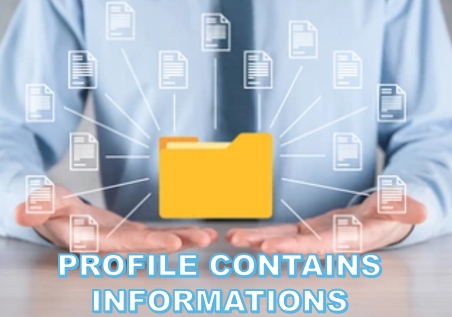
profile contains many informations

How to create multiple profiles in Chrome?

09/10/2021/in Account Management, All Articles /by Jolian

Why do you need multiple profiles?

Whether it’s for convenience or privacy, there are many users who want to have a “divorce” – to synchronize multiple profiles, browse through different accounts, and prevent the Internet from accessing all cookies and protecting their complete personal information. Synchronization is also possible. It can also synchronize operations.

profile

For the average user, a single profile in the browser is enough for daily life. But do you realize that as a single profile continues to be used and cookies and browser fingerprints are gradually formed, and your secret will no longer be a secret, it belongs to the Internet?

If you’re not concerned about the above, is there one of the following?

Now more and more people have multiple accounts at the same time. You log on and off every day, and can’t afford to be bothered. You have to rack your brains to get both accounts online at the same time. For example, if you open a second browser window as a private window, but you accidentally close it, all records will be lost and cannot be recovered from where you left off. Alternatively, you can use different Web browsers to log in to a different account with each browser and keep more than one browser open at the same time.

As you can see above, multiple profiles are of great business value and are far more important to businesses than the average users.

This article will take you closer to profiles, give you a better understanding of profiles, and teach you how to set up multiple profiles in Chrome. And the end will bring you unexpected surprise!


Everything you need to know about multiple profiles

What is a profile?

In computer science, the profile is a computer file that allows you to configure parameters and initial settings for some computer programs. Commonly, the profile is a file that sets different settings for different objects.

The configuration file contains information about the program that needs to be configured at startup. The profile contains information that you need to configure the program when it starts. For example, when you start a new software installation, a control appears asking if you want to check the check box to remember the secret code, log in automatically the next time the program starts, and this information is written to the program’s profile. The next time the program starts, it automatically reads the profile.

profile contains many informations

Types of profile:

  • Local user profile: When a user logs on to the computer for the first time, this local user profile is stored on the computer’s local hard drive. Any changes made to the local user profile will only take effect on the computer on which the changes are made.
  • Roaming user profile: A copy of a local profile is copied and stored on a server share on the network. Each time a user logs on to any computer on the network, the file is downloaded and any changes to the roaming user profile are synchronized with a copy of the server when the user logs off. Roaming user profiles require this computer to be a member of a Windows NT domain or Active Directory.
  • Enforce user profiles: A special type of profile that administrators can use to specify special settings for users. Only the system administrator can force user profiles to be modified. When a user logs out of the system, the changes that the user made to the desktop are lost.

The fourth type of profile is a temporary profile that appears only if an error prevents the user profile from being loaded. A temporary profile allows the user to log in and correct any configuration that might cause the profile to fail to load. Temporary profiles are deleted at the end of each session. Changes made to desktop settings and files are lost when you log out.

Web browsers store your personal data (bookmarks, history, settings, extensions, etc.) in a profile. If multiple files can be configured in a browser, the browser profiles are completely independent of each other and are not accessible to each other. Profiles are isolated.

It can be understood that each browser profile is a different computer. If you reconnect and switch between different IPs, it’s different computers in different regions.


How to create multiple profiles in Chrome?

Popular Web browsers such as Chrome, Firefox, Internet Explorer, and others can set multiple profiles. A user multi-profile allows you to open a specific browser window with a specific identity, regardless of the overall browser performance. This feature allows users to have different accounts at the same time and use them to open and operate different windows. The bookmark elements are bound to the current user account, so each user account can be accessed independently, using a separate identity, rather than having to log in as a separate user at the operating system level.

So how do you use multiple profiles in Chrome?

1) Create your first user profile

Before you have multiple user profiles, you need to create the first profile.

First, find the character icon on the toolbar in the upper right corner. Click it and then click the “Add” option. Type a name in the window that appears, and select your favorite picture as the user profile picture. Finally, click the “Add” button to complete the profile.

You can choose to log in using your Google account. Click “already a Chrome user?” and log in from the link below the “Start” button. You will then provide Chrome with your email account and click “Next”. After you enter your password, Chrome will log in to your account.

After you log in to your account, you may be asked if you want to synchronize. If you enable sync, data such as history, bookmarks, and ciphers will be synchronized. If you do not want to use synchronization, click “Cancel” to disable synchronization.

2) Use different user profiles

Since Chrome supports multiple user profiles, you’re smart enough to just repeat the previous steps to create multiple user profiles!

After adding the profile, click the profile again in the upper right corner of your browser again to enter the profile panel. You will see all the accounts you have added. By switching different user profiles here, you can avoid the trouble of logging out repeatedly and quickly enter another account. However, please note that the new account you select will open in a new window in the Chrome browser.

3) Delete user profile

When you no longer need a user profile, click the “Logout” button from the profile interface, the next page will jump to the Google page. Select “Delete Account” under the account to log off.

But your profiles are still stored in Chrome. Click on the profile picture in the upper right corner, and then click on the “Settings” icon. In the pop-up window, you will see all the profiles. Click on the three vertical dots in the upper right corner of the profile you want to delete, and select “Delete” to remove all profiles from Chrome.

What you need to know is that the first user to log in to Chrome browser is the primary user, and all other accounts to log in later are secondary users. Accounts are isolated from each other.


The best choice to create multiple profiles!

In fact, regardless of whether the browser you choose supports multiple profiles, its capabilities are limited. The Chrome browser only protects you from cookies, but your browser fingerprint hasn’t changed.

You can actually have a better solution! A virtual browser is the best choice for you!

Virtual browsers allow you to create multiple virtual browsers, each with a highly independent operating environment within the same program. In a separate environment, you can have completely separate fingerprints, cookies, and so on, and you can even have the IP address you want.

Virtual browsers give you a separate environment where you can manage multiple accounts on the same platform while giving you control over your fingerprints.

If you are desperate to experience such a browser, then ClonBrowser is your best choice!

ClonBrowser uses virtual browser profile technology to give your computer the ability to separate your computer as if you are managing thousands of computers at once. Each browsing profile created in ClonBrowser is a completely separate virtual browsing environment. Cookies, local storage, and other cache files are completely isolated and cannot leak between profiles.

At the same time, it becomes easier for you to set up business processes in ClonBrowser. Using the profile sharing and transfer functions, you can easily control team members’ access to the browser profiles.

ClonBrowser

Are you ready to use it?

Don’t waste another minute! Use ClonBrowser to do more things and start saving more time!

https://admin.clonbrowser.net/wp-content/uploads/2021/09/profile-contains-many-informations-1.jpg 317 452 Jolian https://admin.clonbrowser.net/wp-content/uploads/2025/05/ClonBrowser-zh-w.png Jolian2021-09-10 17:15:382024-02-29 15:31:05How to create multiple profiles in Chrome?
clonbrowser

The Best Virtual Browser In 2021

08/27/2021/in Account Management, All Articles /by Jolian

What Is A Virtual Browser?

Virtual browser is running in a virtual environment web browser. With different local browsers, virtual browsers the cookie, file, local storage, browsing history, and other information are kept in a virtual configuration.

In this way, the virtual browser has an independent network environment and is completely separated from the local system.

The virtual browser can help users resolve browser compatibility issues, more convenient to use than the native browser.

virtual browser


Virtual browsers generally have two access modes

  • Anonymous mode. Also known as privacy mode or in stealth mode, when browsing the end of the session is closed, all the cookies, settings, browsing history will be deleted.
  • Authentication mode. In this mode, all settings, cookies, and browsing history will be saved.

The virtual browser has a separate environment that can help us avoid a lot of network risk.

For example, rogue software, marketing advertisements, viruses, Trojan horse programs, etc.

Virtual browser for people very helpful. Whether used to protect personal privacy, or a team to undertake the work. Virtual browsers are undoubtedly more efficient.

Today, the virtual browser has been accepted by most of the team and applied to various fields of work. The related extensions and support of virtual browsers are also constantly enriched.

Compared with the traditional remote connection server to obtain an independent browser environment, the virtual browser solution is simpler. Reducing the threshold for the use of ordinary people, to spend more time on business research.

Virtual Browser Use Cases

Web browsing security protection

This is a basic scenario. Virtual browsers can well resist malicious attacks in daily network access.

Because the virtual browser does not expose the user’s real information, but randomly generates new browser information.

When a user accesses the Internet, he uses an alternative identity, and this identity is also true and valid. Malicious behavior can only see the user’s stand-in, and cannot directly harm the user.

E-commerce multi-store management

If you are an e-commerce practitioner, then you must have run into problems while managing multiple stores. When you have two or more stores that need to operate at the same time, you not only face management confusion but more importantly, how to make the e-commerce platform allow your behavior.

Under normal circumstances, if we are free to switch to manage our stores in the same browser environment, it is very easy to be noted that electronic business platform, and for our punishment.

The role of a virtual browser is to help you separate these shops. There will be no link between them. For e-commerce platforms, they are independently run shops.

Social media marketing

In the work of social media marketing, accounts on various social media platforms are very important resources. If you use more than two social media accounts to operate, your account is likely to be warned or even banned by the social media platform. So, multi-account management has been social media marketing is a difficult problem.

The virtual browser can solve this problem well. Through the independent system environment of the virtual browser, a separate network environment can be configured for each account. In this way, each account can exist independently and will not be recognized as a risk account by social media platforms.

virtual browser use cases


Web crawl data

Data crawling on web pages can also use virtual browsers to improve efficiency. In the destination site, we want to crawl in, there will be some setup anti-crawler. Most of these programs use browser identification, network identification, etc. to determine whether the request is from the same source. Using a virtual browser to dynamically switch can effectively confuse the target website and achieve a large amount of crawling and analysis work.

Marketing advertising verification

Whether or keyword advertising division to optimize the flow of information ad optimization division, will have such problems. The location, crowd, equipment, and other information targeted by the advertisements placed are completely different from your own.

Ad optimization division can not see the effect of its own ad serving, you can not measure the quality of advertising.

Virtual browsers can use technology to change information such as geographic location, crowd attributes, and equipment. Help the ad optimizer see the display effect of the ad, so as to judge the quality of the ad, optimize the ad style, and delete the damaged ad.

Virtual Browser Recommendation

ClonBrowser

Clonbrowser has mature virtual browser technology, which allows you to solve all problems with one computer.

You can create an unlimited number of completely independent virtual browser environments Clonbrowser in. Cookie, local storage, cache files are completely isolated and do not leak between each browser configuration.

You can also modify all necessary parameters according to your own needs.

For example: Useragent, HTTP headers, js.navigator, Plugins, MymeTypes, WebGL, Geoposition.

The function of Clonbrowser basically satisfies the use of various teams. It is the best browser tool for practitioners in marketing, advertising, technology, etc.

clonbrowser

https://admin.clonbrowser.net/wp-content/uploads/2021/08/clonbrowser.jpg 694 1141 Jolian https://admin.clonbrowser.net/wp-content/uploads/2025/05/ClonBrowser-zh-w.png Jolian2021-08-27 09:40:332024-02-29 15:31:24The Best Virtual Browser In 2021
Register multiple social accounts

5 ways to set multiple IP addresses on one computer

07/30/2021/in Account Management, All Articles /by Jolian

When we register some Internet applications, the following problems will appear.

1. Need to register a lot of email or social accounts for a company or personal business.

2. Need long-term operation and maintenance of many email or social accounts.

Register multiple social accounts

The above two business scenarios are referred to as registration and operation respectively.

Both of these two business scenarios require a basic condition, multiple stable and reliable IPs.

Why do you need multiple IP addresses?

Why do you need multiple IP addresses

First of all, IP will be tracked and monitored during registration of many network services. So as to achieve some risk control conditions.

The most basic thing is to not allow one IP to register multiple accounts within a certain time frame.

This kind of regulation sometimes affects some of our normal business scenarios and multi-account requirements, So we need to find a way by ourselves.

So how to set multiple IP addresses on one computer?

  • Use the local dial-up network of the PC computer to dynamically change the IP (Only one IP can be obtained at the same time)
  • Use mobile phone 4/5G network hotspots to dynamically change IP address. (Only one IP can be obtained at the same time)
  • Use general VPN/proxy technology to dynamically change IP address. (Only one IP can be obtained at the same time)
  • Use general proxy technology and use IP address  (Only one IP can be obtained at the same time)
  • Use professional software, dynamic/static use of IP addresses. (Multiple IPs can be obtained at the same time)

how to set multiple IP addresses on one computer

The first three methods can be used for registration business scenarios. The latter two methods can be used in two business scenarios, registration, and operation because operating multiple accounts requires static and stable IP addresses.

Of course, in addition to IP addresses, operating multiple accounts requires a stable device environment.

Detailed analysis

1. Use the local dial-up network of the PC computer to dynamically change the IP and PPPoE

PPPoE is also called broadband dial-up Internet access. Dial-up broadband access is currently the most widely used broadband access method.

The operator assigns broadband user names and passwords and authenticates users through the user names and passwords. If the computer is directly connected to broadband, you need to perform broadband PPPoE dial-up on the computer to access the Internet.

The broadband account and password for PPPoE Internet access are all assigned by the operator. After the dial-up is successful, you will be dynamically assigned a public IP address, and we can query the IP information through Google. You can see the relevant properties of the IP.

We disconnect and reconnect, if we find that the IP address has changed, then we get a new IP address. If the IP address has not changed, we can repeat this process.

Of course, the IP addresses of the public network are not infinite, depending on the number of IP pools of the provider. Every time we use an IP address, we can record it with Excel.

2. Use the mobile phone 4/5G network hotspot to dynamically change the IP address

In fact, this method is similar to the first method, except that we change the IP address by constantly opening and closing the 4/5G network through the mobile device.
After each operation, we have to use Google to check whether the IP address has changed. The number of IPs that can be replaced also depends on the provider’s IP pool.

3. Use general VPN/proxy technology to dynamically change IP address

The number of IP replacements for VPN and proxy technologies also depends on the provider’s IP pool. Generally less. we can choose some large VPN providers that are richer in IP resources.

For example, ExpressVPN, Nord VPN, ProtonVPN, etc.

The proxy is mostly HTTP and Socks. Divided into two kinds of static IP and dynamic IP. Large service providers can generally provide both. The number of IP is also very rich.

For example, Oxylabs, Smartproxy, BrightData, etc.

4. Use general proxy technology, static use of IP address.

Above we have introduced some proxy service providers that can provide static proxy IP technology. In addition, we can also deploy our own proxy server to obtain a static IP address through self-built means.

The most economical way is to use the current cloud technology. For example, we can use AWS cloud, Microsoft cloud, Google cloud. Build proxy software that supports HTTP and Socks protocols on it.

5. Use professional software, use IP address dynamically/statically

This is the best solution, because, in actual business scenarios, we may need multiple people to use it at the same time. And besides paying attention to the IP address, the device environment cannot be ignored.

It should be noted that no matter how many IP addresses we change on a computer, the device itself will still be under risk control.

So in general, we will cooperate with the virtual machine, modify the hardware parameters, browser information, or change the system version (mobile phone) to change the device information.
Among these technologies, the browser implementation method is the simplest and most easily accepted by people. Together with the third and fourth agency methods, an effective, low-cost, and flexible solution is formed.

clonbrowser virtual browser

ClonBrowser achieves a privacy firewall by redefining the underlying technology of the browser and then cooperates with proxy network technology to form an effective solution.
In fact, there are still many application scenarios that can be extended.

For example e-commerce price comparison, social operations, e-commerce operations, advertising verification, SEO monitoring, brand protection, etc.

https://admin.clonbrowser.net/wp-content/uploads/2021/07/Register-multiple-social-accounts.jpg 800 1200 Jolian https://admin.clonbrowser.net/wp-content/uploads/2025/05/ClonBrowser-zh-w.png Jolian2021-07-30 10:55:042024-02-29 15:31:415 ways to set multiple IP addresses on one computer
Page 4 of 512345

英语

Let’s Talk

Services

  • Help Center
  • Official Blog
  • Pricing Strategy

Policies

  • Privacy Policy

Resources

  • Download Client

Contact Us

Telegram:@clonbrowser
Wechat: clonbrowser2022
clonbrowser
© 2019-2024 ClonBrowser CLOUND NEXUS ECOM SERVICE CO., Limited
津ICP备11001221号-24
Scroll to top