Updated | Window Synchronisation upgraded, more convenient window arrangement

ClonBrowser’s Browser Syncer has received a lot of enthusiastic feedback from users since it was launched in April to support both Windows and Mac versions. After receiving the feedback, we immediately analysed the users’ needs and tried to bring the best experience for them! As a result, the Browser Syncer has been updated! Optimised the way browser windows are arranged! Let’s take a look!

One-Click Arrangement

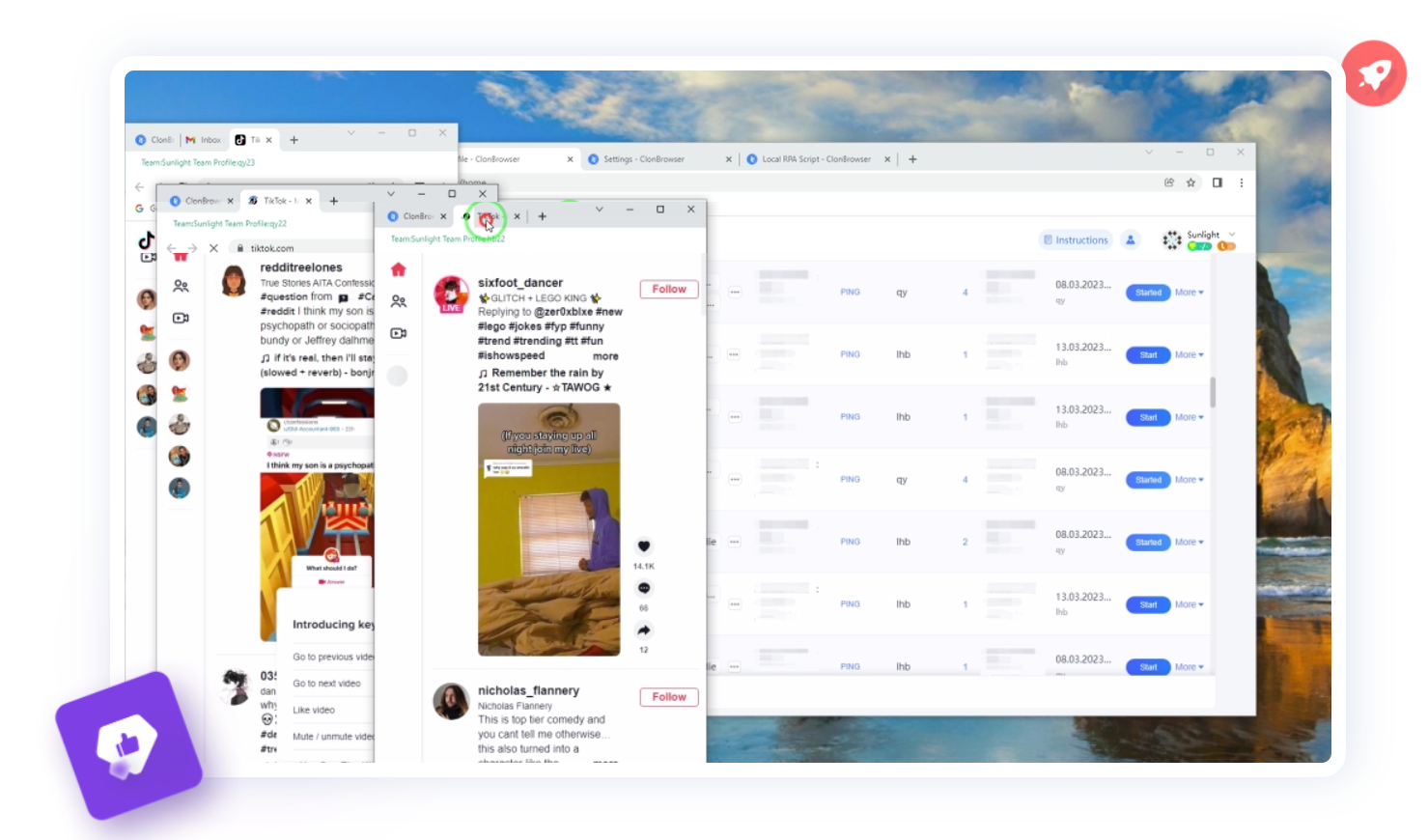
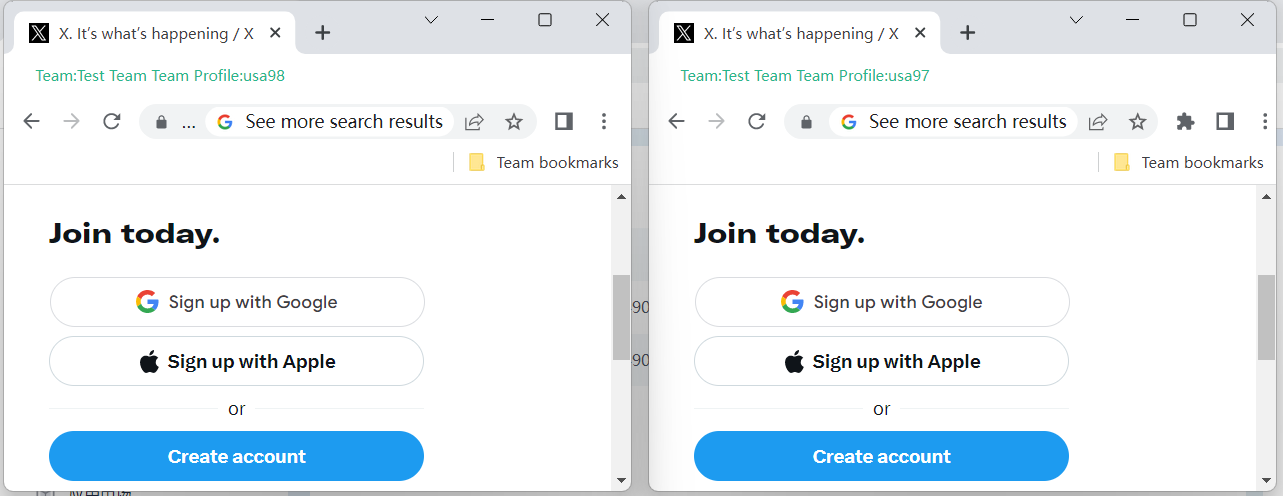
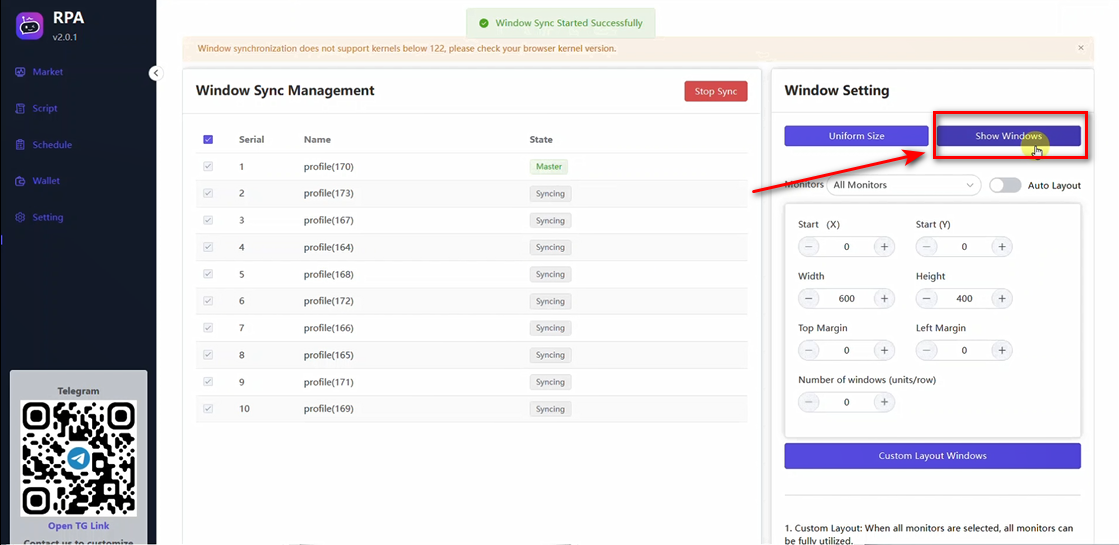
After selecting the opened browser, open the [Auto Layout], select the appropriate display size, click [Auto Layout Windows] to achieve one-click layout function. This function automatically arranges the windows on the display in the most suitable way.
Multiple Monitors Support

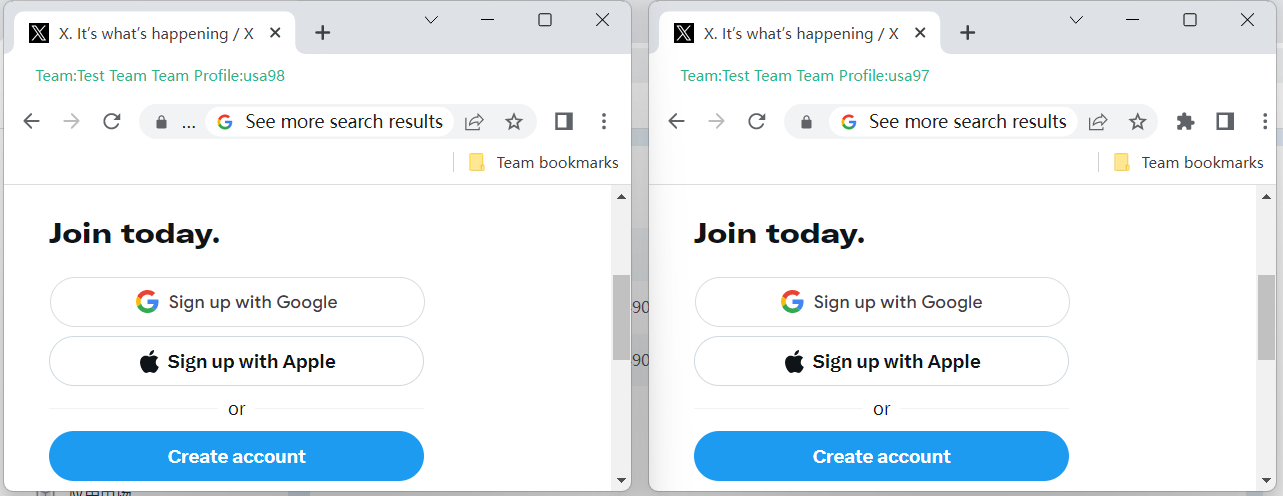
The old version of Browser Syncer can only be used in a fixed monitor, the function is optimised to allow windows to be displayed evenly in multiple monitors at the same time, giving users a better visual experience.
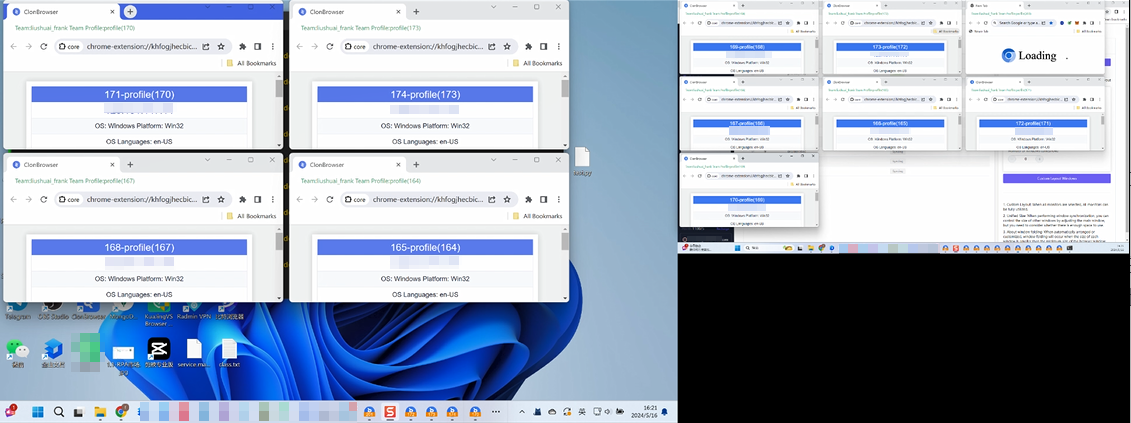
Adjustable window size during browser synchronisation

Browser windows can still be adjusted in the middle of synchronisation to ensure the continuity of user operations.
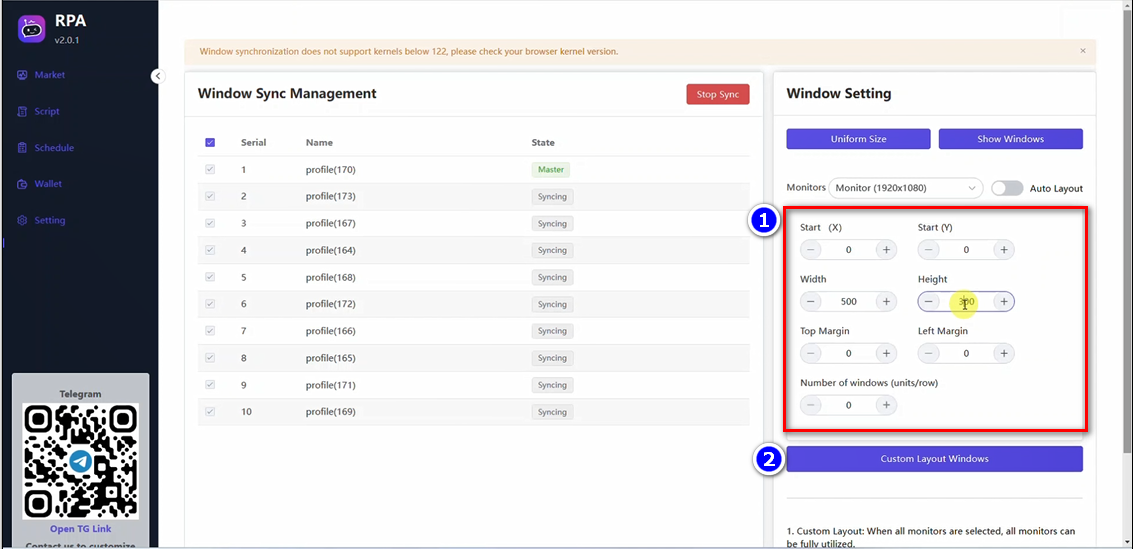
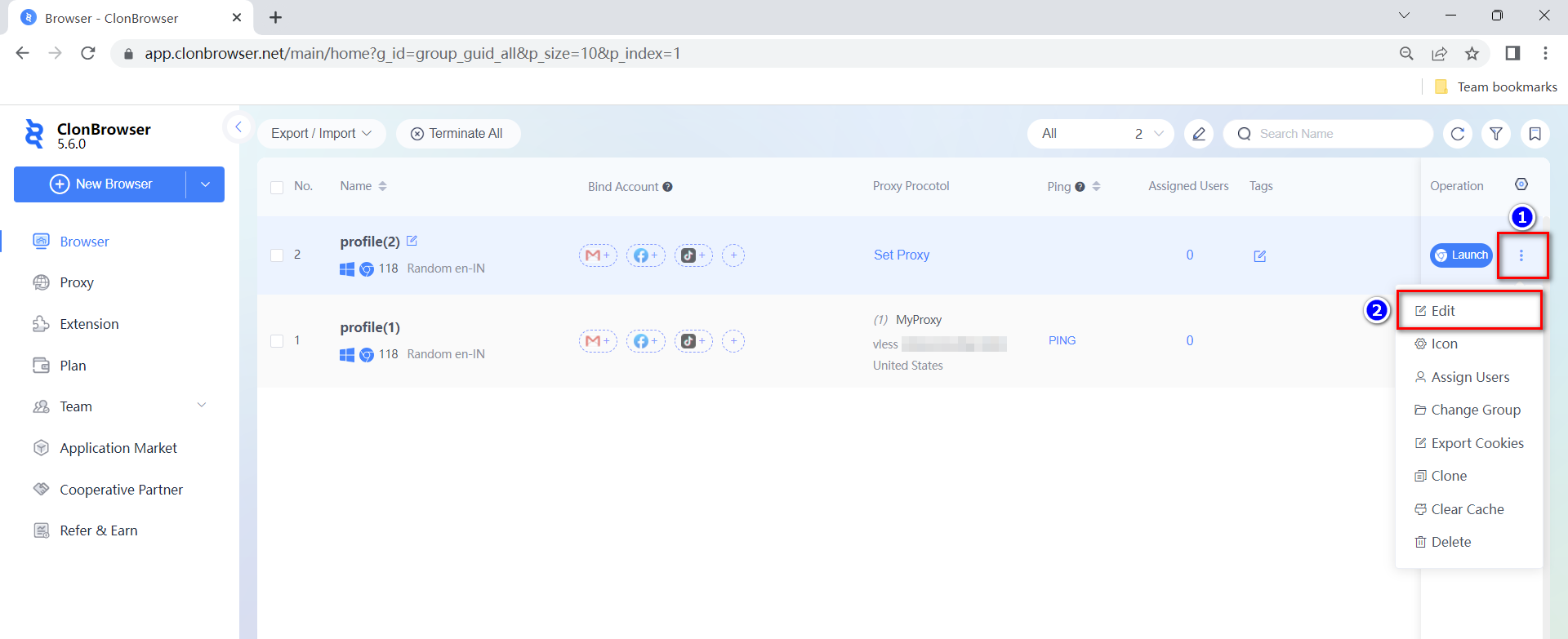
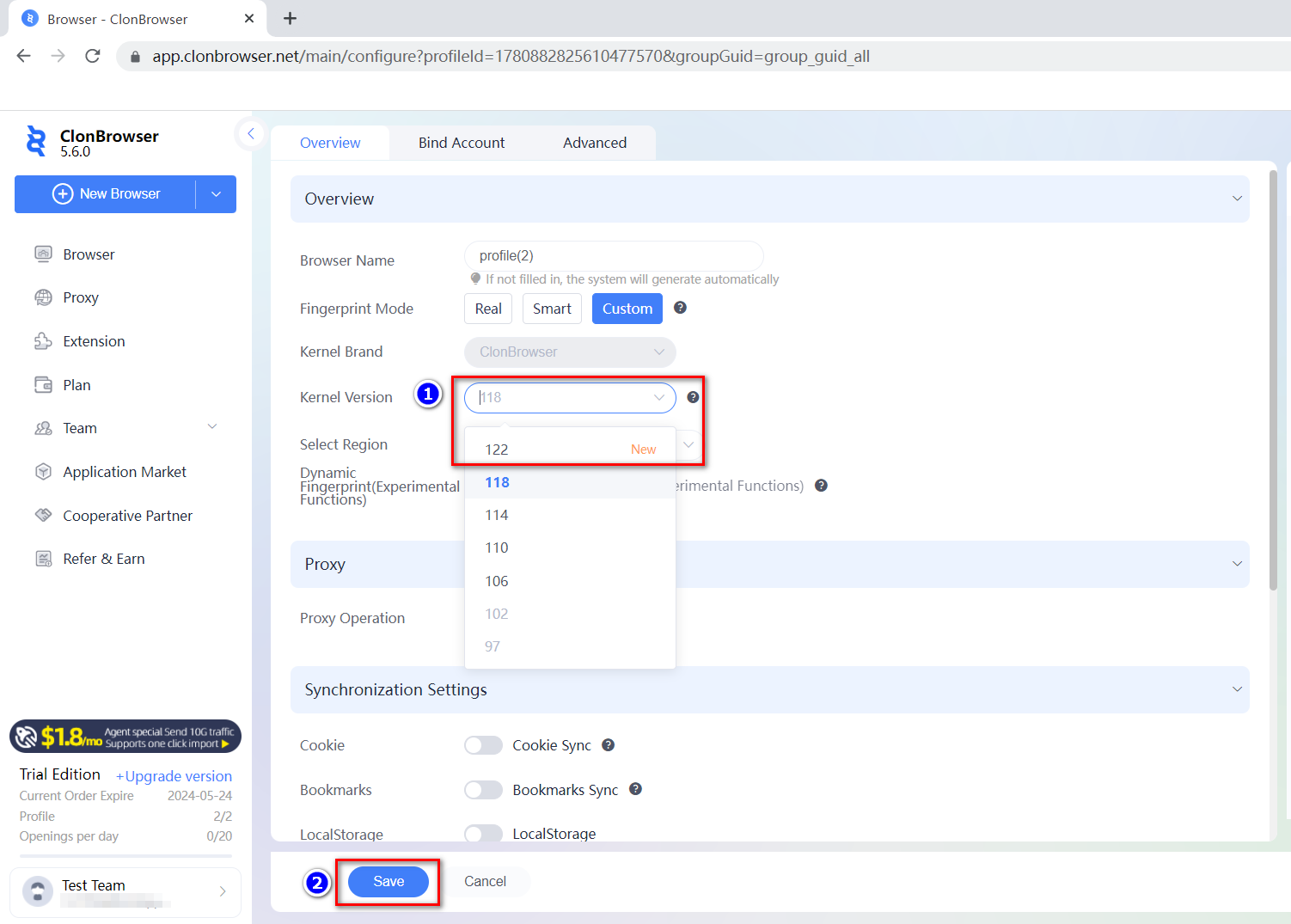
Note: This upgrade function only supports browsers with 122 or advanced kernel version. To set the kernel version of your browser, go to [Browser] page – rightmost function key of the list [Edit] – select the version. Save it to take effect.
If you encounter any problems in using ClonBrowser, or have more needs and ideas, please feel free to click the official customer service! We are looking forward to your feedback. Let’s make ClonBrowser more professional and easy to use!

ClonBrowser Web App Officially Launched: Secure and Efficient Multi-Account Management at Your Fingertips

In the digital age, an effective account management system has become indispensable for both enterprises and individuals. As a leader in anti-detection tools, ClonBrowser has always been committed to providing users with a secure and efficient browsing experience. Today, to meet the extensive demand for easier use of ClonBrowser, we are proud to announce the official launch of the ClonBrowser web version! This new platform allows users to log in directly through a web browser without the need to download any software, greatly enhancing the efficiency of managing and operating multiple accounts and boosting business growth.

ClonBrowser Web Version: Your Multi-Account Management Tool

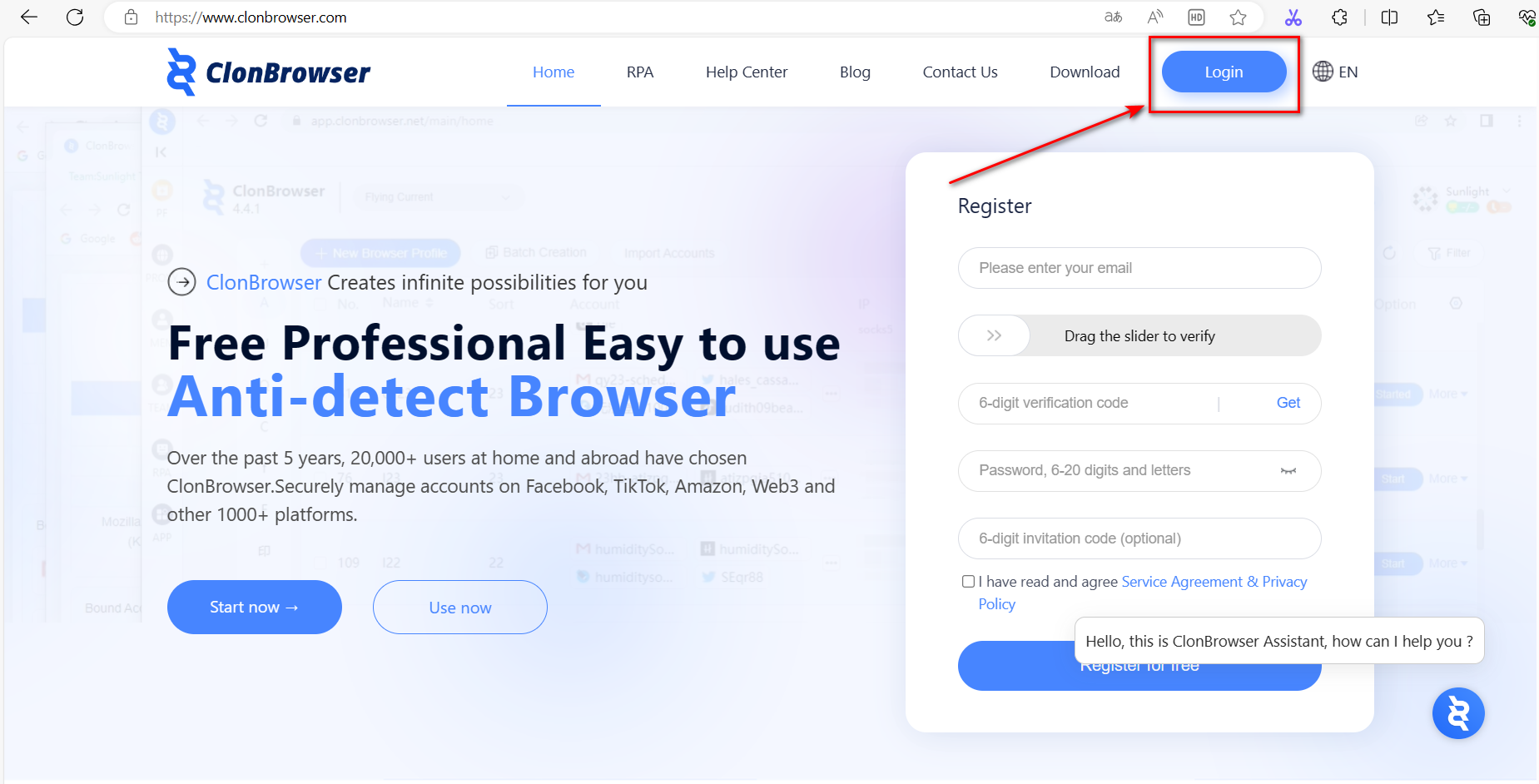
The launch of the ClonBrowser web version is based on the widespread need for a lighter user experience. Users simply need to visit the ClonBrowser official website and click the “Login” button in the top right corner to quickly access the web version. This is reducing the conditions and restrictions associated with managing multiple accounts.

The Convenience of Multi-Account Management

For professionals and small business owners who need to operate multiple accounts on social media, e-commerce, Web3, or other platforms simultaneously, the ClonBrowser web version can significantly simplify their daily operations. Here are some of the key features:

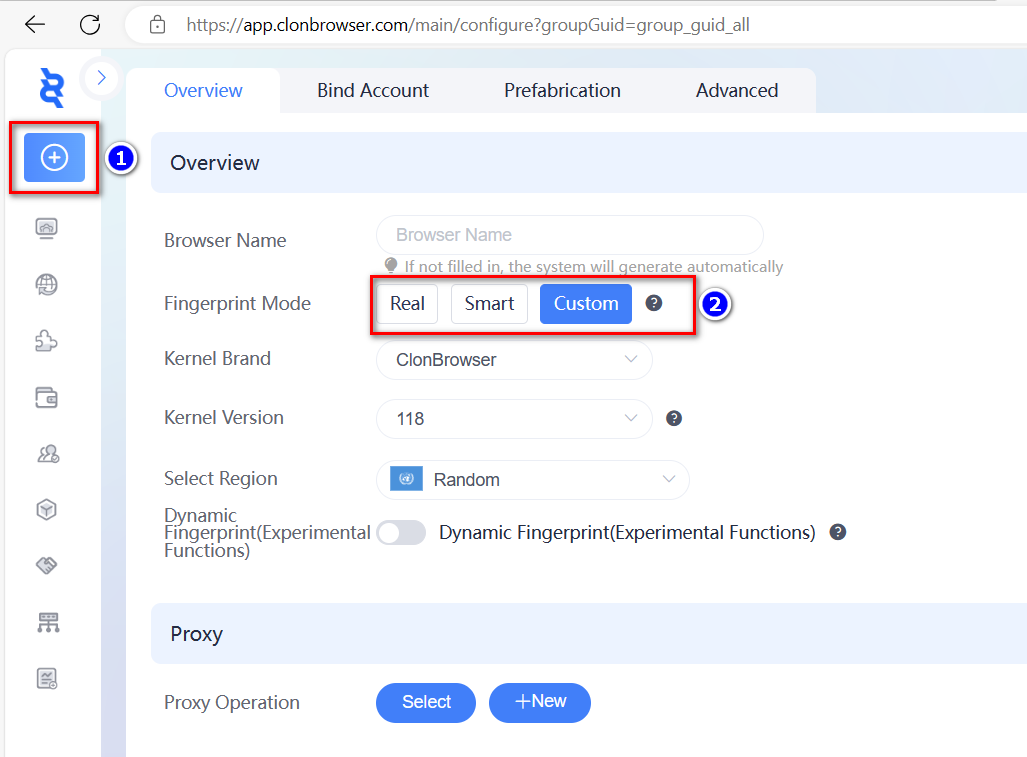
  • Rapid Creation of Browser Configurations: Depending on the business scenario, we offer three main fingerprint modes for users to choose and customize according to their needs. The Custom Mode is suitable for cross-border business operations such as e-commerce and social media marketing; the Smart Mode is designed for registering accounts on major platforms, bonus hunting, and big data scraping analysis; the Real Mode is ideal for withdrawals and payments on various platforms.

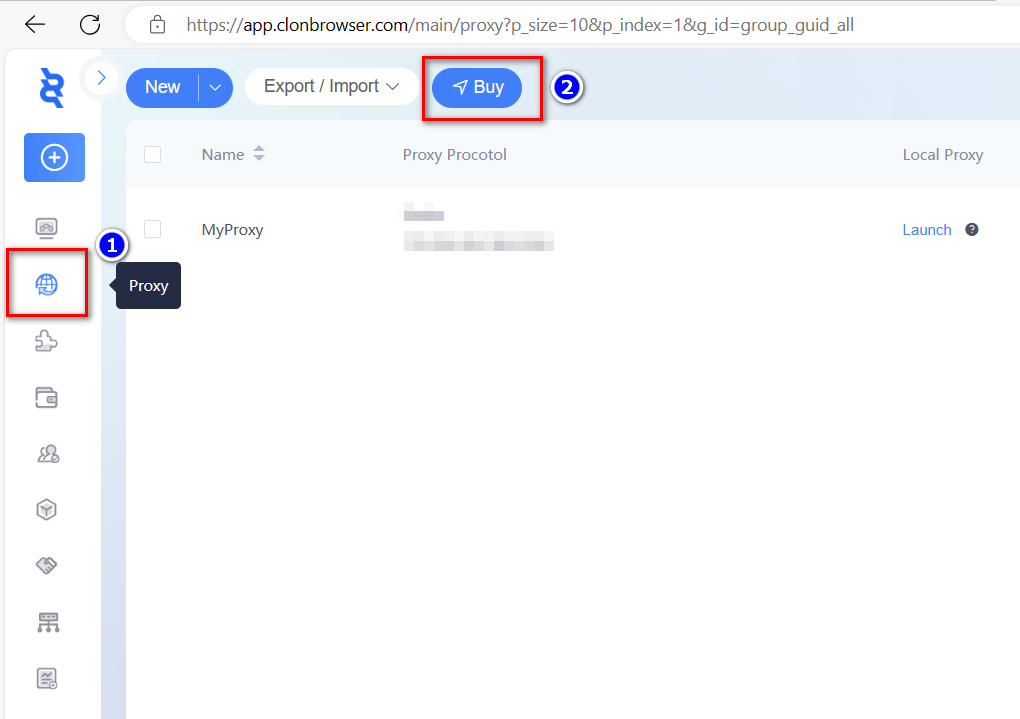
  • Convenient Proxy Purchase and Setup: With one click, link to IPRockets to purchase proxies, and then quickly add the proxy information to the browser profile, ensuring the anonymity and security of multi-account.
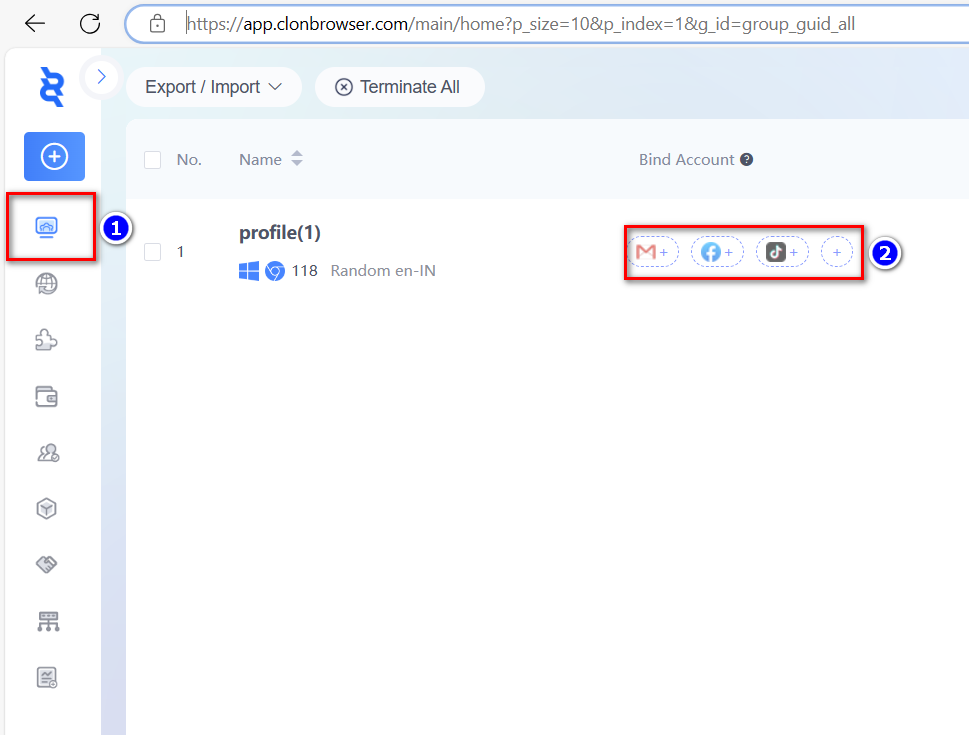
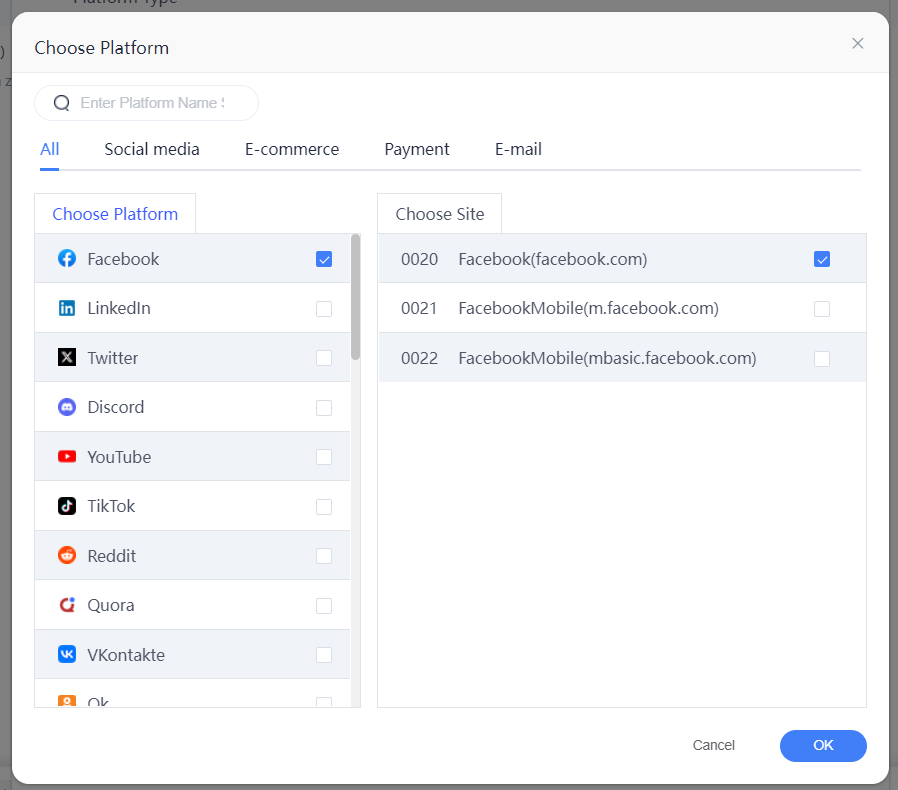
  • Timely Account Information Binding: ClonBrowser supports the rapid addition of massive platform accounts (including Facebook, TikTok, Amazon, and Web3), facilitating efficient account management.

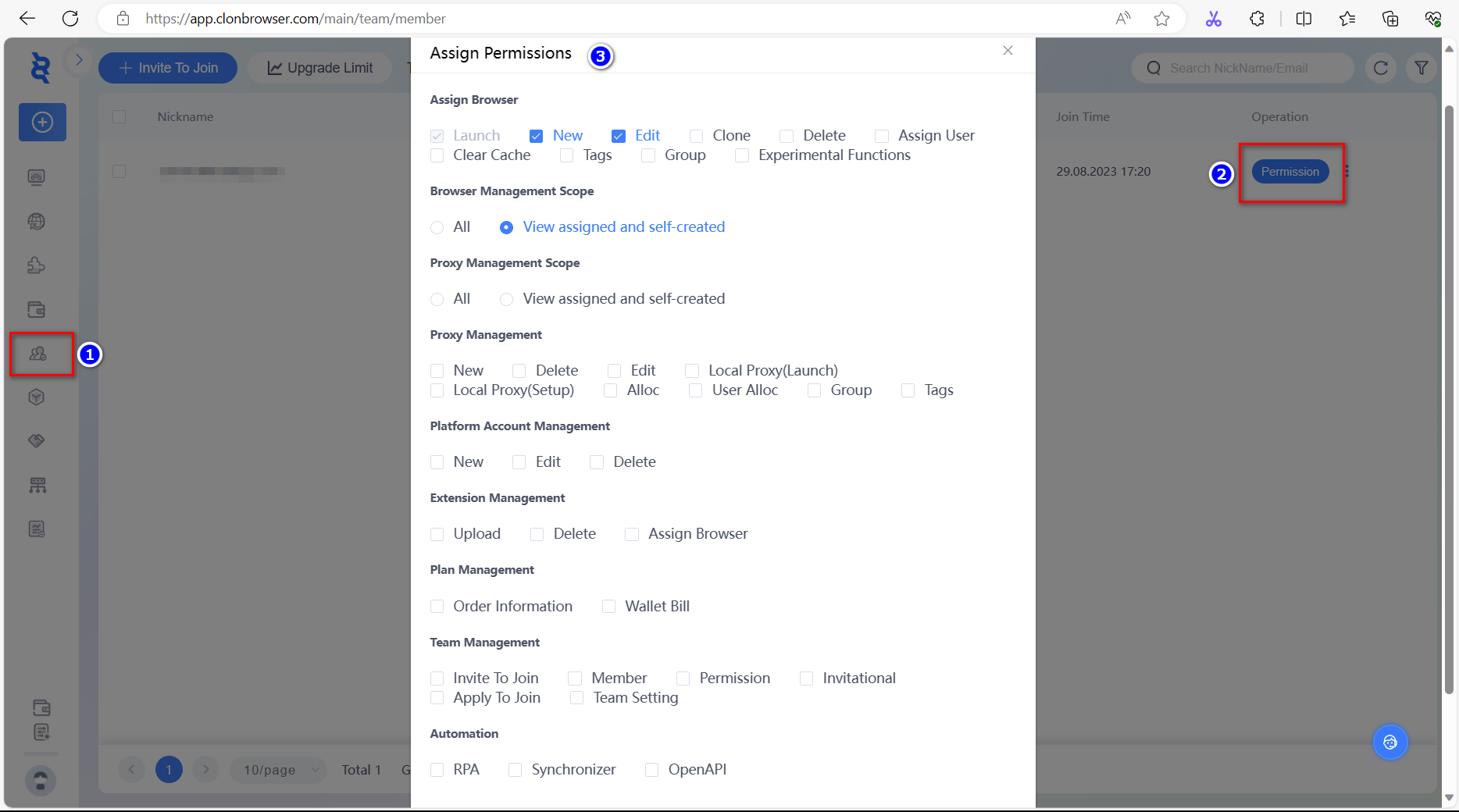
  • Team Management Features: Users can add team members, assign different operational permissions to enhance team collaboration efficiency, and at the same time, ensure the security of account assets.
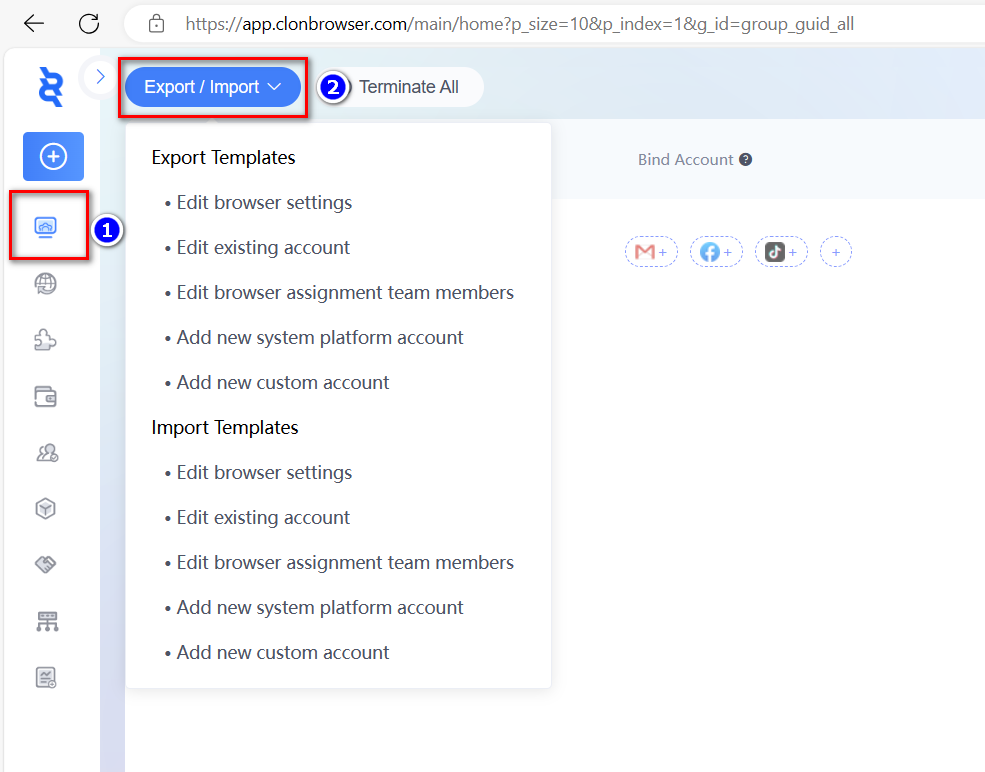
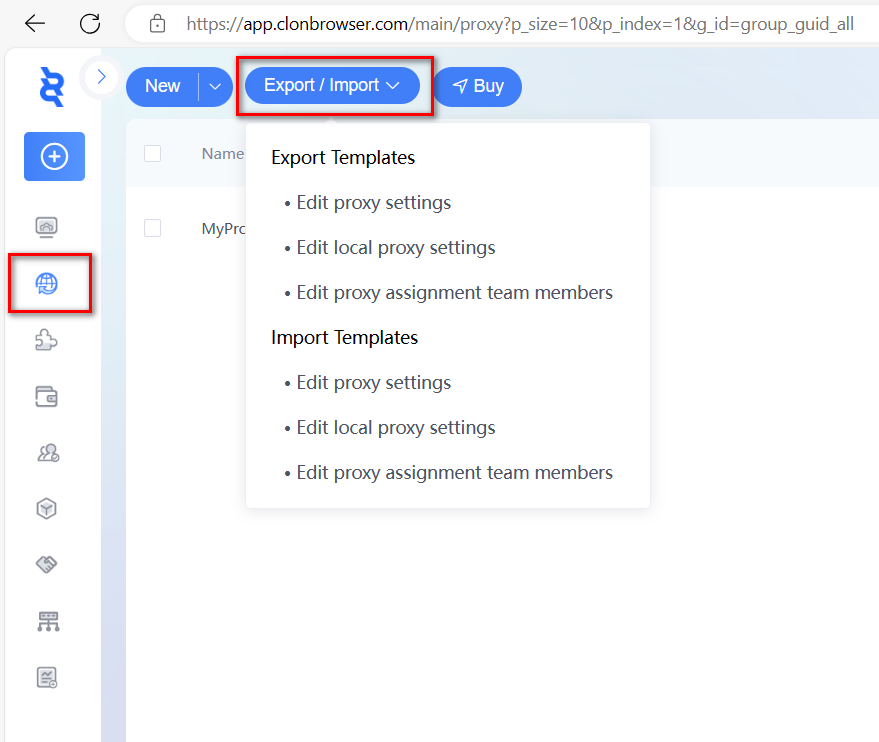
  • Efficient Batch Management Operations: Users can quickly complete a large number of settings (browser profiles, proxies, platform account bindings, permissions distribution) through the import and export function. Export an excel template, modify it, and upon re-importing the file, all settings will be synchronized to simplifying the step-by-step setup process.

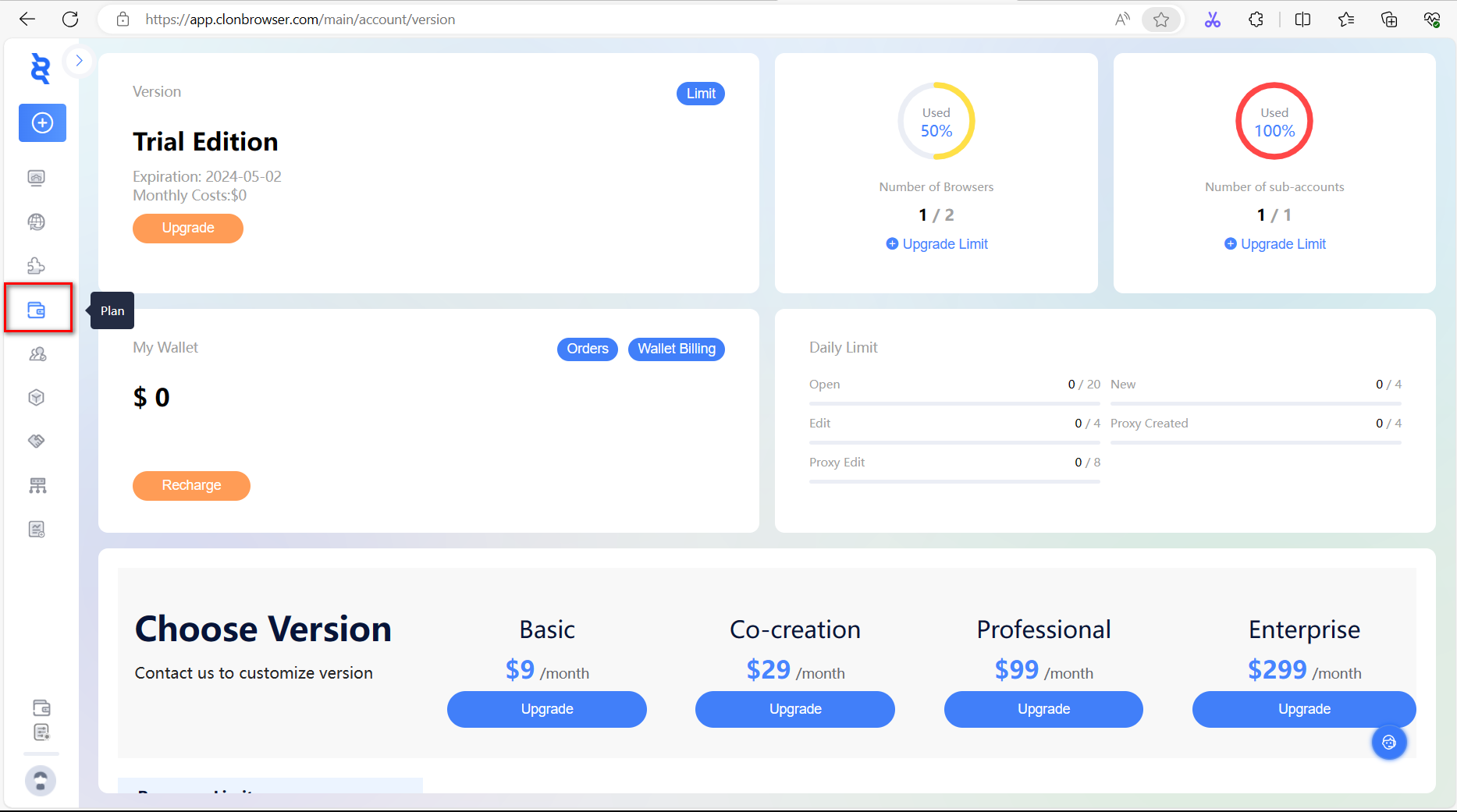
  • Plan Purchases and Upgrades: Users can directly purchase or upgrade various service plans on the web, ensuring the continuity and efficiency of tools and team work.

    User-Friendly Interface Design

    The user interface design of the ClonBrowser web version is clean and intuitive. For new users, registration is quick and straightforward, allowing them to start using it immediately without a complicated learning process, enabling users to quickly get up to speed and focus more on their core business.

    Join Us for a Unique Browsing Security Experience

    We warmly invite all new and existing users to experience the ClonBrowser web version and enjoy the convenience and efficiency of multi-account management. Whether you are an individual user or a business client, ClonBrowser is your reliable partner, helping you find the perfect balance between data security and efficiency enhancement.

    Visit the ClonBrowser official website and start your efficient multi-account management journey today! Join us to explore a safer, more efficient digital world together.

ClonBrowser | Massive RPA Scripts for Your Optimal Automation Choices

Explore the ClonBrowser anti-detect browser and how its RPA scripts can enhance your automation needs, improving efficiency and security.

ClonBrowser is a browser designed for multi-account management and anti-detection purposes, widely used in social media, cross-border e-commerce, and the Web3 field. With its rich built-in RPA scripts, ClonBrowser enables efficient account management and automated operations. This article will introduce the RPA scripts within ClonBrowser, providing users with diverse options for their operations.
Role and Advantages of RPA Scripts

RPA scripts, defined as Robotic Process Automation technology, mimic human actions to automate repetitive tasks. By using ClonBrowser’s RPA scripts, teams can efficiently manage and maintain multiple accounts, significantly reducing labor costs.

Choosing the Right RPA Scripts

Assessing Business Needs: Users need to analyze their business processes to determine which parts can benefit from automation. For example, when creating a large number of TikTok accounts, random video browsing during the account creation phase can be automated using scripts.

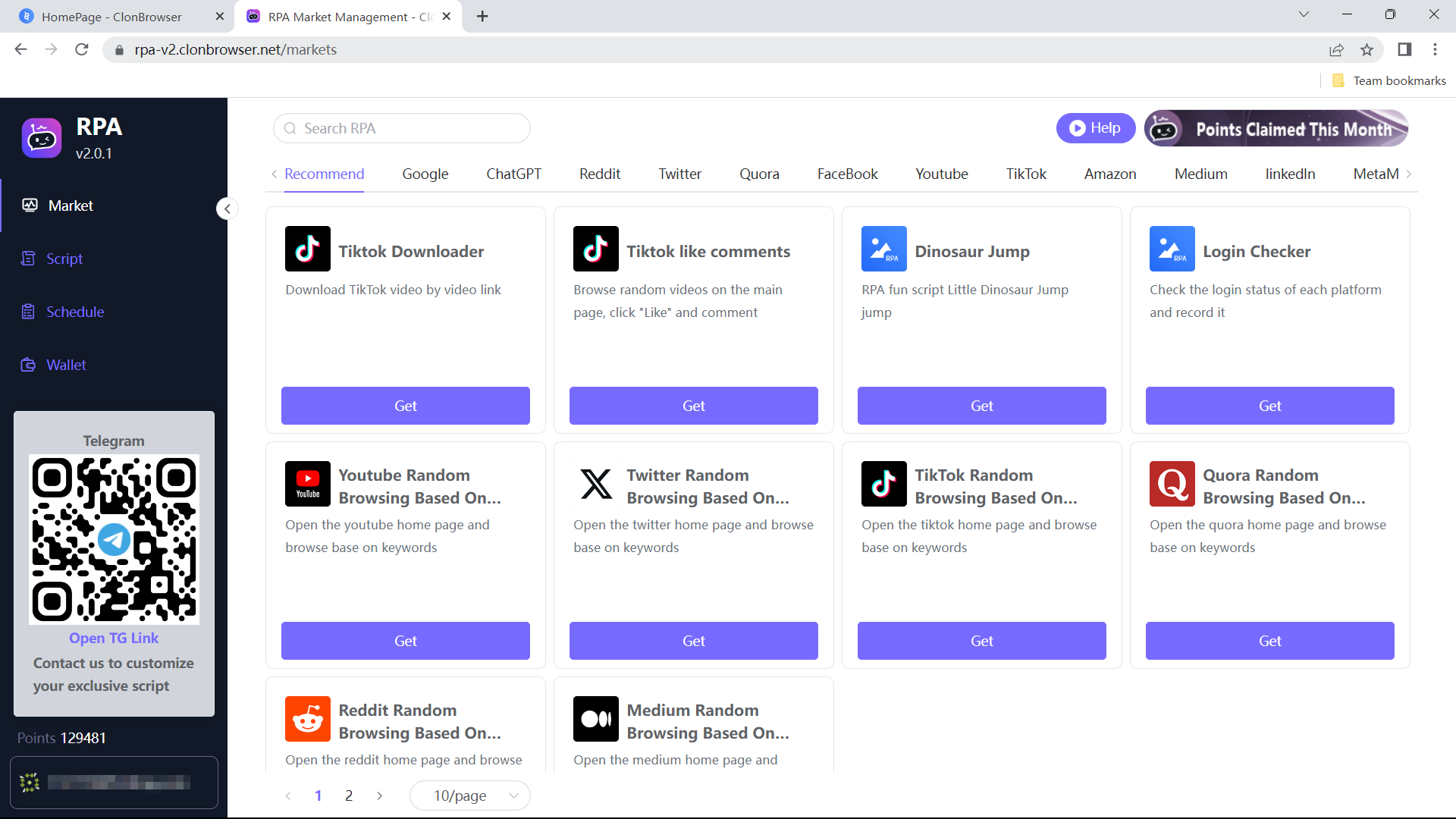
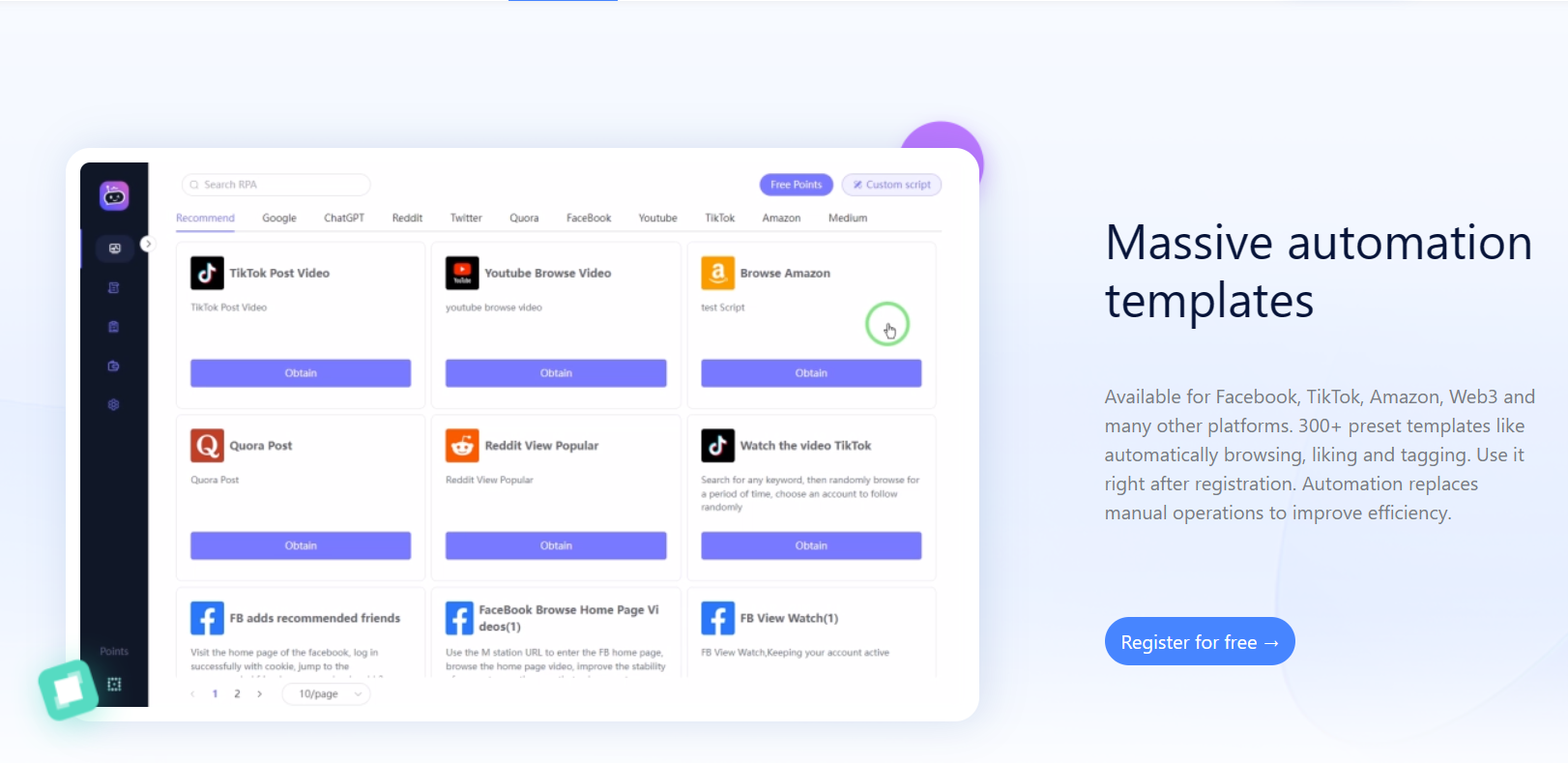
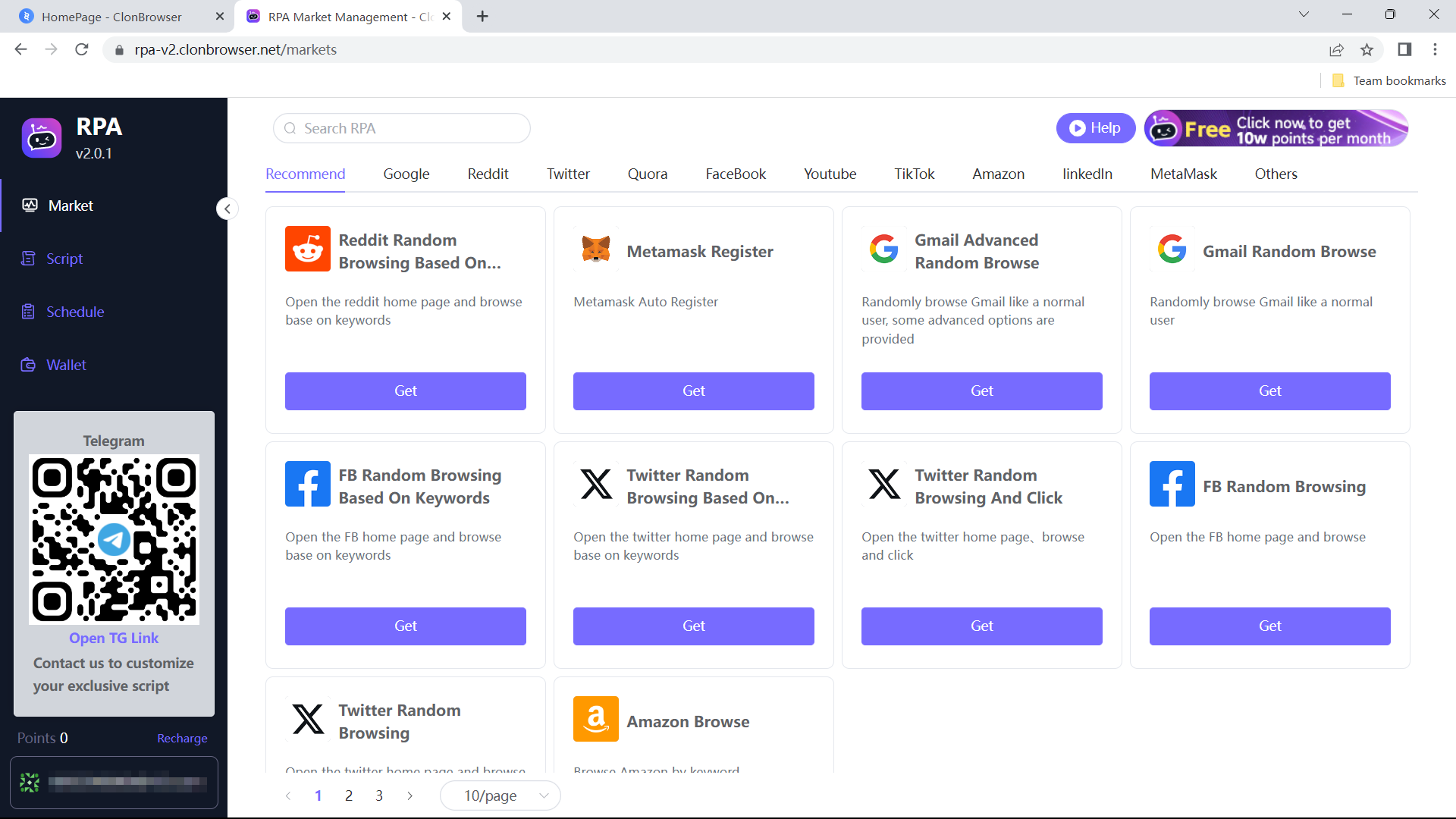
Script Selection and Implementation: After identifying the requirements, users can choose suitable scripts from the RPA marketplace based on their business type and configure them according to the provided instructions. The script marketplace covers a wide range of platforms such as Gmail, TikTok, Reddit, Twitter, providing functionalities like browsing, interaction, and content publishing. There are also scripts available for generating articles based on titles using ChatGPT or automating MetaMask registration. Custom scripts tailored to specific business needs can be obtained by directly contacting customer service.

Security and Privacy Protection in ClonBrowser

ClonBrowser employs advanced encryption technology to protect user data and ensure that all browser operations are secure. We provide over 30 advanced fingerprint options for users to set up, easily creating millions of unique environments. Each environment appears as a real and natural browser, strictly isolating data and effectively preventing tracking and correlation. This enables RPA scripts to operate without being detected by target platforms, ensuring the security of account assets even when multiple accounts are operated simultaneously.

Use Cases

Case One: Web3 Field

In Web3 airdrop projects, many people create multiple accounts to increase their earnings. A stable and active set of three accounts (Gmail, Twitter, and Discord) is crucial for airdrop operations. However, maintaining the activity of these three accounts requires regular browsing. In such cases, RPA automation scripts in the ClonBrowser market, such as random browsing and keyword-based browsing, can greatly assist in maintaining the accounts, contributing to the growth of airdrop project users.

Case Two: TikTok Marketing

Operating a TikTok account matrix is a common strategy for targeting overseas markets. A TikTok account matrix involves operating multiple TikTok accounts together, offering two major advantages: lower risk during the account creation stage and faster growth during the operational stage. Therefore, many companies and users choose to create an account matrix. However, maintaining the activity of the accounts requires regular browsing to simulate real user behavior. Using RPA automation scripts for bulk browsing improves operational efficiency. Our script scheduler allows for convenient and effortless setting of timing and looping.

ClonBrowser, along with its RPA scripts, is not only a showcase of automation technology but also a powerful tool for enterprise digital transformation. As technology advances, we look forward to providing users with more automation solutions. Feel free to download and try ClonBrowser, contact customer service for custom services, and experience the convenience and efficiency brought by automation. For further information or assistance, please don’t hesitate to reach out to our support team.

Tutorial | TikTok Account Matrix: A Common Strategy for Targeting Overseas Markets

TikTok’s account matrix has become a prevalent strategy for reaching international markets. But what advantages does it offer? Can operating multiple accounts lead to getting banned? How can you build an account matrix cost-effectively? This article reveals all!

What Are the Advantages of a TikTok Account Matrix?

Simply put, a TikTok account matrix involves operating multiple TikTok accounts together, which offers two main advantages:

1. Lower Risk During the Initial Phase

Due to the many factors affecting account traffic, most companies and users prefer to start with a matrix. If an account doesn’t show progress within a certain period, it is quickly discarded without additional investment.

2. Faster Growth During the Operational Phase

By segmenting accounts into specific content niches, it’s easier to achieve rapid fan growth. Data monitoring helps guide business development directions. The connectivity between different accounts under the same brand also promotes synergistic fan growth, increasing follower counts and making monetization faster and easier. Especially, when one account gains popularity, it can help newer accounts grow their following more quickly.

Methods for Setting Up a TikTok Account Matrix

There are several common methods for setting up an account matrix in the market today:

1. The Most Basic Method: Using Multiple Smartphones

This approach mimics real user operations but can be cost-prohibitive as managing a large number of smartphones requires significant time and effort. This is more suitable for fine-tuning operations in later stages.

Not willing to buy many smartphones? Then you might consider simulating multiple environments online, which can be achieved through cloud phones and fingerprint browsers.

2. Cloud Phone Systems

These allow you to simulate multiple smartphone environments on a single computer, which is convenient for managing multiple accounts but limited to mobile functions, making it less handy for team operations. Registering for cloud phone services can also be cumbersome.
3. Fingerprint Browsers

Thus, using fingerprint browsers offers the best cost-effectiveness for operating multiple accounts. Let’s see how ClonBrowser addresses the challenges of multi-account operation.

Advantages of Building an Account Matrix with ClonBrowser

Firstly, there are low hardware and labor costs. You can register via email and download the ClonBrowser client for use without needing to purchase numerous phones. The unique fingerprint browser environment and clean, stable proxy IPs help prevent tracking and association.

Platform accounts can be easily linked for convenient logins. Each browser environment can be quickly tied to accounts via a spreadsheet format, making it easy to manage even large numbers of accounts with features like notes and tags.

If you need to register multiple TikTok accounts via email, you can use Group Controls and window synchronization features for bulk operations. RPA (Robotic Process Automation) scripts can automate account nurturing and content creation, including video posting.
Secondly, ClonBrowser’s comprehensive team functionality ensures the security of account assets. The packages include sub-accounts (e.g., a co-creation version available for five users), allowing you to invite registered ClonBrowser team members to manage and distribute browser and certain permissions across different computers. Removed members will no longer have access to the account assets.

For mature accounts ready to start live streaming, the combination of a fingerprint browser and a real smartphone can ensure safe logins both on the client and mobile through local proxy features.

ClonBrowser offers three well-adjusted fingerprint modes for beginners and customizable settings for advanced users, making it highly adaptable.

This is the secret to building a TikTok account matrix—manage multiple account assets with ClonBrowser’s fingerprint browser!

Interested or have specific needs? Feel free to contact our customer service.

Customise Table in RPA Schedule

ClonBrowser RPA recently introduced experimental functionality for table-driven schedule execution!

In the old version of the script, each browser opens a specified URL such as Twitter, TikTok home page and then performs operations such as random browsing, browsing by keyword, etc. This facilitates repeated operations in bulk.

However, the variables for opening URLs in the script are fixed, and some users have the need for multiple browsers (profiles) to start using different URLs. In order to satisfy users’ diverse operational needs, we now introduce the RPA table-driven plan method, so that the variables of the URLs can be set by yourselves.

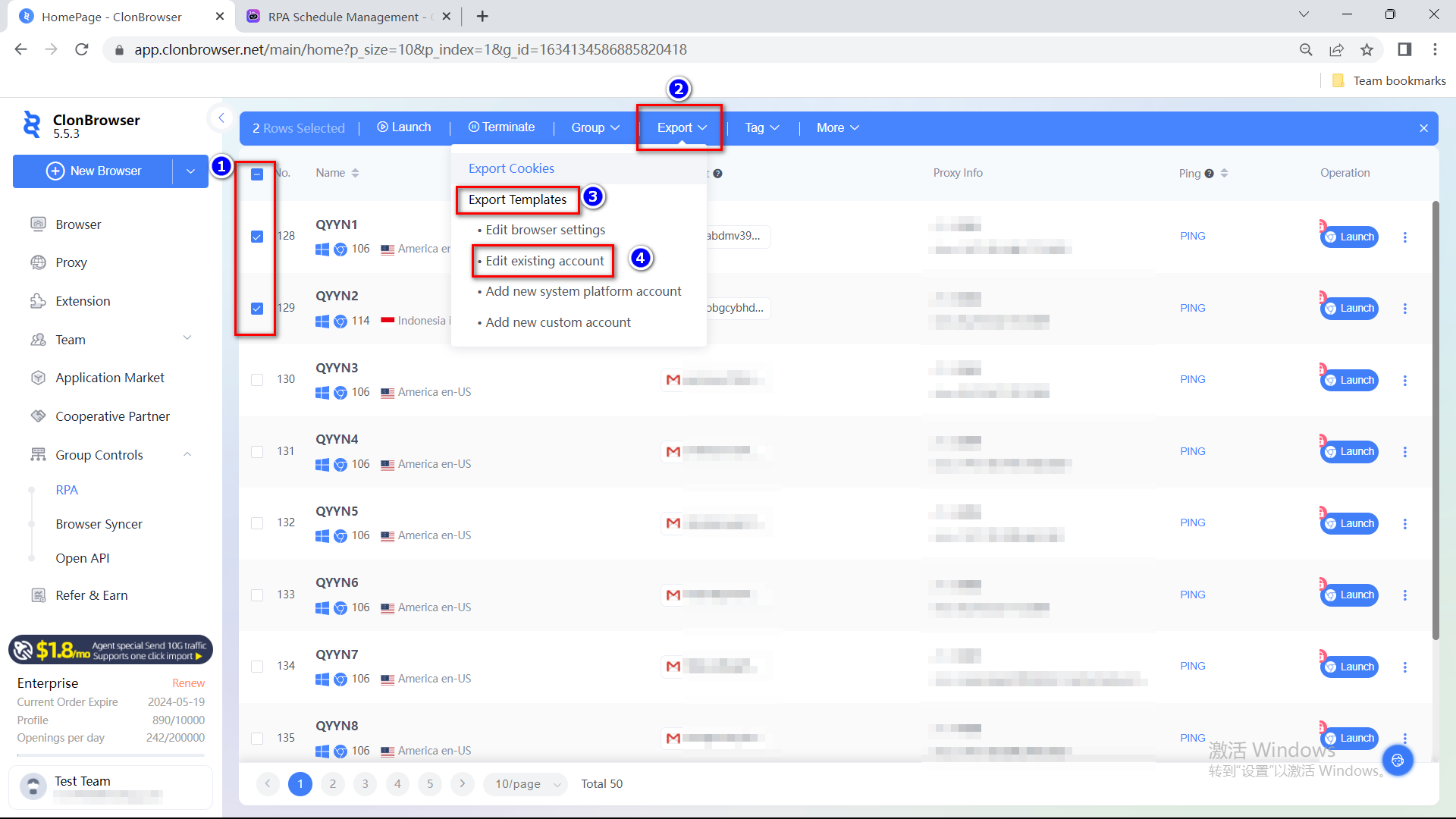
First of all, export the profile you want to run in ClonBrowser’s [Browser] page.

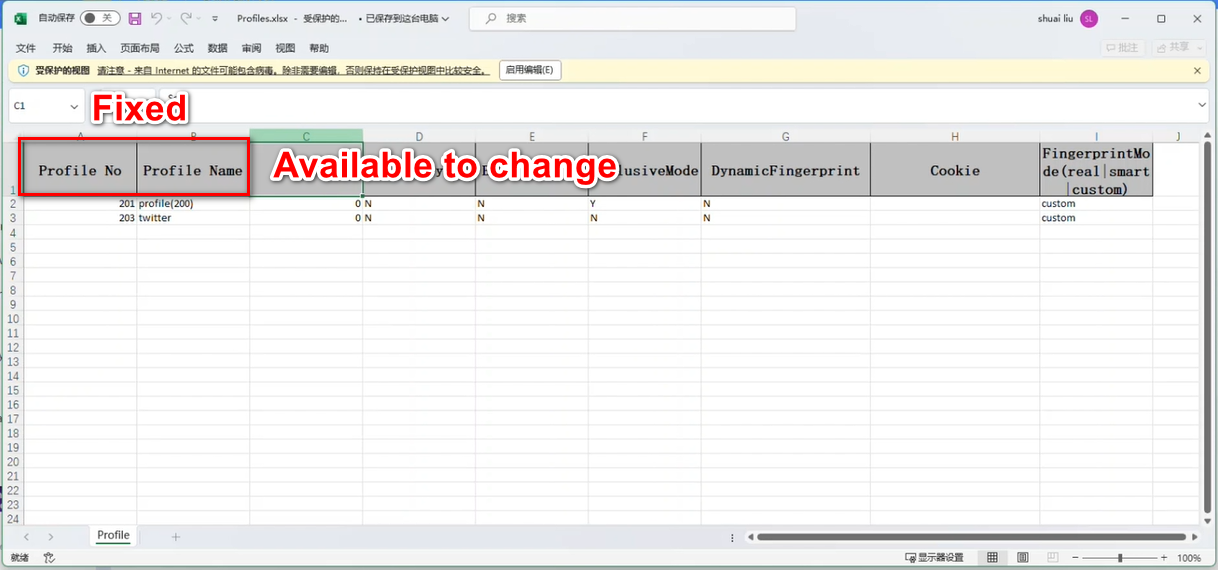
The first two columns are fixed to the serial number, the profile name, and the rest of the headers can be changed according to the variables that use the script. The headers are not read when the plan is executed, and are only used for the user to discern what each column represents.

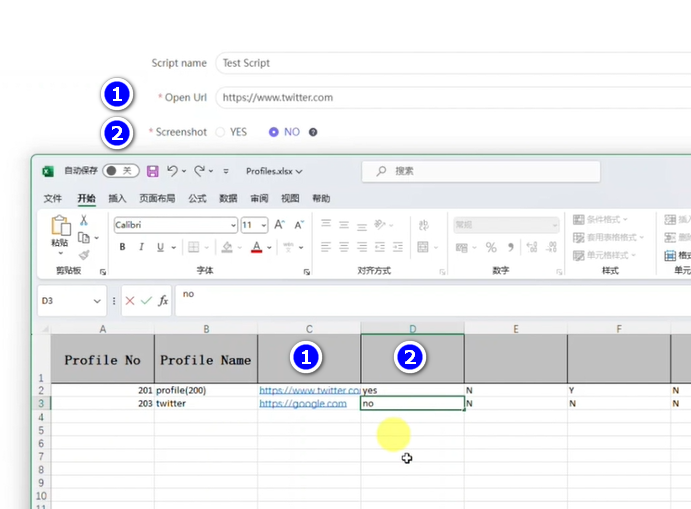
For example, the Test Script of the demonstration performs the operation of opening the URL, you need to fill in the target URL. The third column of the form corresponds to “Open Url”, and the fourth column corresponds to “whether to save screenshot of the task”, fill in yes or no.

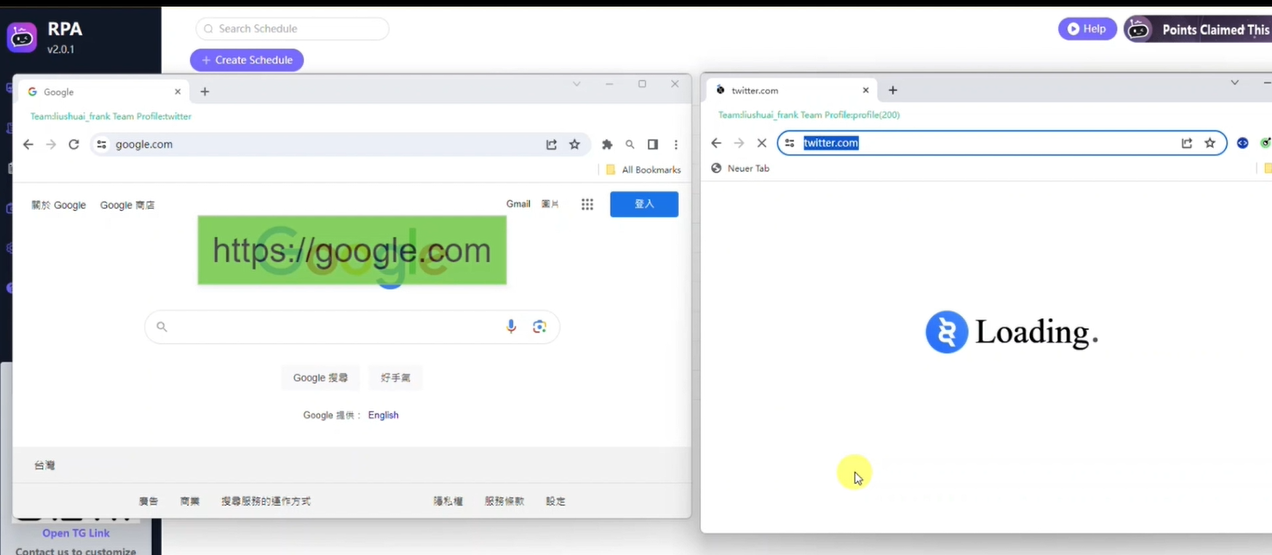
Fill in the variables, in the demonstration, one of the profiles needs to open the twitter page, and one needs to open the google page. Save the form file.

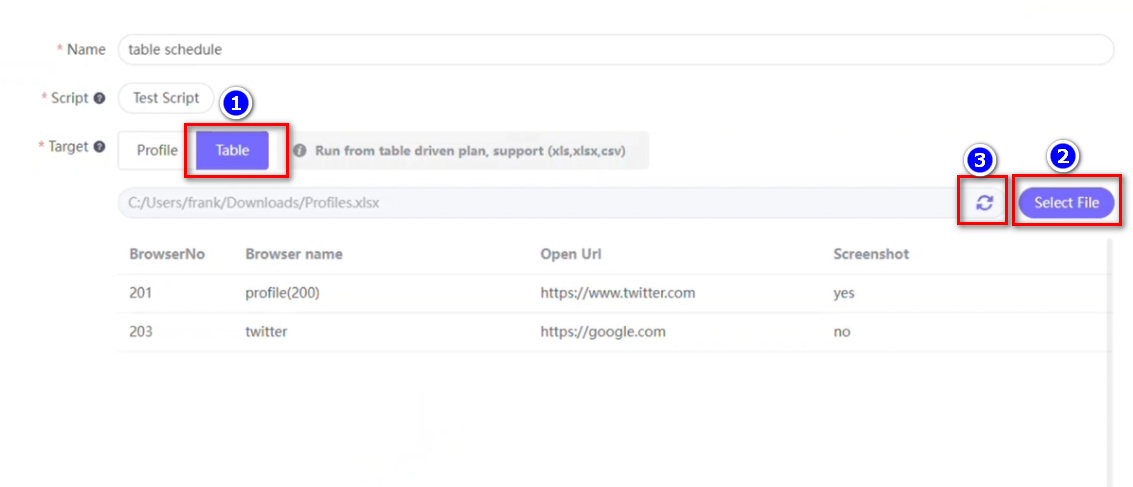
On the [Schedule] page, click Create Plan and select Script.

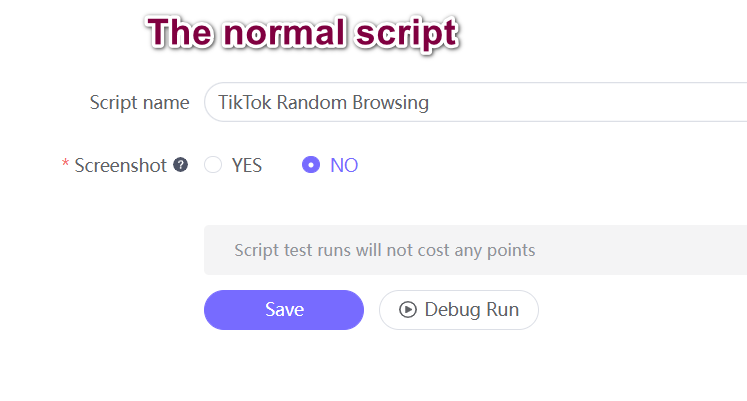
If you choose the normal Profile mode, you select the browser, and the selected browsers all open the twitter URL saved in the script. That is, the old script plan mode.

If you choose Table mode, import the local table file you just saved, the plan will be executed according to the information in the table, i.e. different browsers will open the corresponding filled URL.

As shown on the page, one browser opens the google page based on the profile information in the table, while the other opens the twitter page.
The table-driven plan execution can meet the diversified needs of your plan execution! This feature is currently in the experimental stage, if you are interested, please contact us to open it for free.

Tutorial | How to Maximizing Airdrops with ClonBrowser (3)

In the pursuit of maximizing airdrops, ClonBrowser Anti-detect Browser presents a series of articles to help Web3 users expand their reach, enhance operational efficiency, and reap greater profits.

In the last two articles we covered the basics of getting started with web3 jerking airdrops: the management and maintenance of the trio of Google Mail (Gmail), Twitter, and Discord accounts and how to use the Group Controls feature to do tasks in bulk. Today we’re going to cover installing extensions in the ClonBrowser browser, especially the wallet extension that is key to the web3 project.

In web3 projects, wallets are often used to interact, store and manage cryptocurrencies, and control the security of digital assets. Therefore, web3 players need to install the wallet plugin in their browsers for quick operation. For users with multiple accounts, installing extensions one by one is too cumbersome, and a one-click batch installation like ClonBrowser can save time and effort. Let’s take a look at how it works:

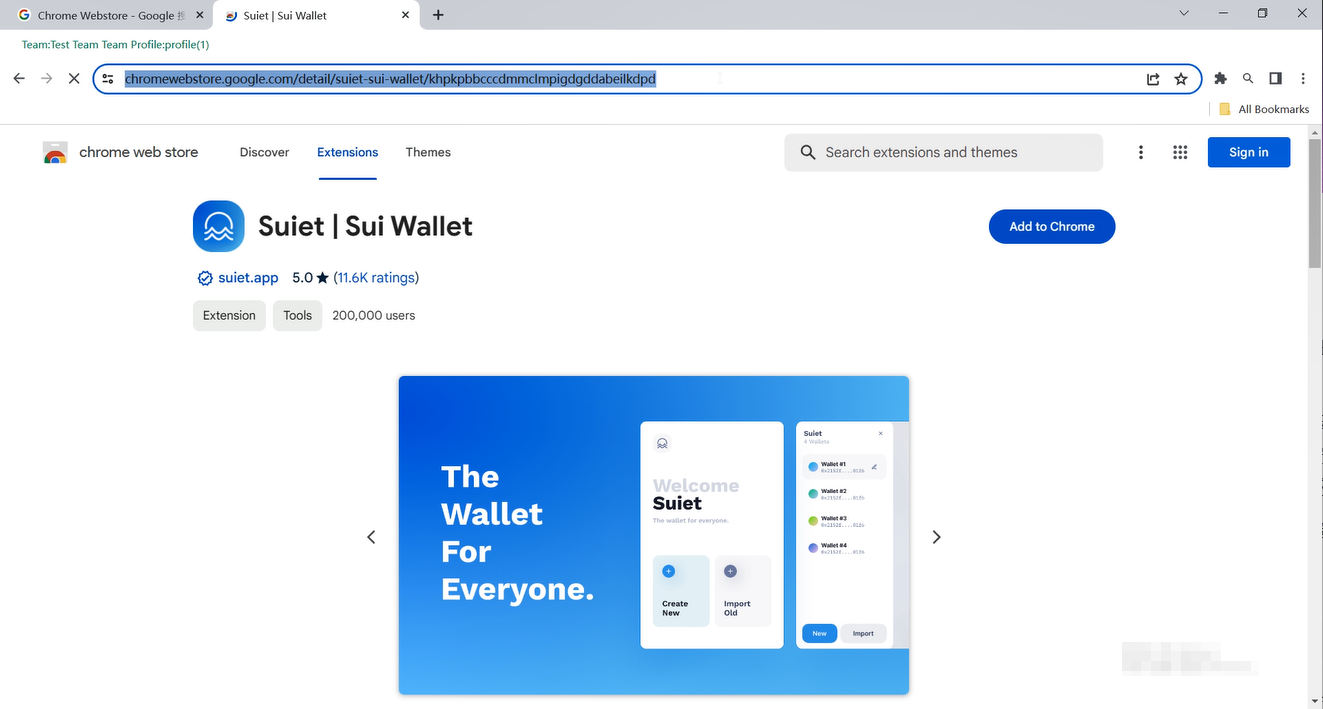
Firstly, head to the Chrome Webstore and choose the wallet extension you want. Let’s take Sui Wallet as an example. Copy the link of its page.

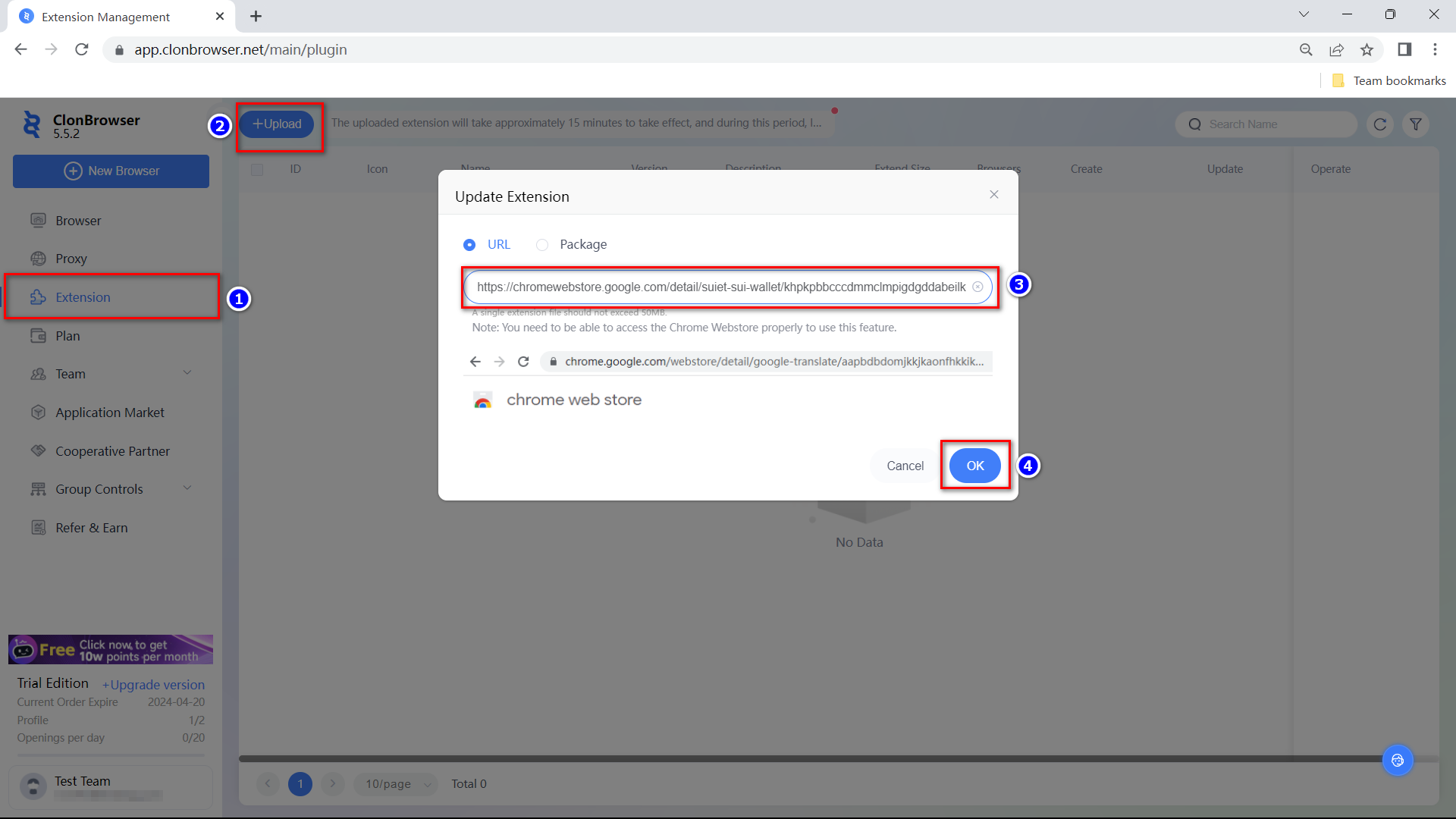
Go back to ClonBrowser, go to [Extension] – [Upload], paste the URL and click OK.
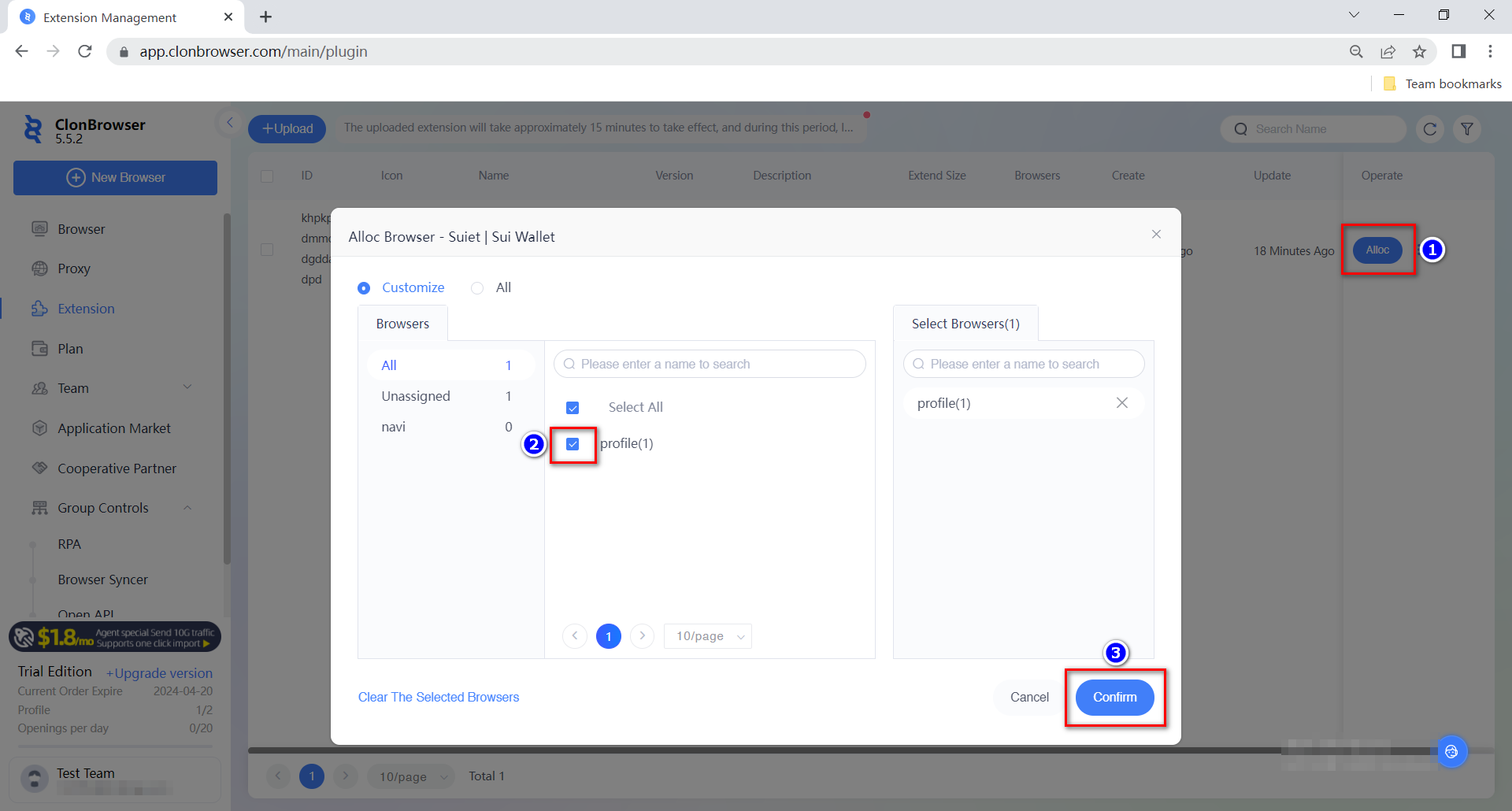
If you have your own install package you can also upload it. The uploaded extension will take effect within 15 minutes, during which time the startup browser will not refer to the latest extension. After the plugin has been uploaded, wait for it to take effect and assign the Sui Wallet extension to the desired profile browser.
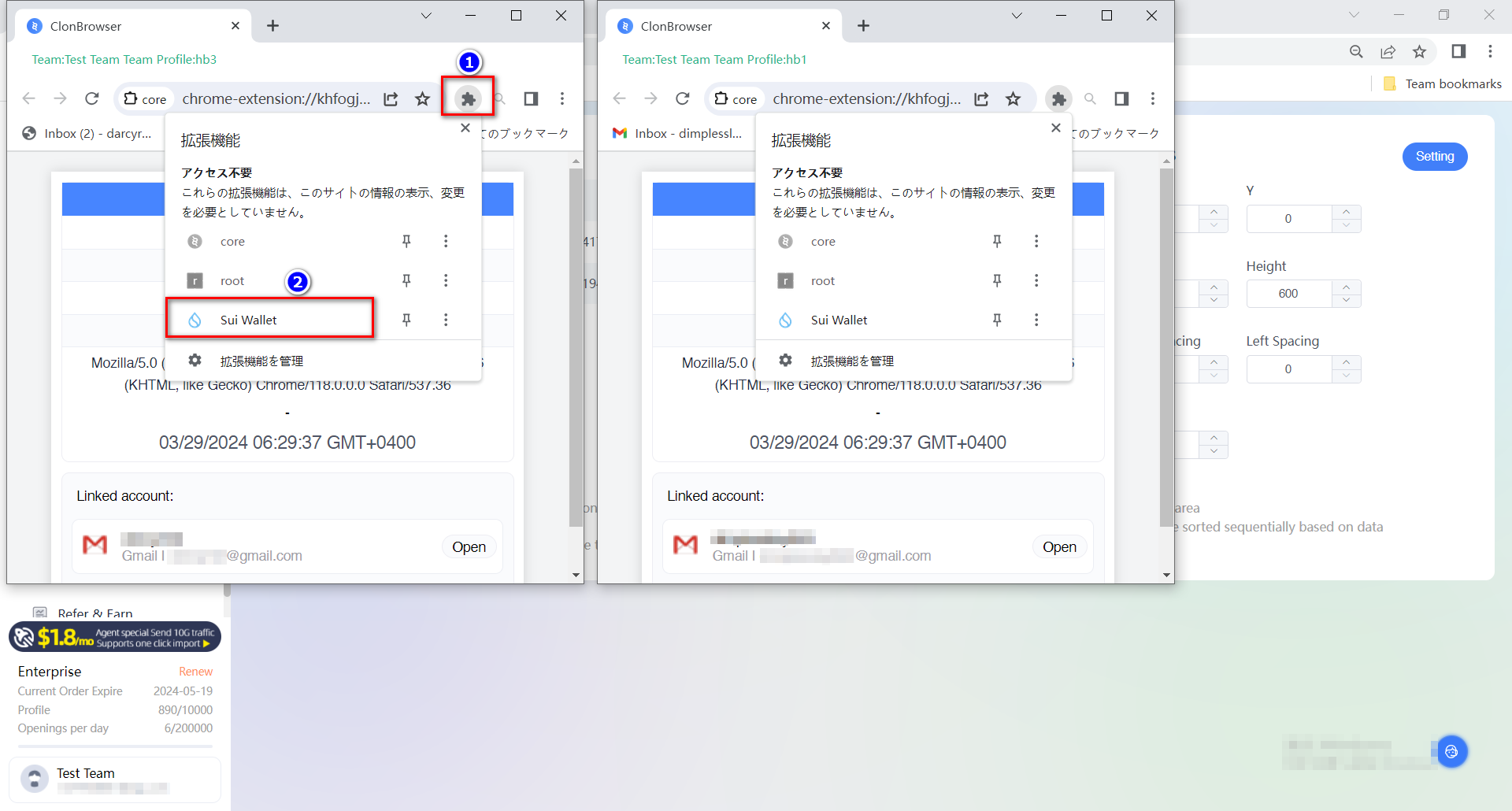
The wallet extension can be used synchronously after opening multiple browsers, and then with the window synchronisation function in the group control software, the batch airdrop operation is easy to handle. The specific operation of browser syncher can be referred to the previous article.

That’s all for now about ClonBrowser Anti-detect Browser play in web3 project. Feel free to share and communicate with us for more requirements and ideas!

Cast a wide net and reel in more fish. ClonBrowser, the anti-detect browser, is your essential tool for monetizing your Web3 ventures.

Tutorial | How to Maximizing Airdrops with ClonBrowser (2)

    In the pursuit of maximizing airdrops, ClonBrowser Anti-detect Browser presents a series of articles to help Web3 users expand their reach, enhance operational efficiency, and reap greater profits.

    In the last article, we will delve into the fundamental principles vital for successful Web3 airdrop campaigns: managing and maintaining the trio of Google Mail (Gmail), Twitter, and Discord accounts. It was also mentioned how to use the Group Controls feature for bulk registration. The purpose of multi-account management is to be able to airdrops in bulk. And in this article, we’re going to go further into how to use the Group Controls feature to operate airdrop missions in bulk.

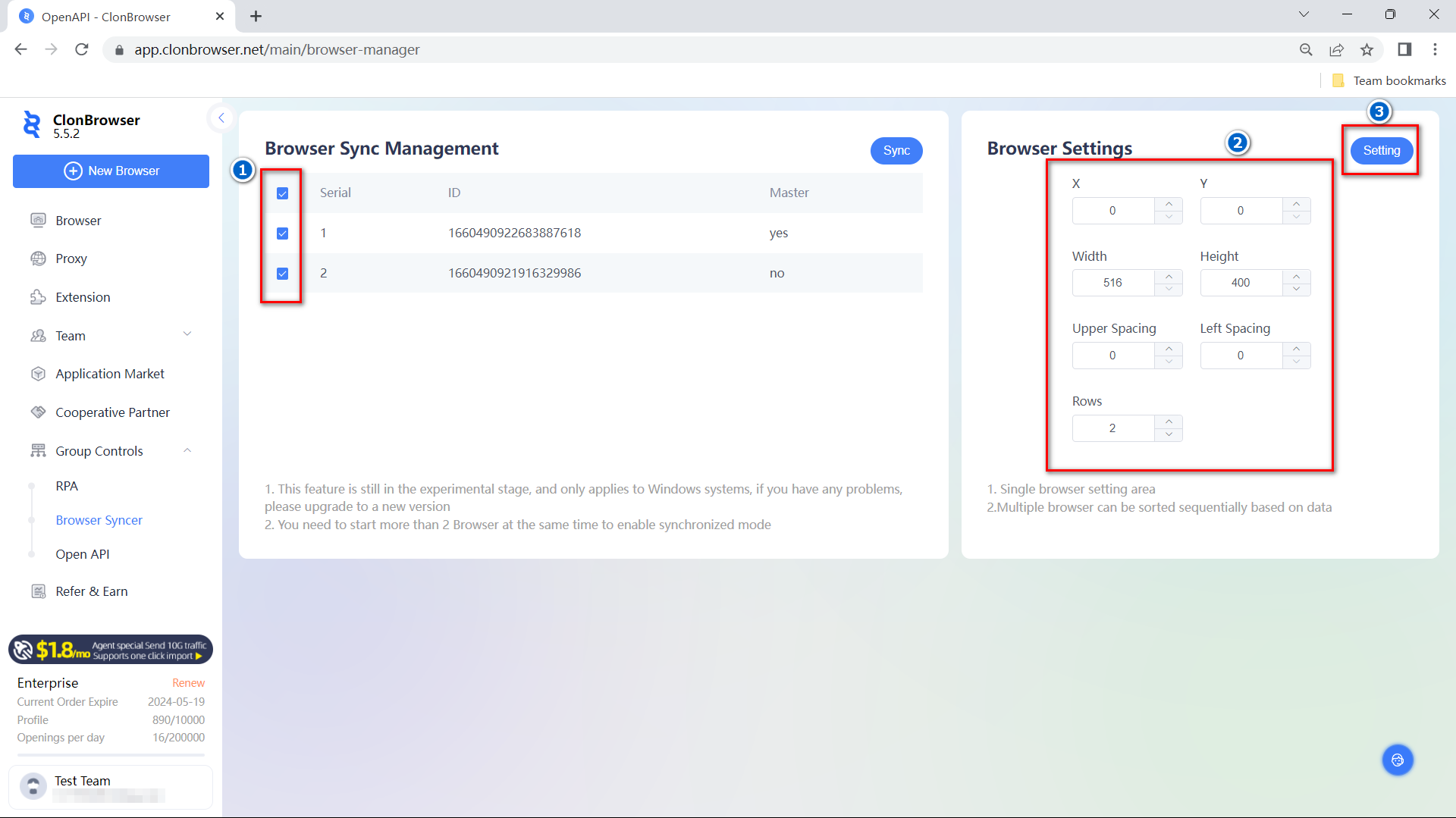
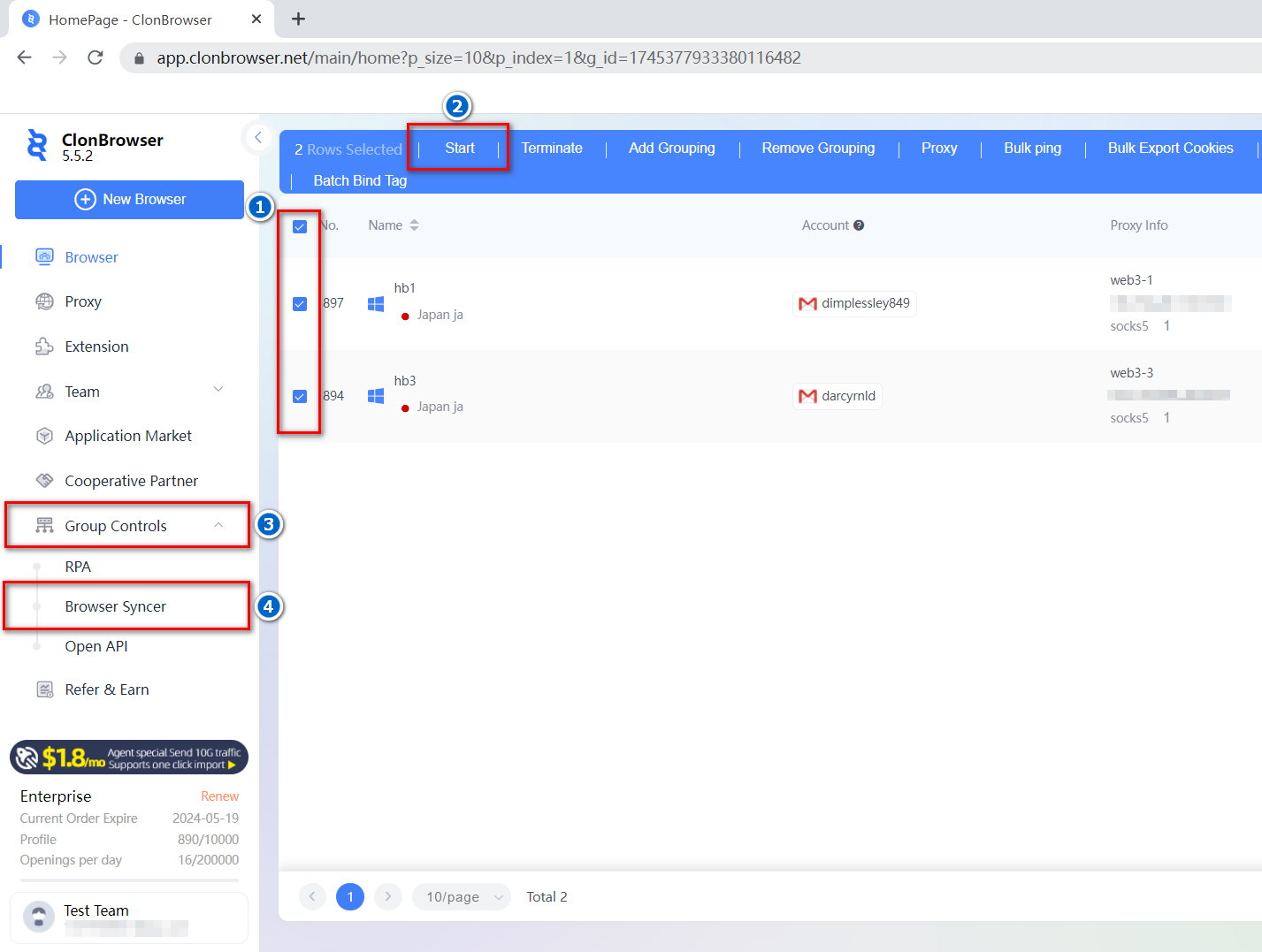
The first is the Browser Syncer function. You need to start 2 or more browser profiles, click [Group Controls] – [Browser Syncer].

Select the browser and adjust the window settings first to arrange the browser into a formation that is convenient for you to operate.

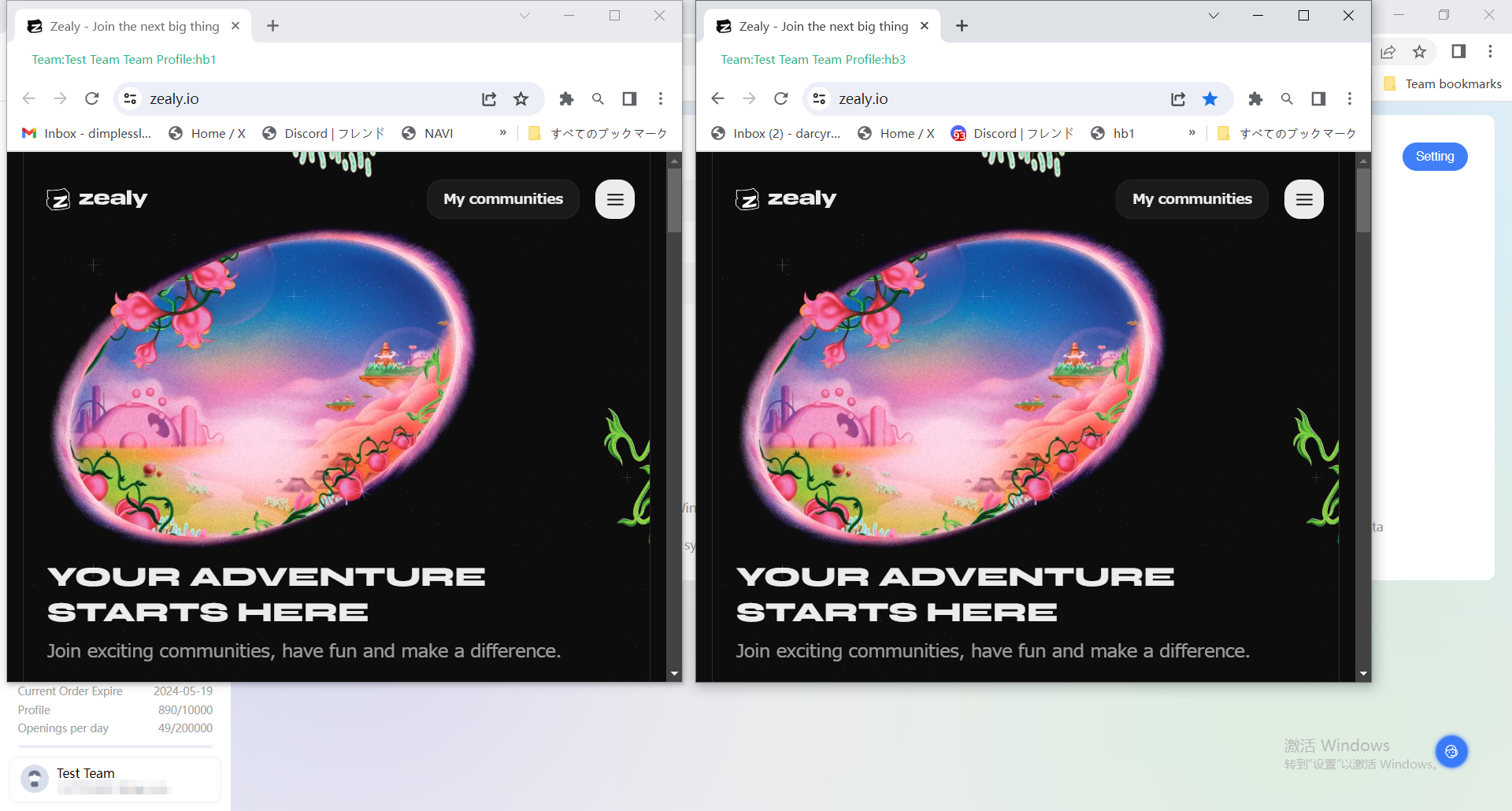
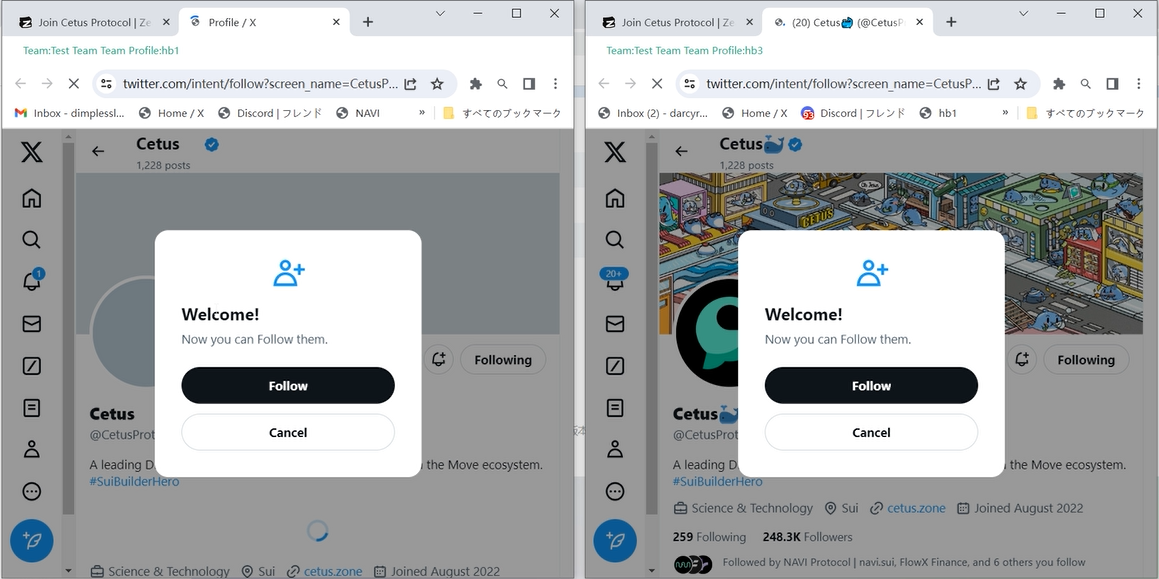
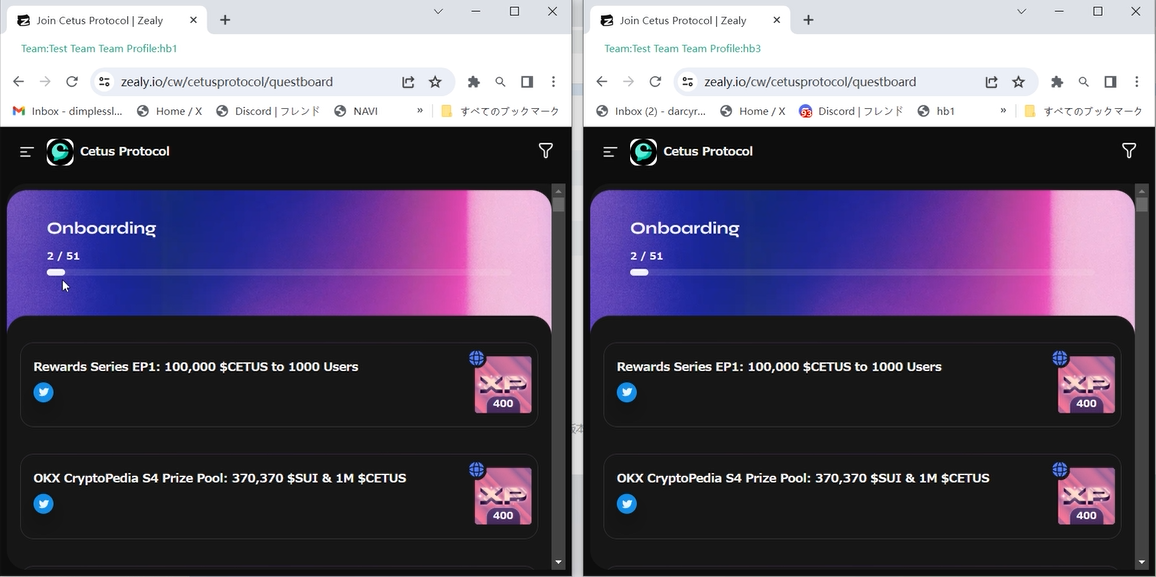
Click [Sync] after setting the browser size and layout. At this time in the upper left corner of the first main browser to operate, the other browsers will be synchronised. Enter the task platform, find the appropriate project to operate. During the synchronisation process, you can operate other browsers individually, only the operation of the main browser will be synchronised with the rest of the windows.

Since we have set up the trio of Google Mail (Gmail), Twitter, and Discord accounts for each browser in the last tutorial, it opens smoothly when doing tasks in bulk. It is evident that the maintenance of the trio of Gmail, Twitter, and Discord accounts is indispensable. In the same way you can register and maintain accounts for more platforms as needed.

You can see the points when the task is completed. Batch synchronised operation saves more energy and time.

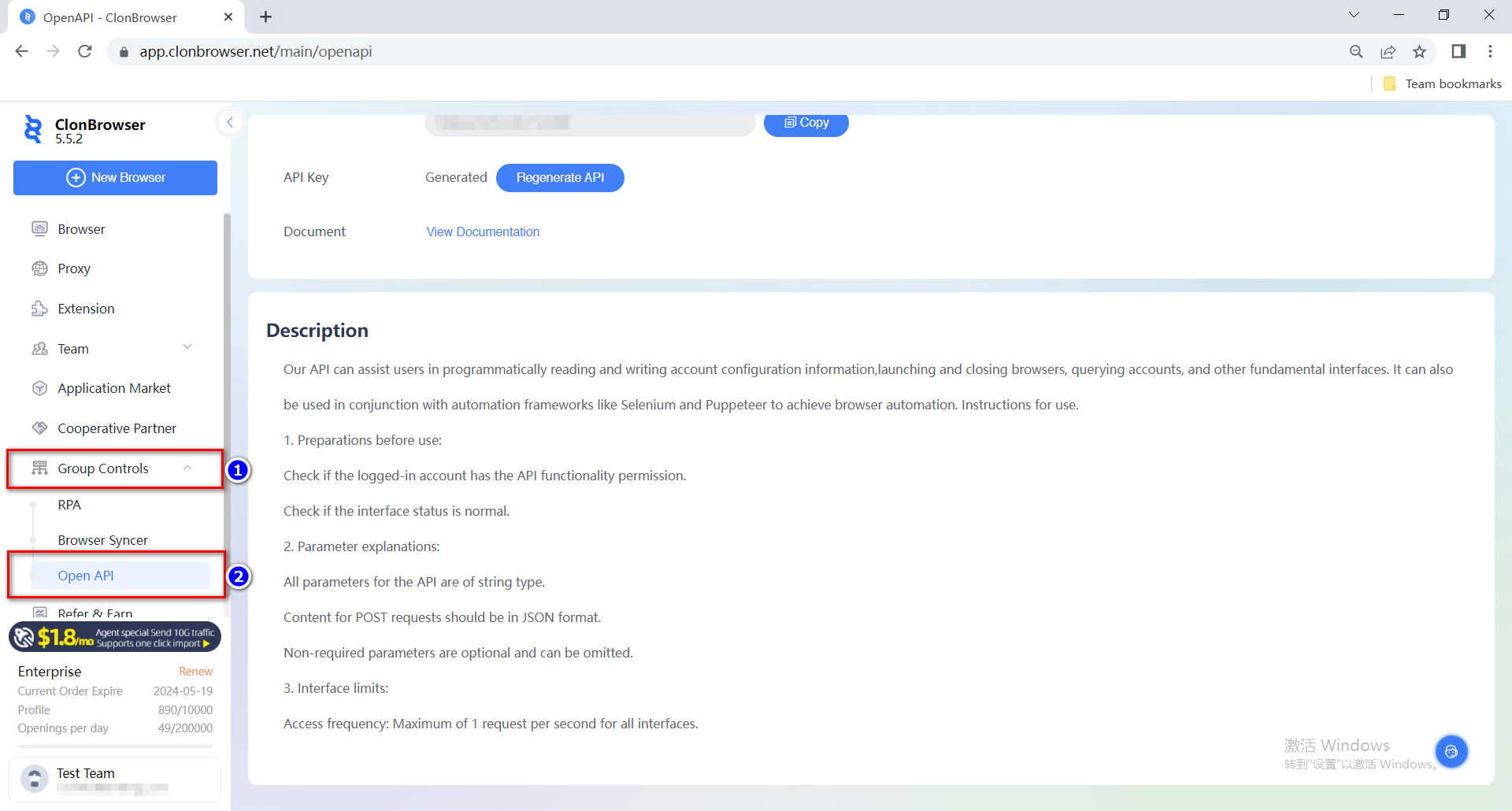
This is the Browser Syncer feature in Group Controls. There are also RPA automation scripts and Open API in the Group Controls module. RPA scripts can be customised, you can consult customer service to customise your scripts. There is also an Open API interface to give you more room for manoeuvre. You can find more information in the Help Centre.

In the next article we will cover installing plugins in ClonBrowser, especially the wallet plugin which is key in web3 projects.

Cast a wide net and reel in more fish. ClonBrowser, the anti-detect browser, is your essential tool for monetizing your Web3 ventures.

Tutorial | How to Maximizing Airdrops with ClonBrowser (1)

    In the pursuit of maximizing airdrops, ClonBrowser Anti-detect Browser presents a series of articles to help Web3 users expand their reach, enhance operational efficiency, and reap greater profits.

    Today, we will delve into the fundamental principles vital for successful Web3 airdrop campaigns: managing and maintaining the trio of Google Mail (Gmail), Twitter, and Discord accounts.

    The trio refers to the accounts on Gmail, Twitter, and Discord platforms. Gmail is utilized for registering accounts on other platforms and receiving verification information from Web3 projects. Twitter keeps users updated on project announcements and provides insights curated by influential figures. Discord serves as a platform for account verification by project teams and the execution of Web3 tasks. These three accounts act as the identity proof for Web3 users engaging in airdrop operations. To conduct a larger number of airdrop campaigns, it is essential to possess multiple sets of the trio. As the Web3 community continues to grow, the number of accounts increases exponentially. In such a scenario, having stable and active accounts for the trio becomes crucial for airdrop operations.
    However, managing a large number of accounts and passwords and keeping them active can be a challenge. This is where ClonBrowser Fingerprint Browser comes in. Let’s explore the methods it employs to achieve these four effects.

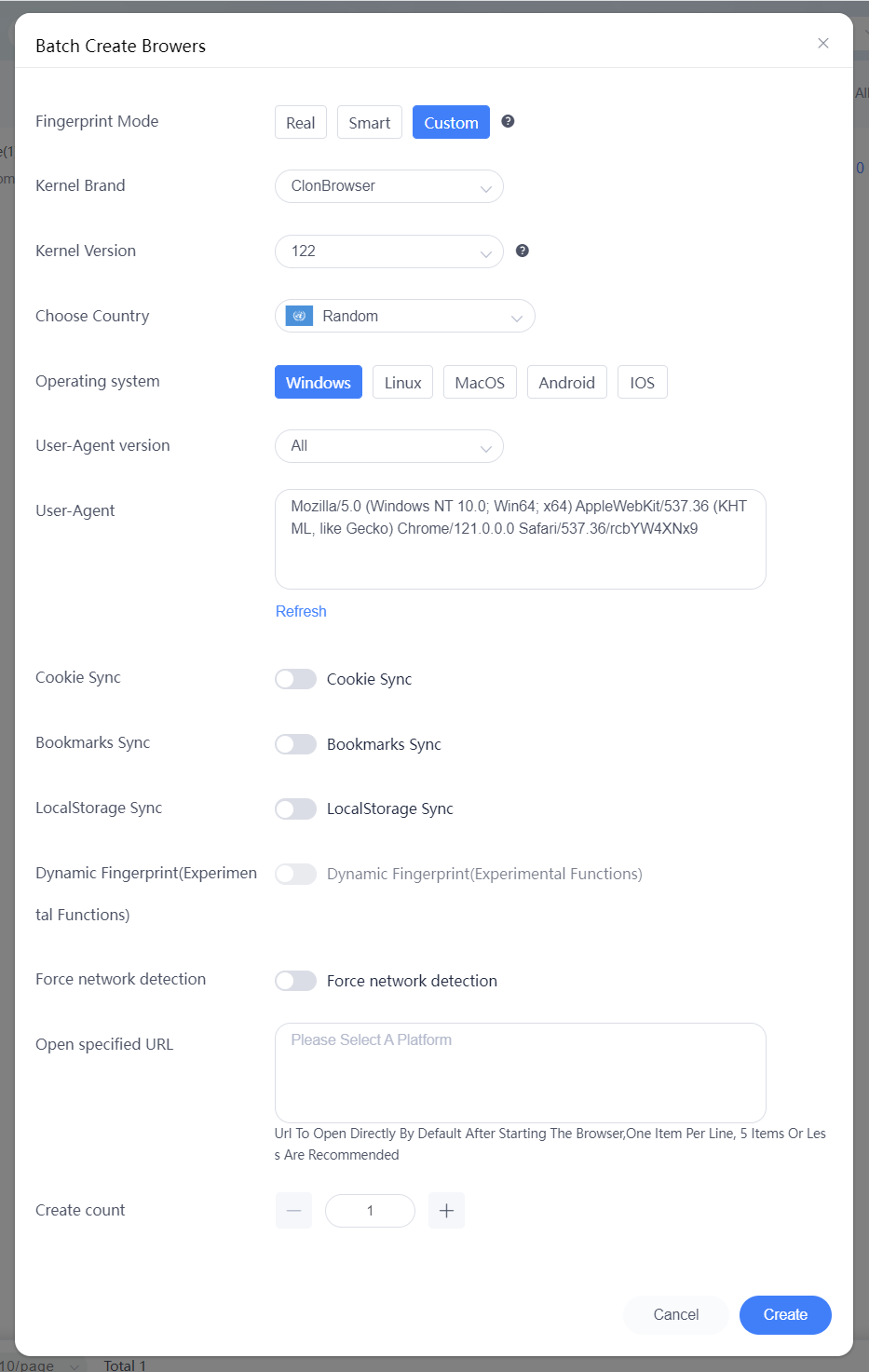
    Firstly, batch creation of profiles. In ClonBrowser, open the [Browser] page and click on [Batch Creation]. You can also create profiles individually by clicking on [New Browser] following the same process. Choose the [Custom Mode] for enhanced flexibility. Then select the kernel version. Our latest version is based on Chromium Stable Version 122, and you can choose according to your requirements. Next, select the operating system. You can also enable sync settings for convenient operations across multiple devices. Finally, open the specified URL. Based on your usage habits, you can input frequently used Web3 airdrop task platforms, allowing direct access during each profile launch.

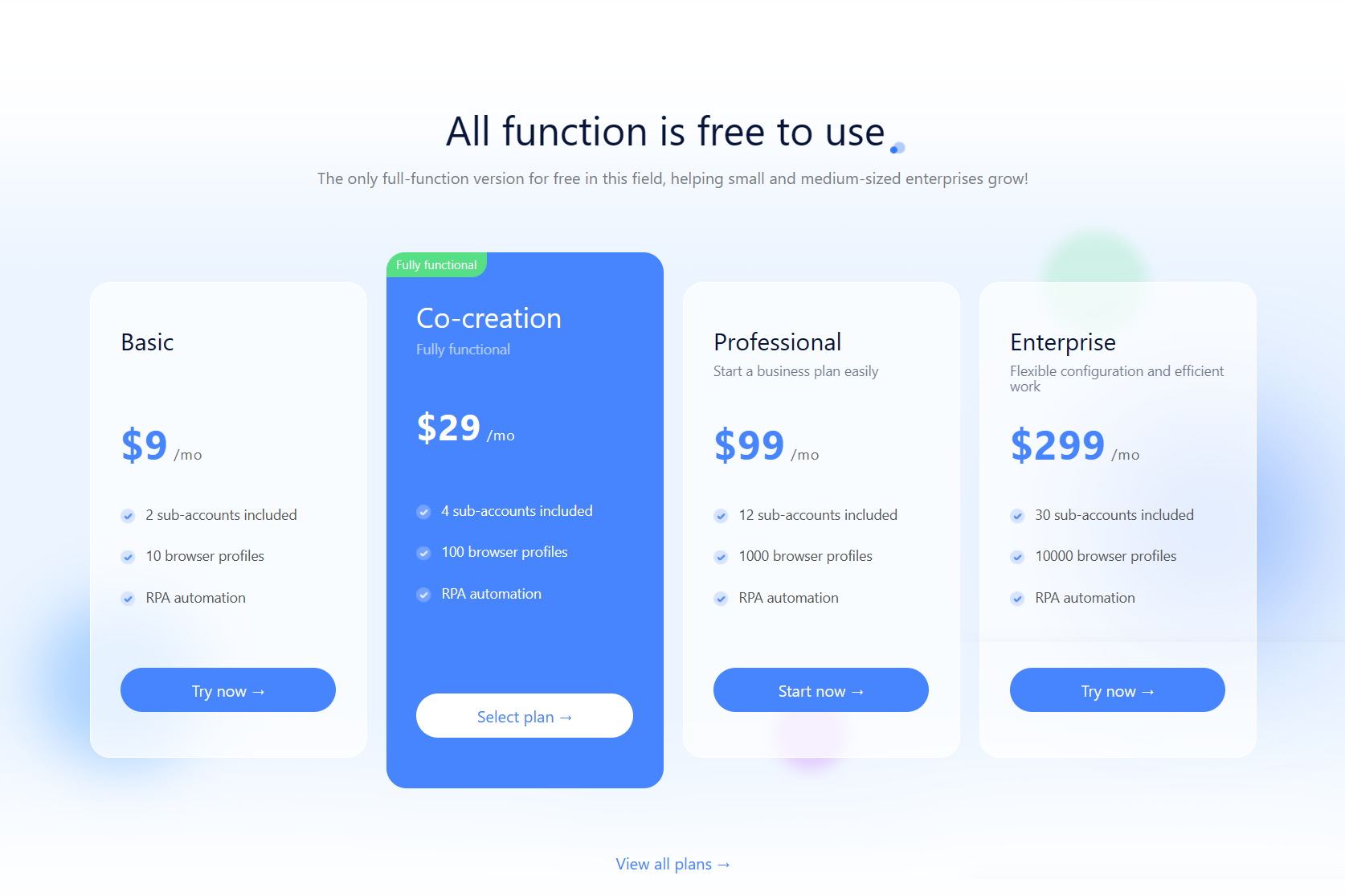
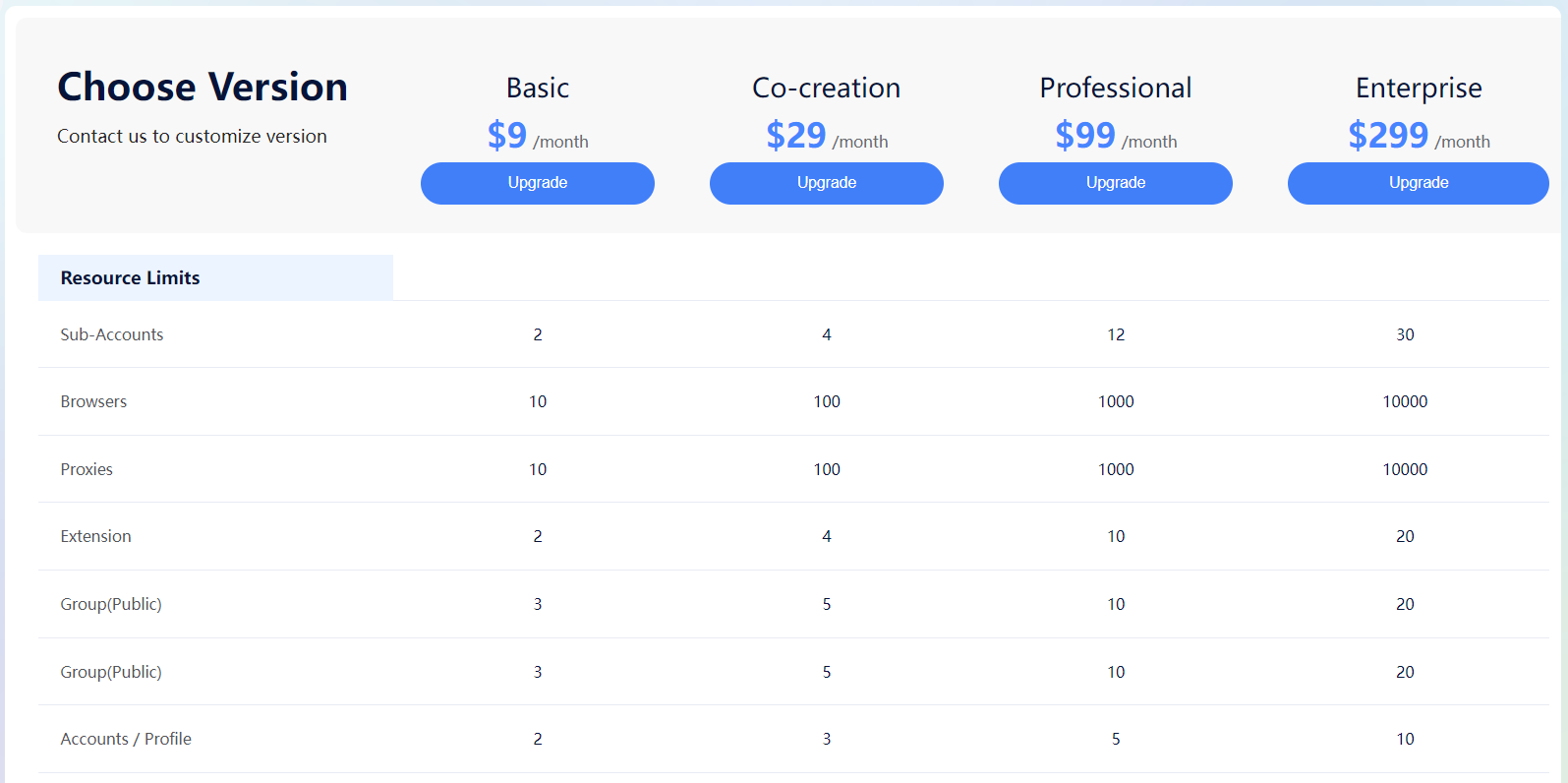
    Next, select the number of profiles to create. The free trial version of ClonBrowser allows the creation of two profiles. The Basic version ($9) allows the creation of ten profiles, while the Co-creation version ($29) allows the creation of 100 profiles. There are also larger-scale versions available for selection. If you have created a large number of profiles, grouping them based on usage requirements will facilitate management.
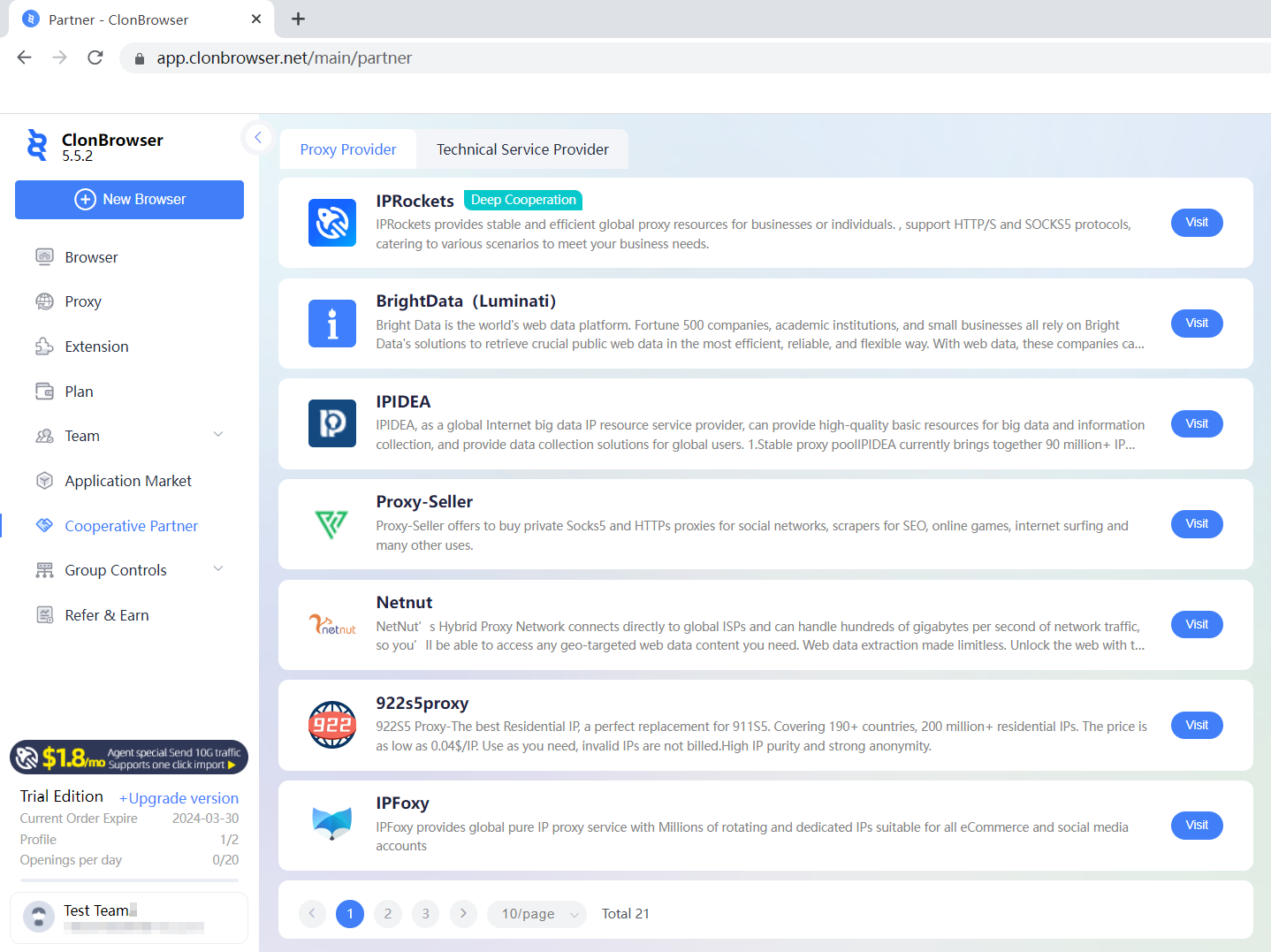
    Once the profiles are created, it is necessary to set up proxy IP. For small-scale projects, proxy settings may not be necessary, and you can directly use the local proxy for operations. However, for large-scale projects, to avoid account suspension while registering accounts on multiple platforms, clean and stable proxies are required. Therefore, we need to add proxies. If you don’t have proxies, you can choose proxy service providers from our [Cooperative Partners]. IPRockets is our trusted partner for proxy services, offering unlimited traffic and bandwidth services, providing you with peace of mind and convenience. After purchasing proxies from IPRockets, you can import them into ClonBrowser with a single click. If you are using proxies from other service providers, you can add them through the [Batch] import proxy function.

    Similar to profiles, grouping a large number of proxies with profiles allows for easier management. Then, return to the [Browser] page and click on [Set Proxy]. This way, the browser profile is complete, and each profile has an independent environment with protected data.

    Next, let’s set up the account information for the trio. Select the profiles in batch, click on [Export Templates] – [System Platform Account], and choose the corresponding platform. You can directly select Gmail, Twitter, or Discord from the list. If it’s a web3 platform that is not listed, choose [Custom Platform Account] during the export and enter the corresponding website URL.

    Taking Gmail as an example, after exporting the template, enter the login information. Pay attention: It’s recommended to have an auxiliary email for Gmail to facilitate verification and recovery. You can place the auxiliary email in the alias for easier management. Once the information is entered, save the file and click on [Batch Import] to upload it.

    Platform accounts can also be added individually during subsequent usage. Click on Customize Display Column, check [Account], and save. This way, you can directly see the account binding status in the displayed columns, and you can click on the plus sign to add new accounts.

Once the account information for the trio is added, the profiles are considered set up, and you can automatically log in without having to manually enter the account credentials in the future.

    Furthermore, you can utilize our group control feature for batch registration. Start by opening two or more profiles and click on [Group Controls] – [Browser Syncer]. Adjust the windows as needed and perform operations in the main profile located in the top-left corner. The other profiles will sync the operations accordingly. This will improve operational efficiency.

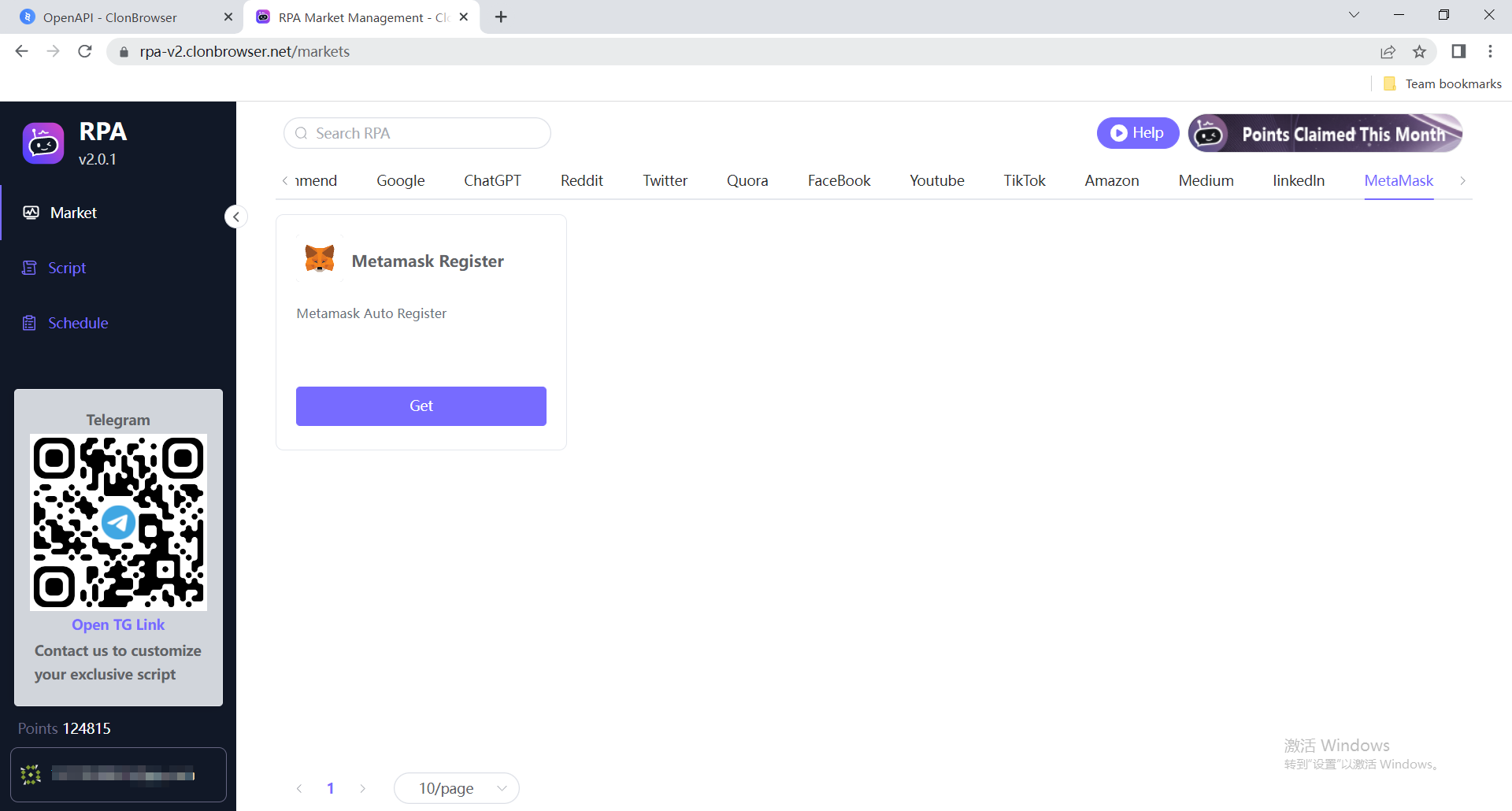
    However, the process is not yet complete! The trio requires regular browsing to maintain activity, and this is where RPA (Robotic Process Automation) scripts come in handy for performing large-scale operations. Click on [Group Control] – [RPA]. First, select the desired script from the [Market], such as “Gmail View Mailbox,” and click on [Get]. Each browsing script completed for an account will generate a screenshot, which you can check in the designated folder to detect any account anomalies. Before saving the script, you can [Debug Run] to see if it meets your requirements. After clicking [Save], you will see the script on the [Scripts] page. Click on [New Schedule]. Fill in the plan name, select the script to execute, and the browser. Choose the execution time for the plan. You can select “Loop Execution” to have the script run periodically. After clicking [Save], the plan will execute according to the set parameters.
    You can check the execution status of the plans on the [Schedule] page. And for repetitive plans, you can clone them without the need for reconfiguration. On the [Wallet] page, you can check the points consumed by each schedule execution. If you have further requirements or inquiries about the scripts, you can directly contact the staff for assistance.

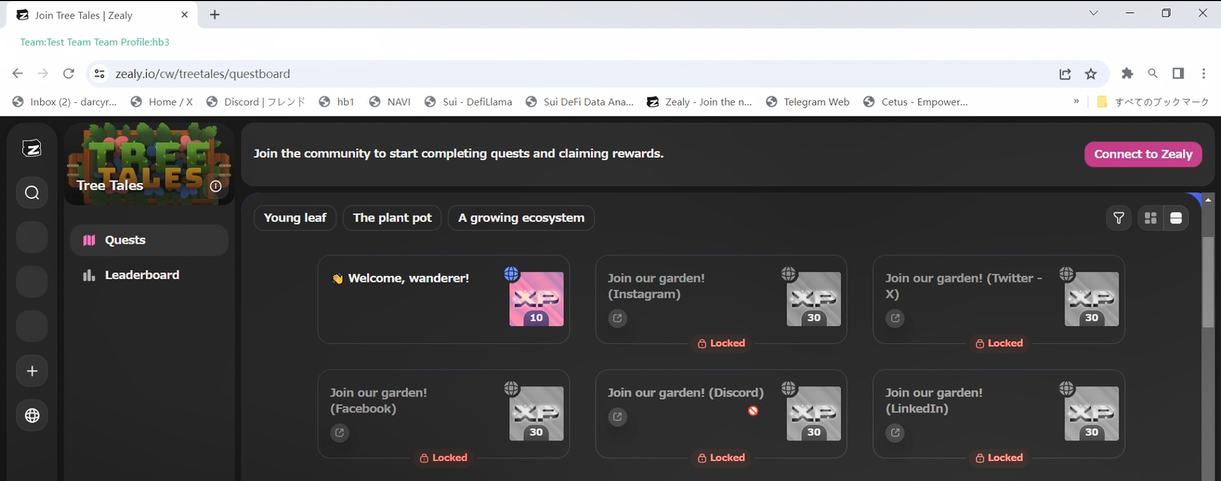
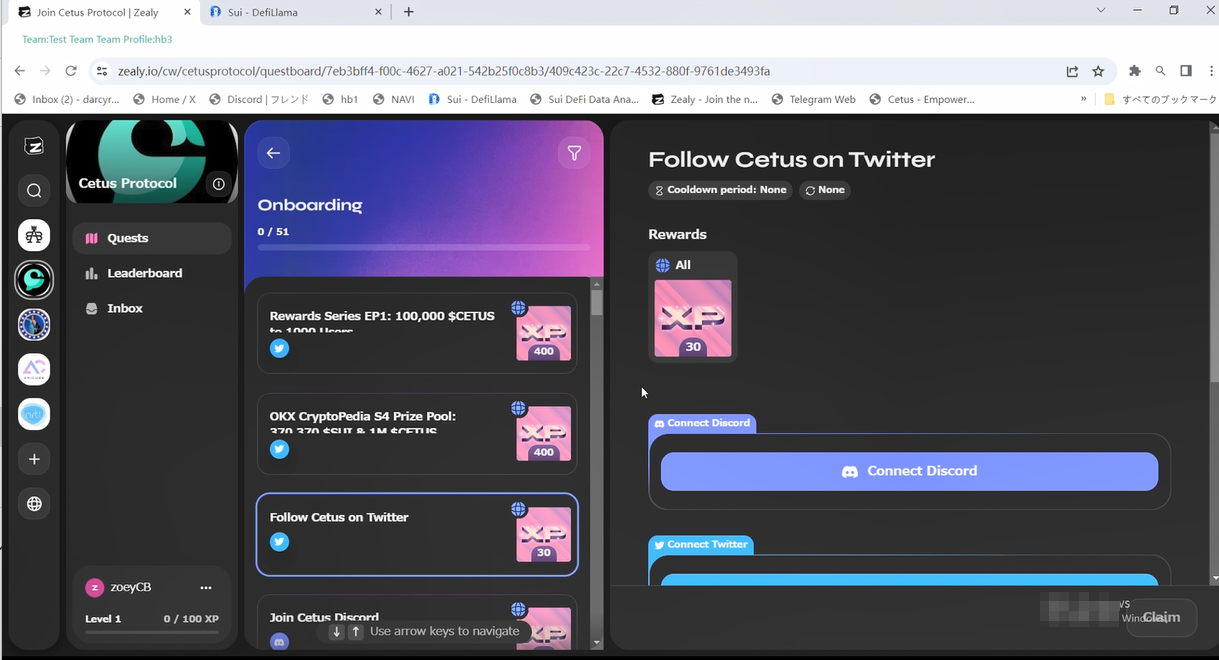
    Once you have the trio set up and well-maintained, your operations in Web3 projects will become much smoother. For instance, when searching for project tasks on Zelay, most of them require interaction through platforms like Twitter or Discord. Simply click on the links, and you will be automatically redirected. Once you enter these platforms, you can claim rewards, complete tasks, and earn experience points.

    In the next artical, we will delve into how to leverage ClonBrowser’s group control feature to efficiently tackle Web3 tasks in bulk.

    Cast a wide net and reel in more fish. ClonBrowser, the anti-detect browser, is your essential tool for monetizing your Web3 ventures.

New Year Discount — Up to 40% off

As a Singapore company product, ClonBrowser wants to share the happiness of Lunar New Year with all of you. Thus we prepared a new discount event for you at this special time, and hope we can bring you more help with your business.

Subscribe with up to 40% off

  1. This Thanksgiving Event will last 5days from 10th February to 14th February
  2. During the Event Week all customers will enjoy 20% off when subscribe 90 days of any plan, 30% off when subscribe 180 days of any plan and 40% off when subscribe 365 days of any plan.
  3. During the event, all the discount plans can be purchased repeatedly. (The purchased but unused plans will automatically take effect one by one after the current plan expires.)

Why should you choose ClonBrowser

Multiple accounts management is a hard work for your social media career, are you still confused by this issue?

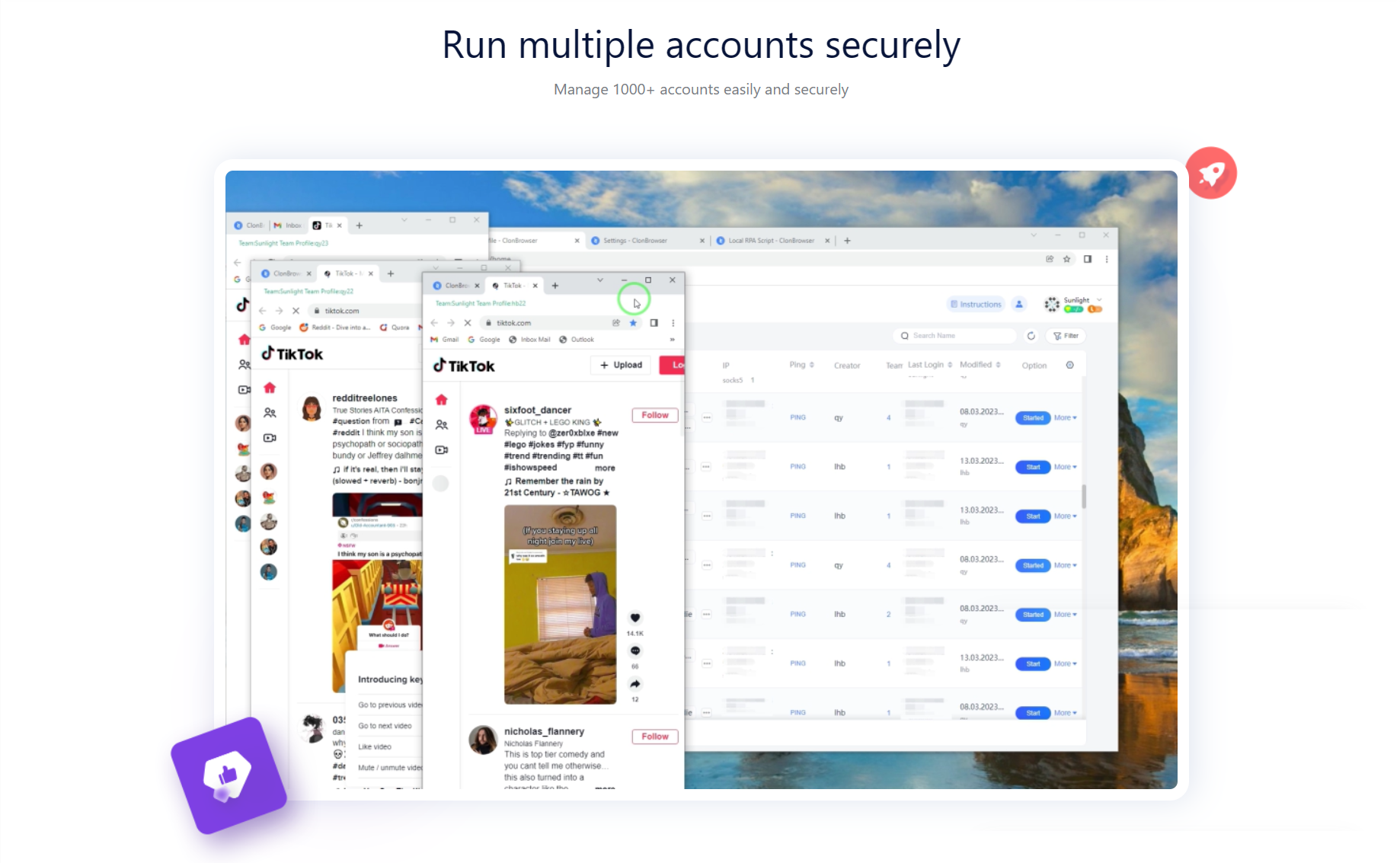
ClonBrowser is a powerful anti-detect browser, which will help you run and manage multiple accounts securely consistently and efficiently.

ClonBrowser provides advanced fingerprinting options and web proxy plug-ins to protect your privacy and security, and powerful RPA automation tools free up your hands to help you manage your accounts all in one place.

ClonBrowser provides over 30 advanced fingerprint options for users to configure, enabling the creation of millions of unique environments to manage numerous accounts securely and conveniently.

ClonBrowser supports standard HTTP/HTTPS, Socks5, SSH, as well as advanced application protocol plugins such as VMess, Shadowsocks, Trojan, VLESS, Local-Proxy (local mobile device proxy application plugin), and Subscription (batch subscription proxy application plugin).

ConBrowser offers generous RPA automation tools, which will help you conveniently manage over 1000 accounts on multiple platforms, reducing costs, increasing efficiency and making your time more valuable.

ClonBrowser will help you securely manage account assets on over 1000 platforms, including Facebook, Tik Tok, Amazon, Web3 and many other platforms.

New Year Discount — Up to 40% off

It’s about the time to say farewell to 2023, ClonBrowser has gained a lot of valuable experience when look through the whole year, we also hope you have gained more. ClonBrowser has prepared a 15-day discount event to welcome the new year together with you.

Subscribe with up to 40% off

  1. This Thanksgiving Event will last 15days from 24th December 2023 to 7th January 2024.
  2. During the Event Week all customers will enjoy 20% off when subscribe 90 days of any plan, 30% off when subscribe 180 days of any plan and 40% off when subscribe 365 days of any plan.
  3. During the event, all the discount plans can be purchased repeatedly. (The purchased but unused plans will automatically take effect one by one after the current plan expires.)

Why should you choose ClonBrowser

Multiple accounts management is a hard work for your social media career, are you still confused by this issue?

ClonBrowser is a powerful anti-detect browser, which will help you run and manage multiple accounts securely consistently and efficiently.

ClonBrowser provides advanced fingerprinting options and web proxy plug-ins to protect your privacy and security, and powerful RPA automation tools free up your hands to help you manage your accounts all in one place.

ClonBrowser provides over 30 advanced fingerprint options for users to configure, enabling the creation of millions of unique environments to manage numerous accounts securely and conveniently.

ClonBrowser supports standard HTTP/HTTPS, Socks5, SSH, as well as advanced application protocol plugins such as VMess, Shadowsocks, Trojan, VLESS, Local-Proxy (local mobile device proxy application plugin), and Subscription (batch subscription proxy application plugin).

ConBrowser offers generous RPA automation tools, which will help you conveniently manage over 1000 accounts on multiple platforms, reducing costs, increasing efficiency and making your time more valuable.

ClonBrowser will help you securely manage account assets on over 1000 platforms, including Facebook, Tik Tok, Amazon, Web3 and many other platforms.