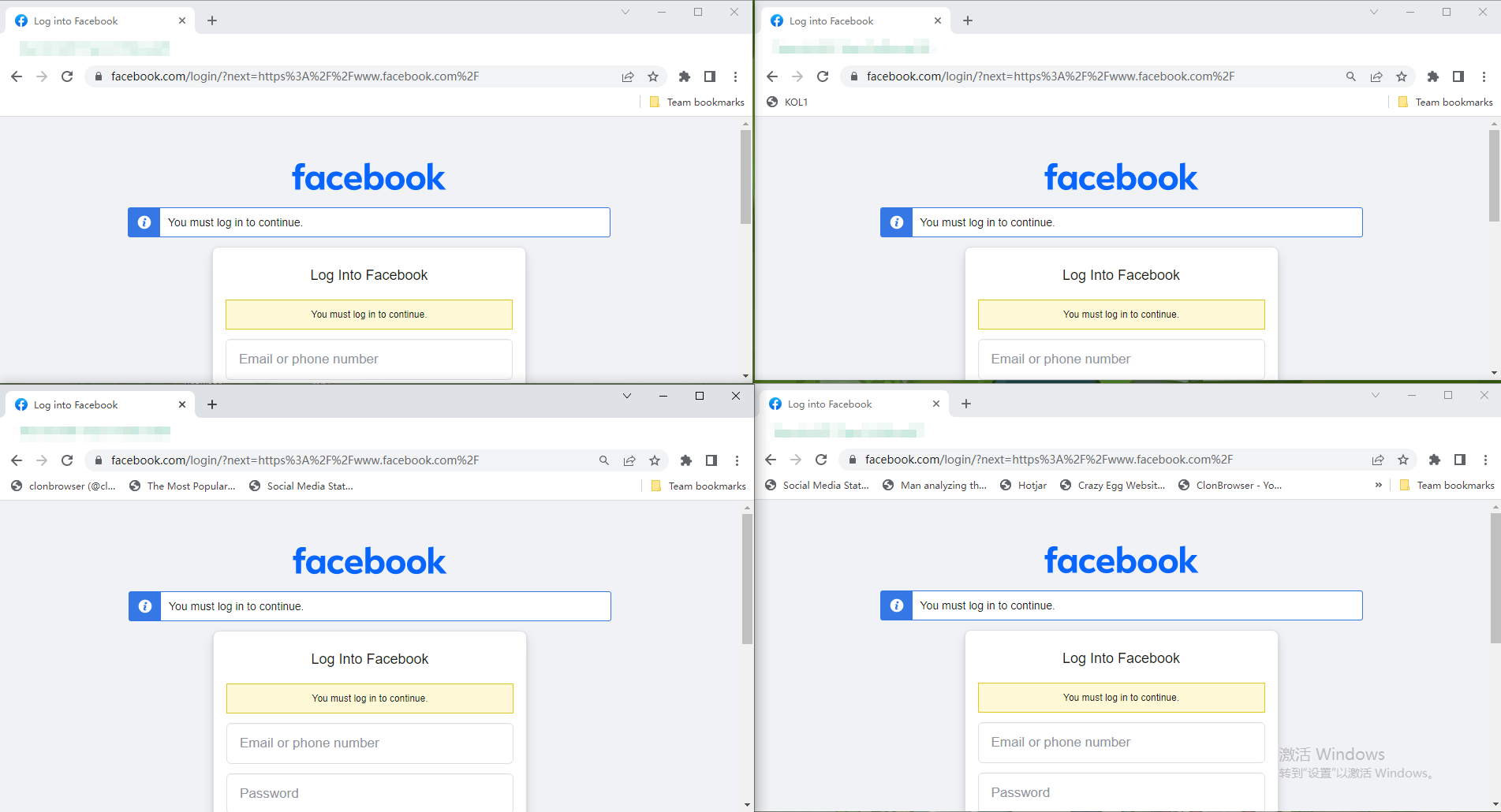

Twitter Matrix Feeds: How to Manage Multiple Accounts for Steady Growth

Advantages of Twitter Matrix Raising

The influence of Twitter (Twitter/X) as a major social platform cannot be underestimated. However, it is not easy to operate one Twitter account, not to mention the raising and operating of multiple accounts. At this point, matrix farming has become the first choice of many professional operation teams and individuals. The purpose of matrix operation is achieved through matrix raising, which not only helps to realize the batch management of accounts, but also improves the influence and increases the exposure rate in a short period of time.

So, how to manage multiple Twitter accounts and achieve stable growth through matrix farming?

1. Stable environment for registration and maintenance

When you register a Twitter account, you will usually think of finding an assistive tool to register, but after registering in this way, you will be blocked when you log in again. This is because we always prioritize faster nodes when using assistive tools, which results in the account’s IP address constantly changing. For example, you may have just logged in Singapore, and the next second the IP becomes the United States, which is not in line with the laws of life; in addition, many people are using the same auxiliary tool node, the platform is more likely to detect abnormal activities. To avoid account not being blocked, you need to use an independent, stable and clean IP address and environment.

One IP per account

When signing up for multiple Twitter accounts, use a different IP address for each account.The IP address should ideally match the geographic location of the target audience.Choosing credible, common locations increases the authenticity of the account and avoids IP segments flagged by Twitter’s blacklist.

Separate equipment environment

Having separate device environments for matrix account raising prevents multiple accounts from operating on the same device or browser. Ensuring that IP, cookie, and browser information is isolated for each environment prevents Twitter from recognizing account association issues through device fingerprinting.

2. The period of Matrix Raising

Simulating real user behavior: the first seven days after registering a Twitter account are crucial. The first three days after registration, it is best not to have any operation, do not easily change the user name, password, email, etc.. For the next four days, you can slowly increase your activity, avoiding short periods of high-frequency interaction. Do not release any tweets during this period. After seven days, the tweets released per day are limited to two or less, while paying attention to some target users, who may be back off. But avoid following or unfollowing a large number of people and keep it gradual.

Avoid posting sensitive content: It is important to avoid posting content that deals with politics, religion, violence, hate speech, or other content that may be controversial. Ensure that your content is in line with Twitter’s community guidelines, keeping it neutral and friendly, and focusing on healthy, positive exchanges will help the long-term stability of the account.

3. Matrix operation period

Keeping accounts active: The Twitter platform prefers to recommend and protect accounts that are consistently active, so each account should be kept moderately active on a regular basis. Increase the credibility and weight of your account by participating in hot topics, interacting with other accounts, and participating in polls. Interact appropriately with other accounts in the matrix, such as liking, retweeting or commenting on each other’s tweets to increase social activity and form an authentic social network.

Content Diversification: Each account needs to have its own independent content strategy to avoid all accounts publishing the same tweets or engaging in the same topics, and to form a natural and diversified operating style. The content can be diversified according to the account positioning layout, such as science and technology, culture, current affairs hotspots, etc., and maintain the release rhythm.

Data analysis and optimization: Regularly analyze the account article data to understand the interaction rate of tweets, fan growth, success rate of participation in activities and other key data. From there, we can adjust the direction of the tweets to improve the weight of the account and ensure the long-term stable operation of the account.

4. Efficient Matrix Operations Tool – ClonBrowser

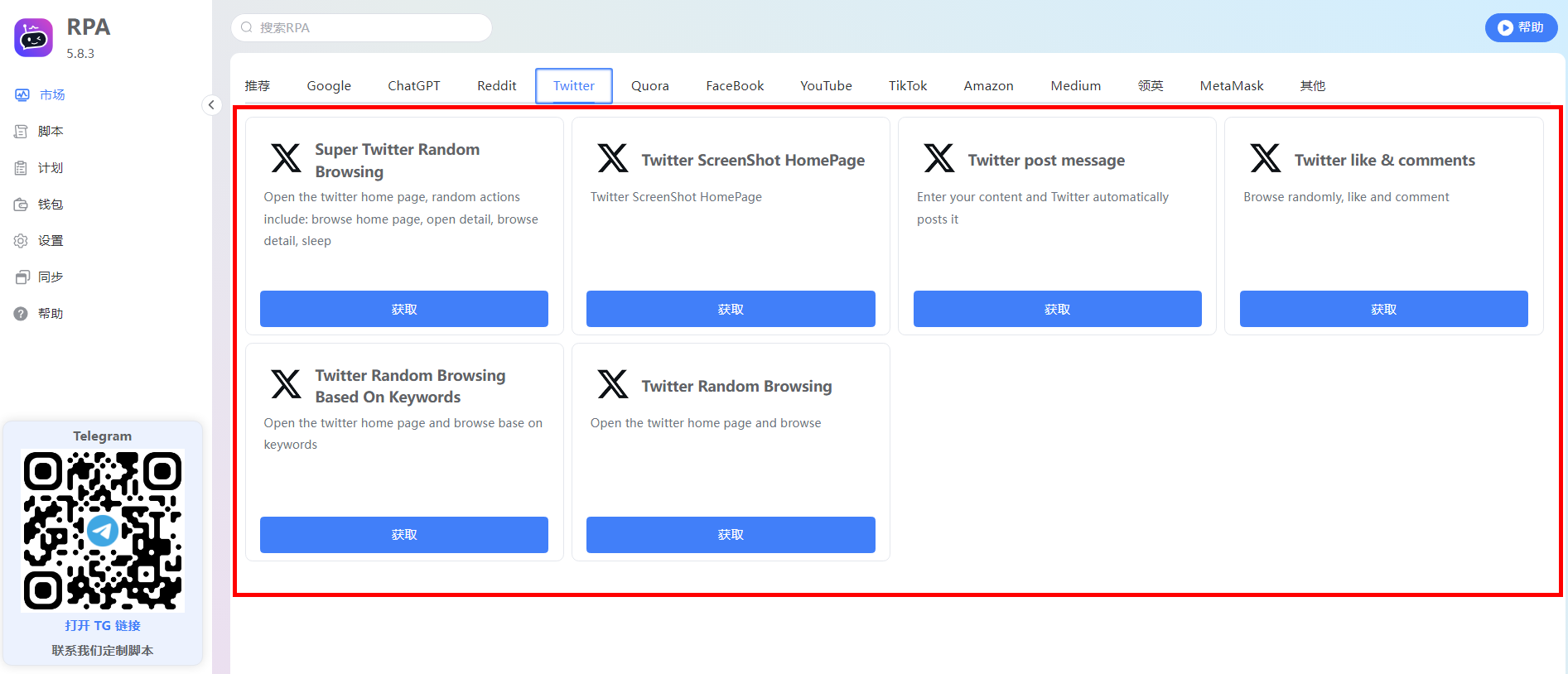
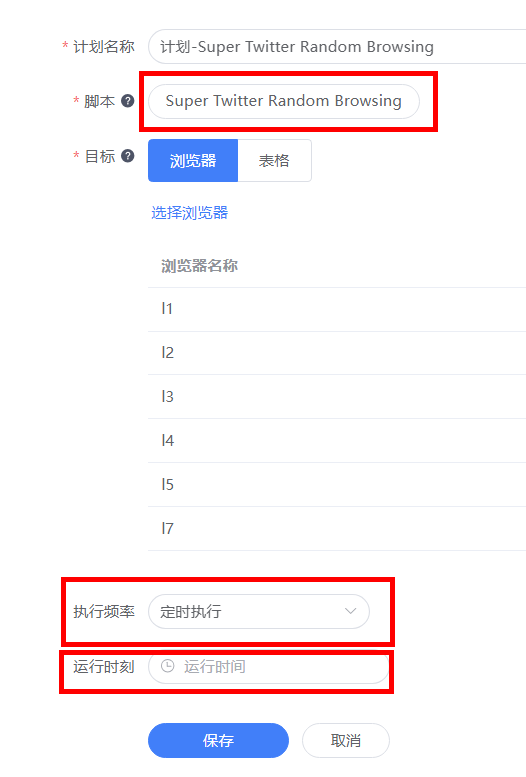
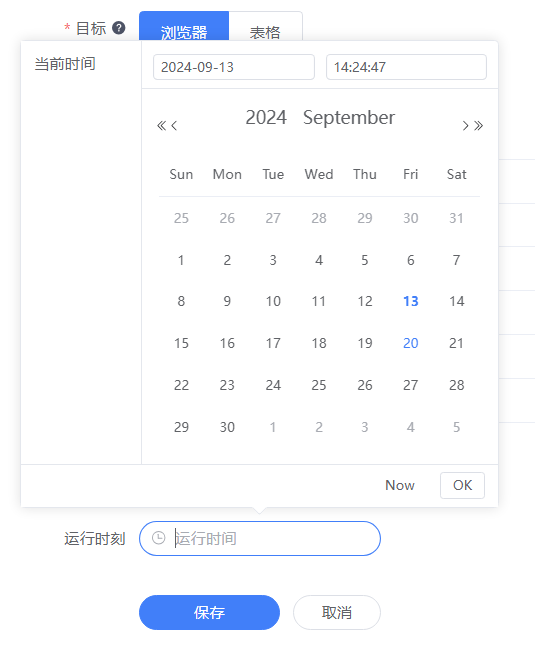
Utilize RPA Automation: ClonBrowser’s RPA Automation tool is a powerful assistant in matrix operations operations.RPA Automation allows you to manage multiple accounts in bulk and simulate manual operations through automation scripts, such as automatic login, browsing messages, liking, commenting and posting. You can set the running time of the script, and the tool will automatically perform the tasks according to the preset program, while automatically saving the status of each account. This improves operational efficiency and also makes it easy to subsequently view and analyze the results of each account’s operation.
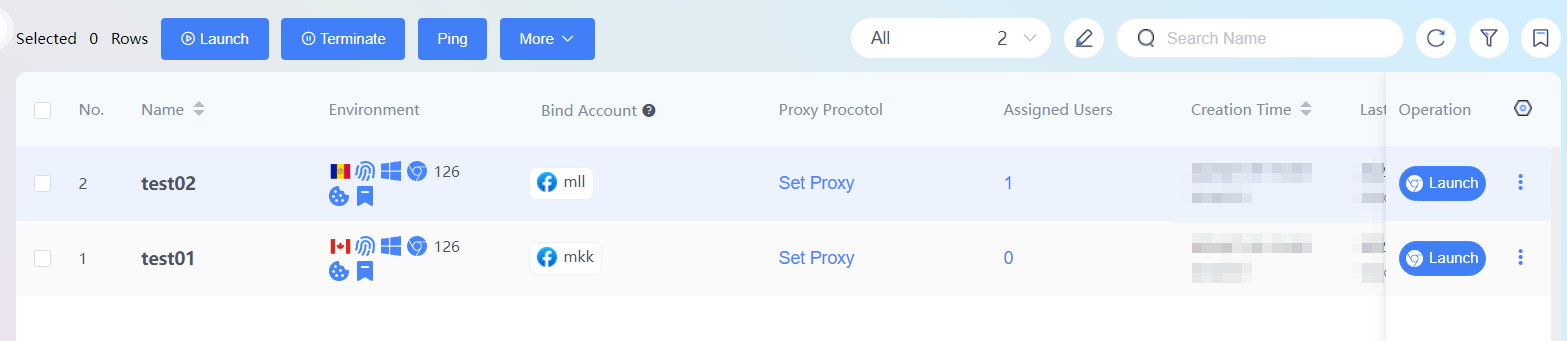
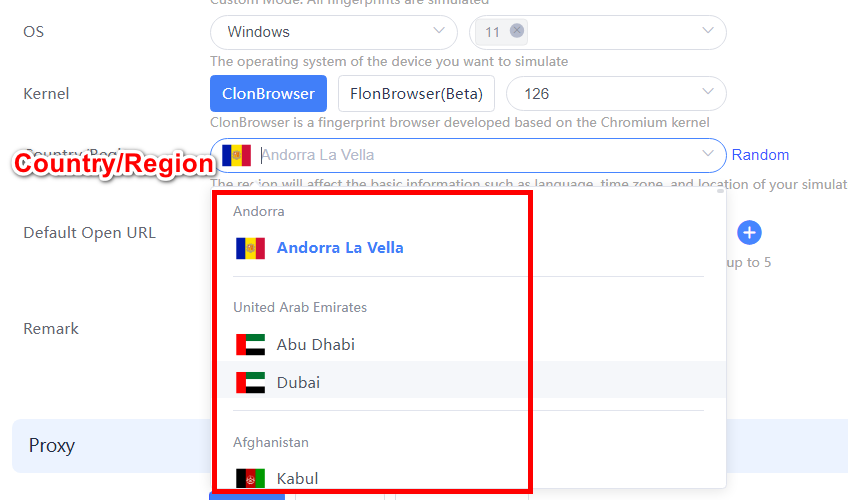
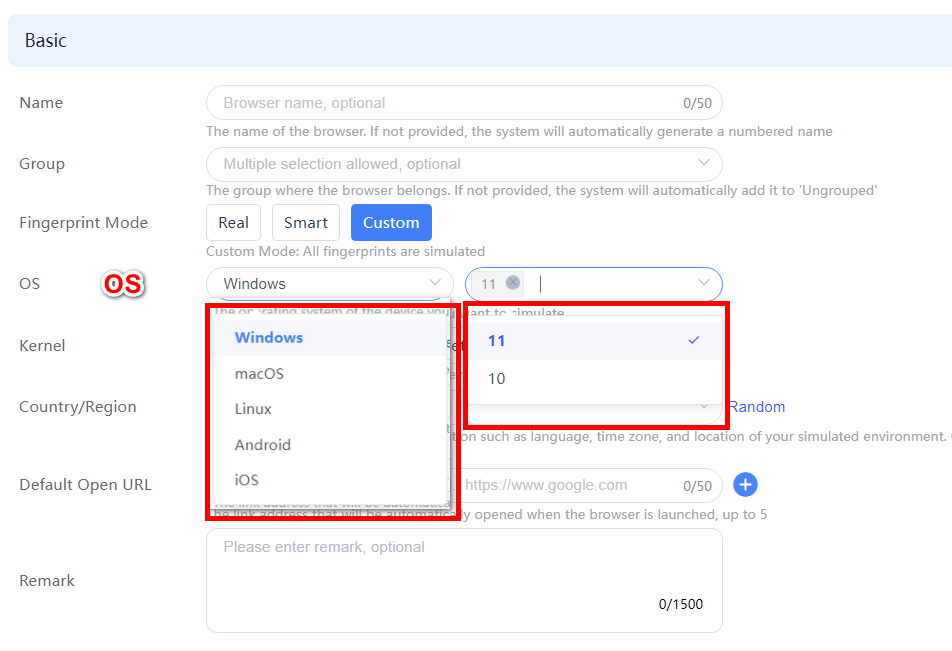
Browser Environment: ClonBrowser provides a clean and independent browser environment that prevents correlation between accounts, thus reducing the risk of account bans. With ClonBrowser, you can create browser configurations with different country IPs and different device fingerprints. Each browser configuration has its own cache, cookies, and local storage for complete data isolation. This environment significantly improves account security and survivability.
Facebook secrets that I don’t tell people.

Facebook secrets that I don’t tell people.

Why did Facebook registration fail? Why is it blocked? What causes these problems? Below we summarize the common problems in Facebook operations and how they should be solved and avoided.

First, the reasons for the failure of Facebook registration

environmental problem

It is not possible to access Facebook directly in China, you need to use auxiliary tools, but the auxiliary tools may also be unstable or disconnected, which will directly affect the access to Facebook.

— So how can registration be completed without environmental problems?

In response, ClonBrowser effectively solves such problems by providing users with an independent and clean browser environment through a combination of fingerprinting environment and IP.

Second, the reason why Facebook is easily blocked:

1. Inconsistent login IPs:

1) Frequent changes in IP address when logging in using auxiliary tools, etc., will be considered by the system as abnormal activity, which may result in account banning.

2) If the current computer has logged into an account that has been banned for violating the policy, and you repeatedly register a new account without clearing the associated cache, it is easy to cause the fingerprint information of multiple accounts to overlap, resulting in account linkage and the new account being banned.

ClonBrowser can help you easily realize account & environment one-to-one, thus effectively preventing data and environment correlation.

2. Frequent switching between multiple accounts:

Logging in to multiple accounts on the same computer or logging in to the same account on multiple computers, switching devices frequently or logging in to multiple Facebook accounts on a single device at the same time may be detected as a login risk and result in account blocking.

— How do you avoid frequent multi-account switching?

  • ClonBrowser’s multi-account management feature helps you realize data isolation of multiple browsers, multi-open browsers, multi-tasking operations; each window operates independently, avoiding the risk of data leakage or confusion, thus improving work efficiency as well as account security.

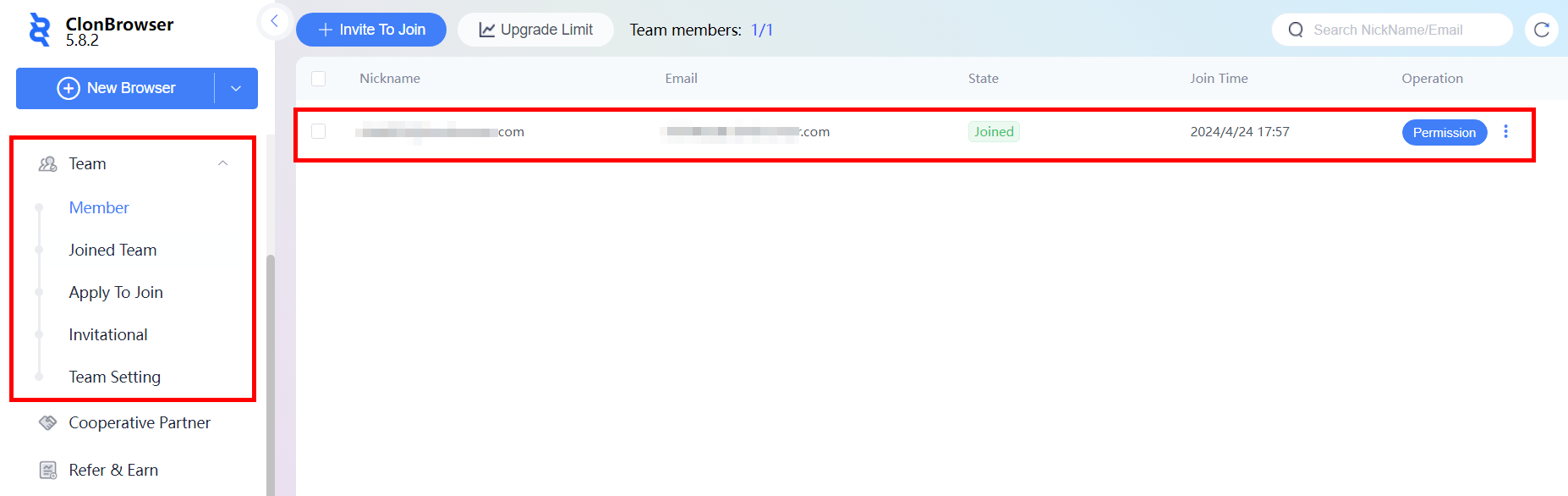
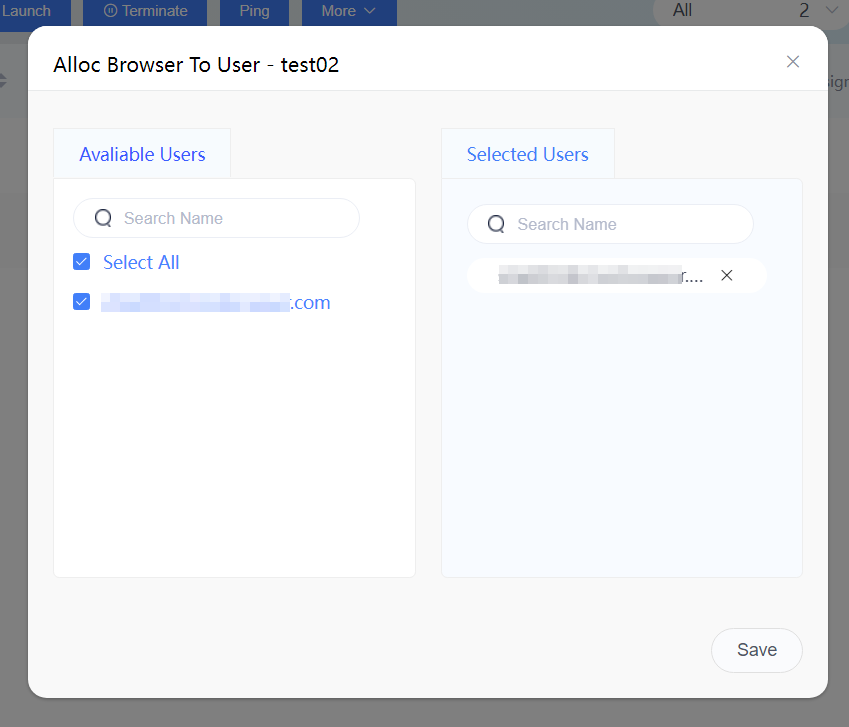
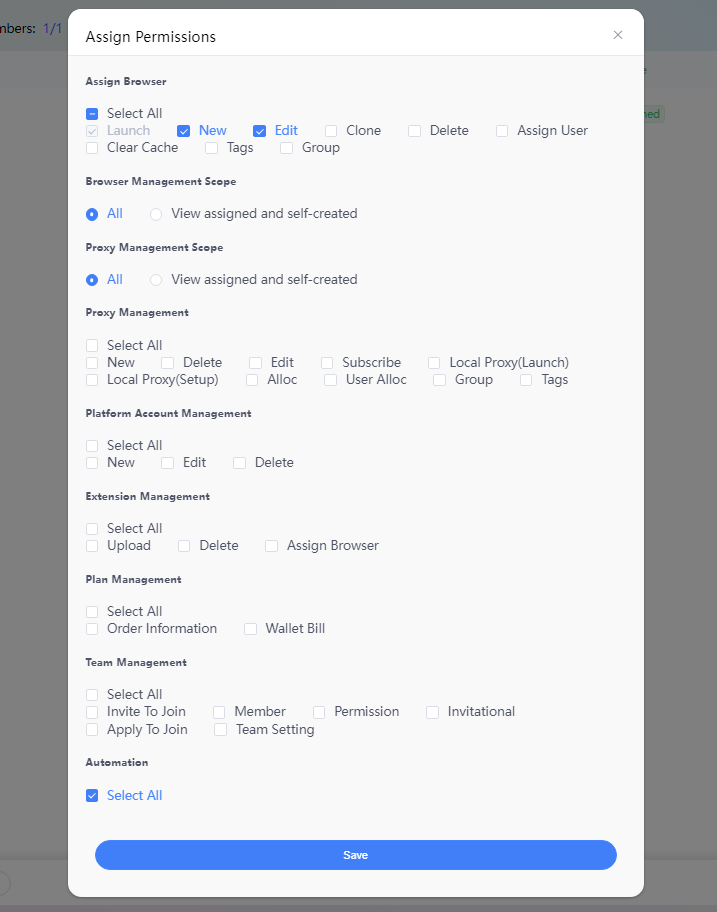
  • ClonBrowser also offers a team management feature that allows multiple users to co-manage accounts. Administrators can set different permissions and access controls for team members to ensure safe collaboration without disturbing others.

3. The account is not tied to a cell phone:

Facebook explicitly prohibits a person from having multiple accounts, and accounts that are not tied to a cell phone are more likely to alert the system and increase the risk of being blocked.

(Binding a cell phone number becomes a necessary way to prove a user’s unique identity.)

4. Operate frequently for short periods of time:

Adding too many friends to a new account within a short period of time, frequently inviting friends to join groups, sending messages or over-adding unrelated friends will increase the risk of being blocked. At the same time, rushing to spread pictures and videos in large quantities is also easily recognized as suspicious by the system.

(To avoid blocking, new accounts should gradually increase their activity level and control the frequency of adding friends.)

5. Violation of Facebook policy:

Facebook’s platform is very strictly regulated, so you need to read the relevant documents carefully and comply with the platform’s policies during the operation of your account in order to avoid having your account banned.

6. Use of false information

Signing up for a Facebook account using false identifying information resulted in the account being banned.

(It is important to use real ID information when registering and to ensure that information such as cell phone number, email address, address, phone number, name and age are accurate in order to be able to provide proper authentication in the event that an account is blocked.)


How to set up WEBSHARE in ClonBrowser?

Learn how to use the proxy from WEBSHARE with ClonBrowser.

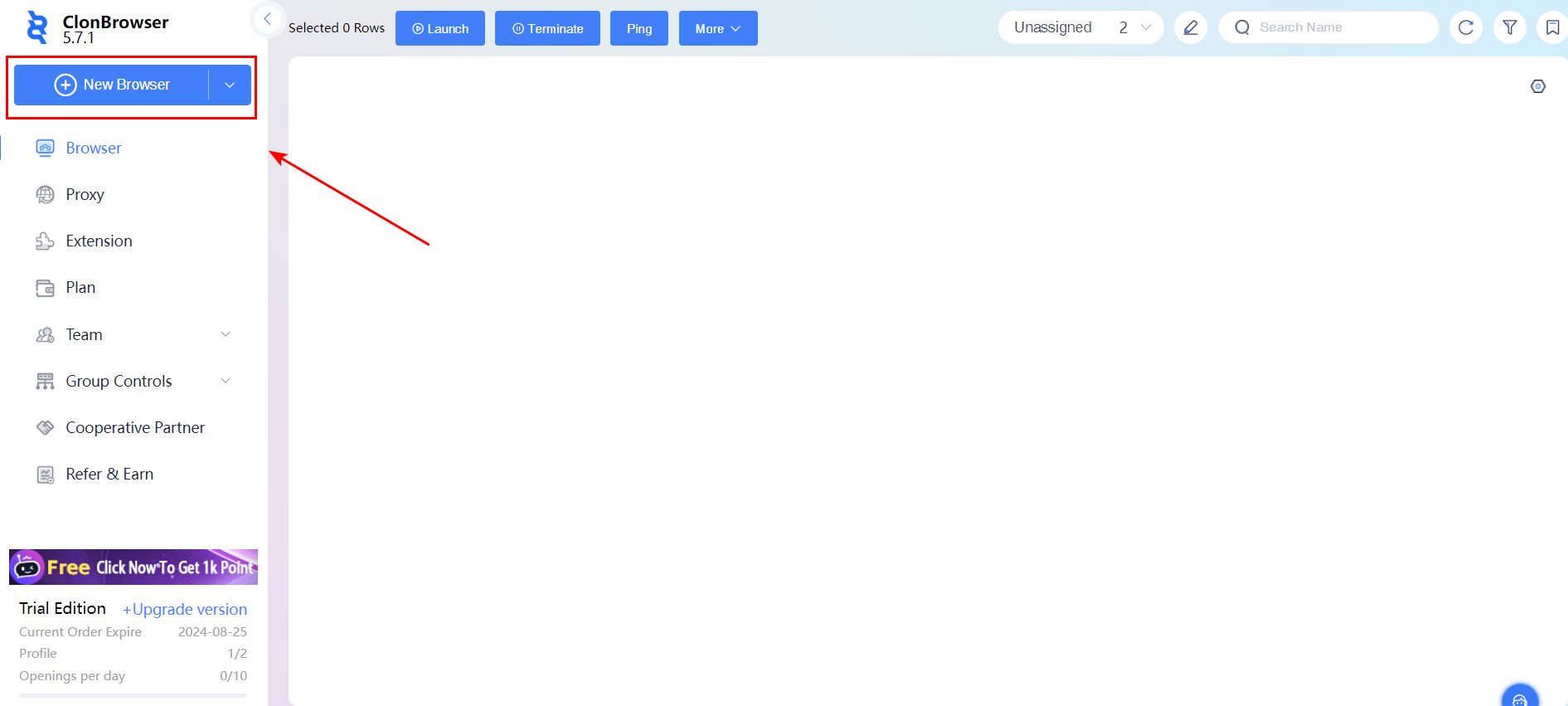
1.Open the ClonBrowser and click [New Browser].

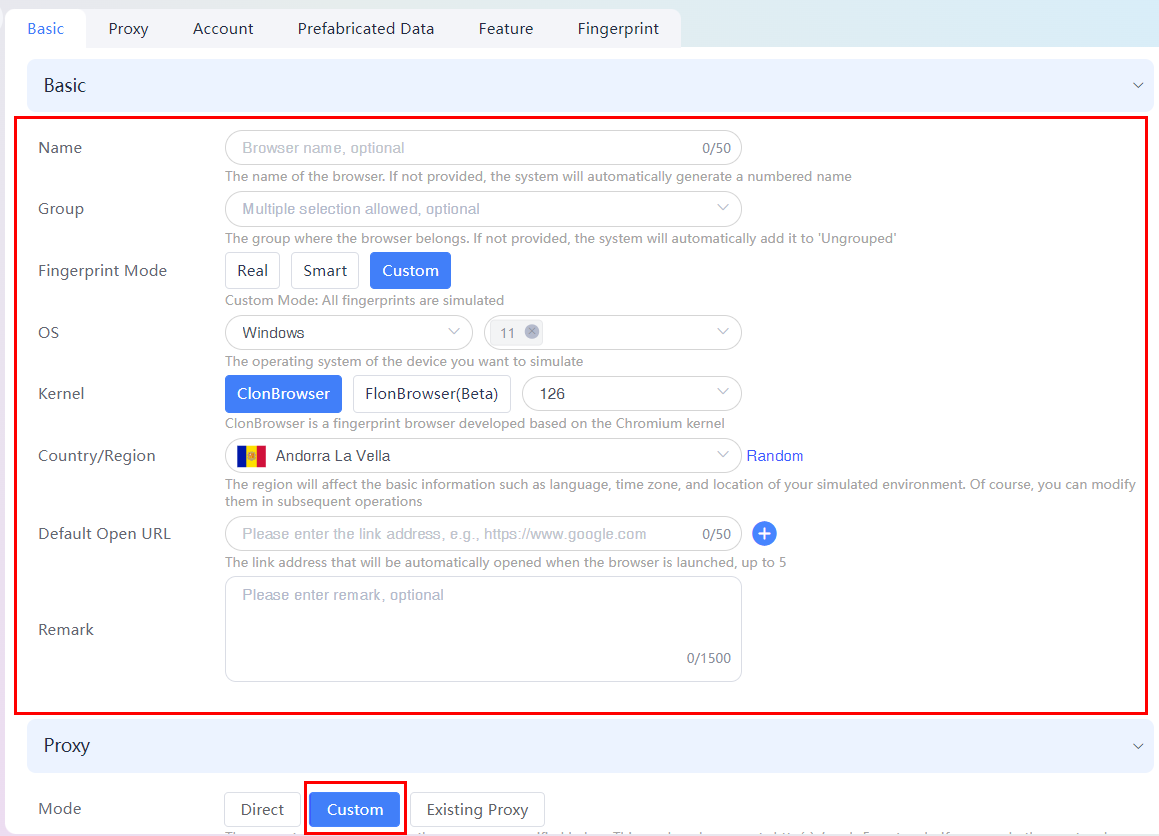
2.Enter the name, select the appropriate kernel system, select the country and region, and in the proxy settings, click [Custom].

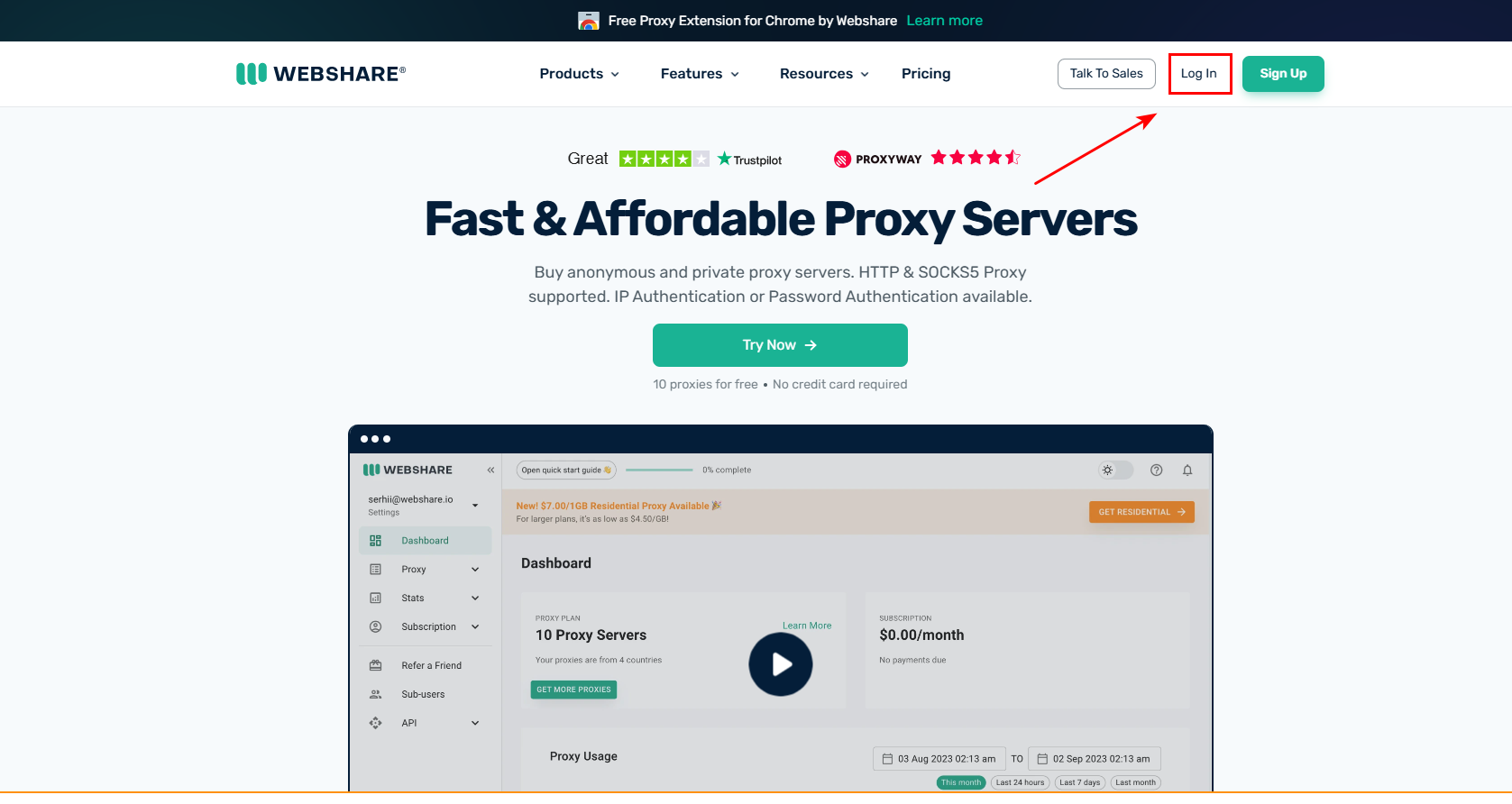
3.Open the WEBSHARE website (https://www.webshare.io/), login to your account and click [Log In].

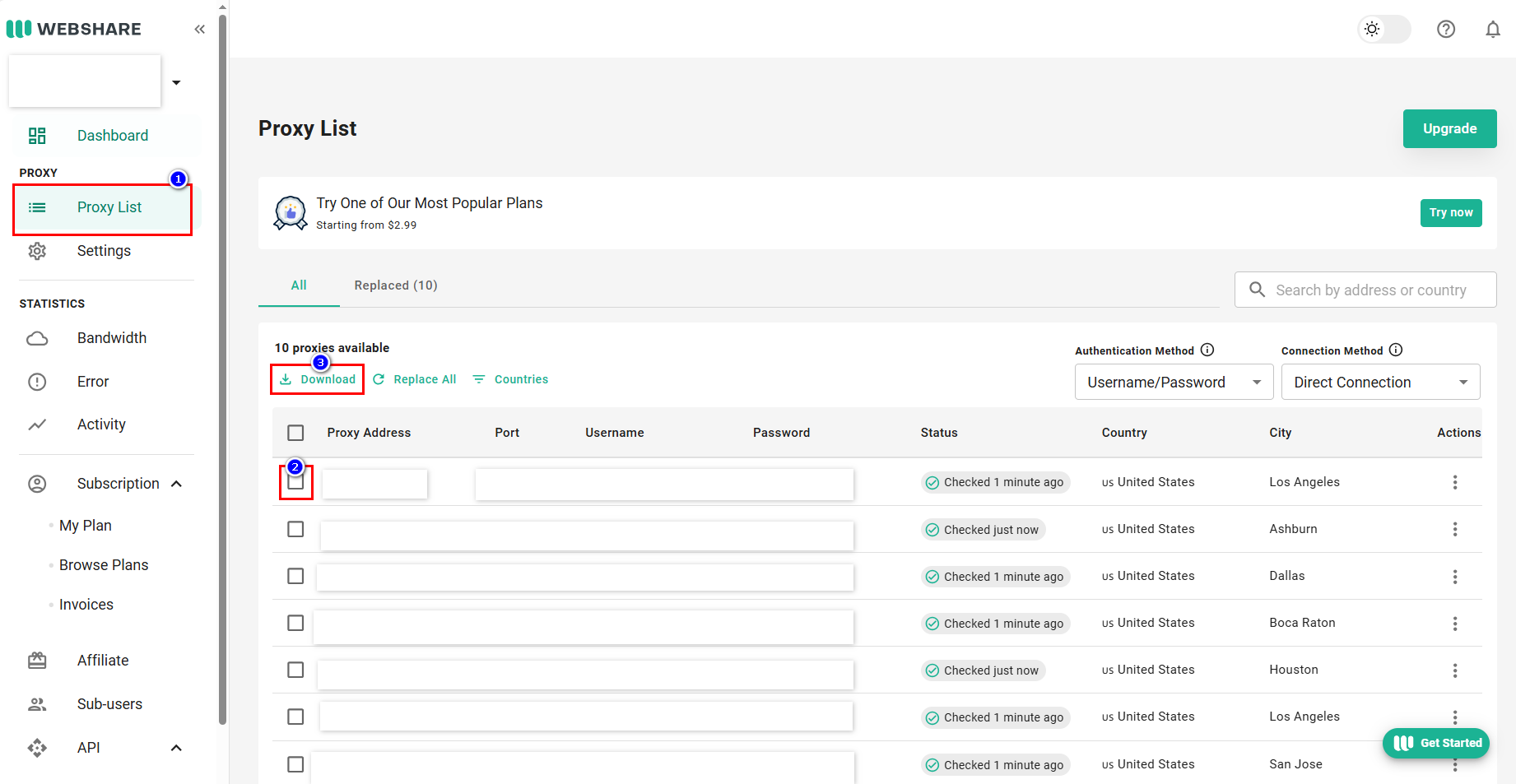
4.Click [Proxy List] and select the desired proxy to download.

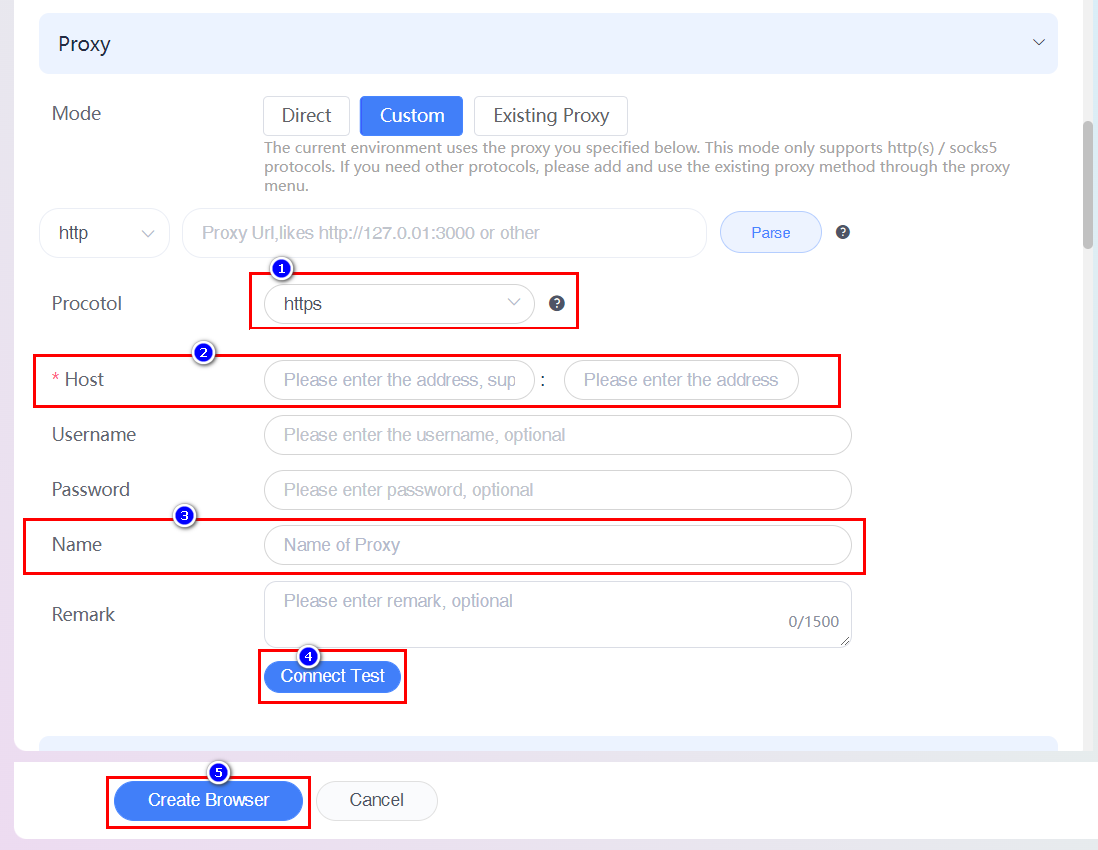
5.Select the proxy type, paste the proxy IP and port into ClonBrowser, edit the proxy name, click [Connect Test], and click [Create Browser] after success.

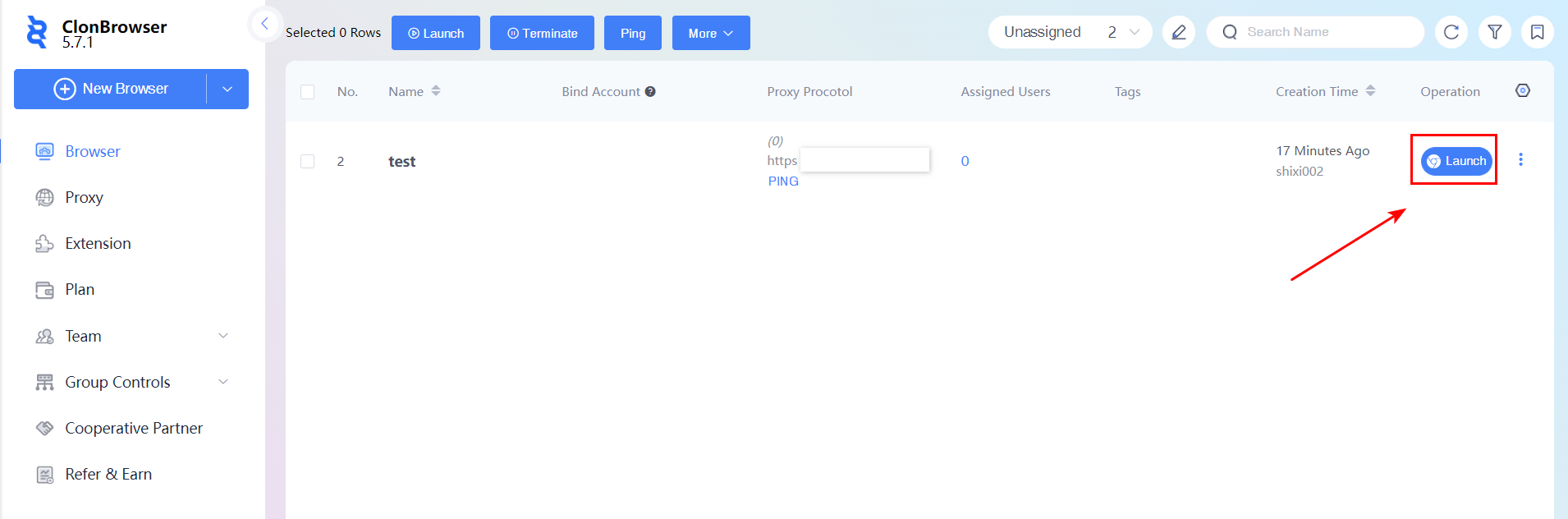
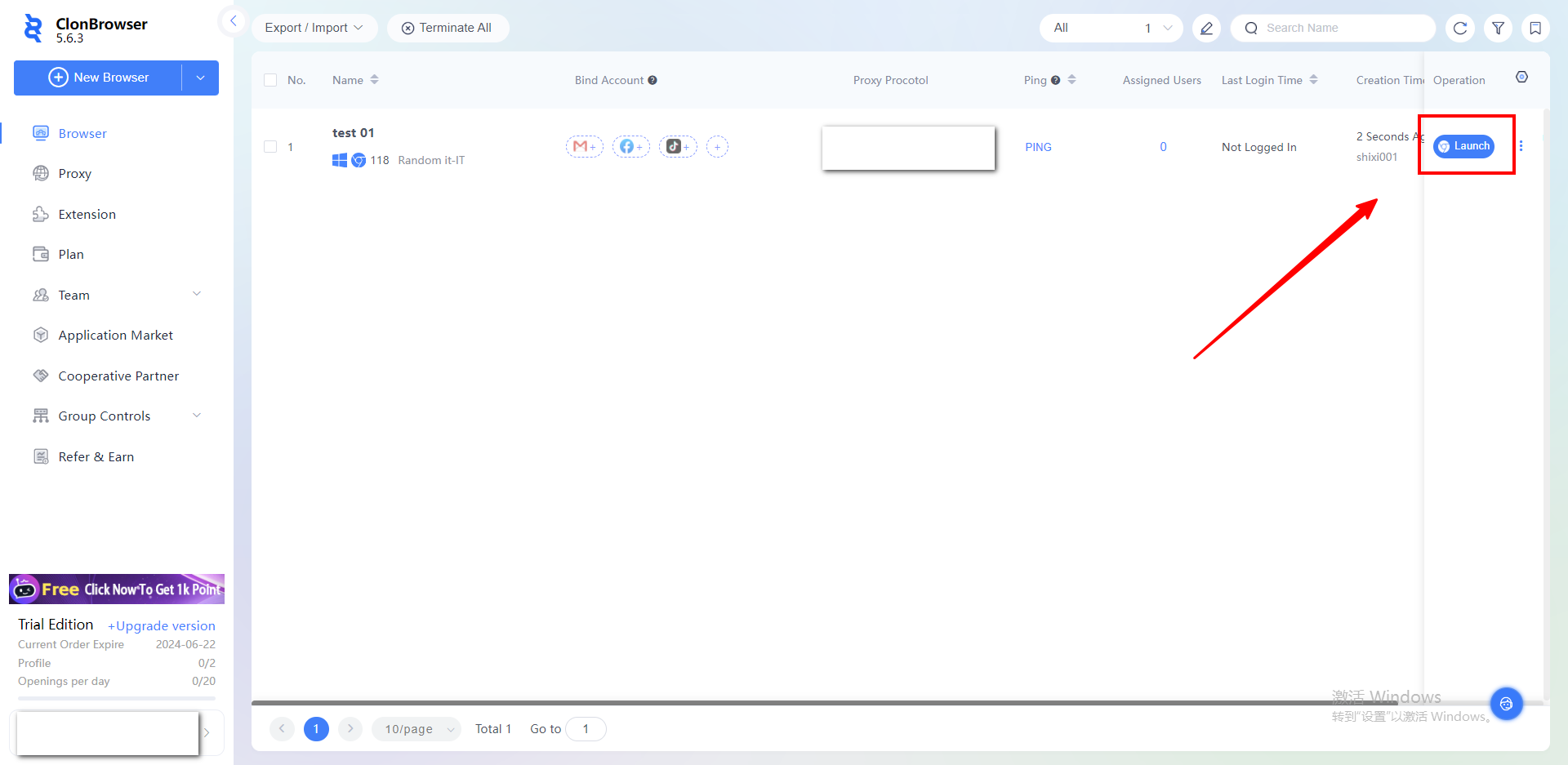
6.After the browser is created, click [Launch] to use it.

Update | New Browser Process Simplified to Save Your Time

We have simplified the operation process to improve your browser creation experience, so it’s time to say farewell to the complicated New Browser process.

You can easily make all settings on the same page.

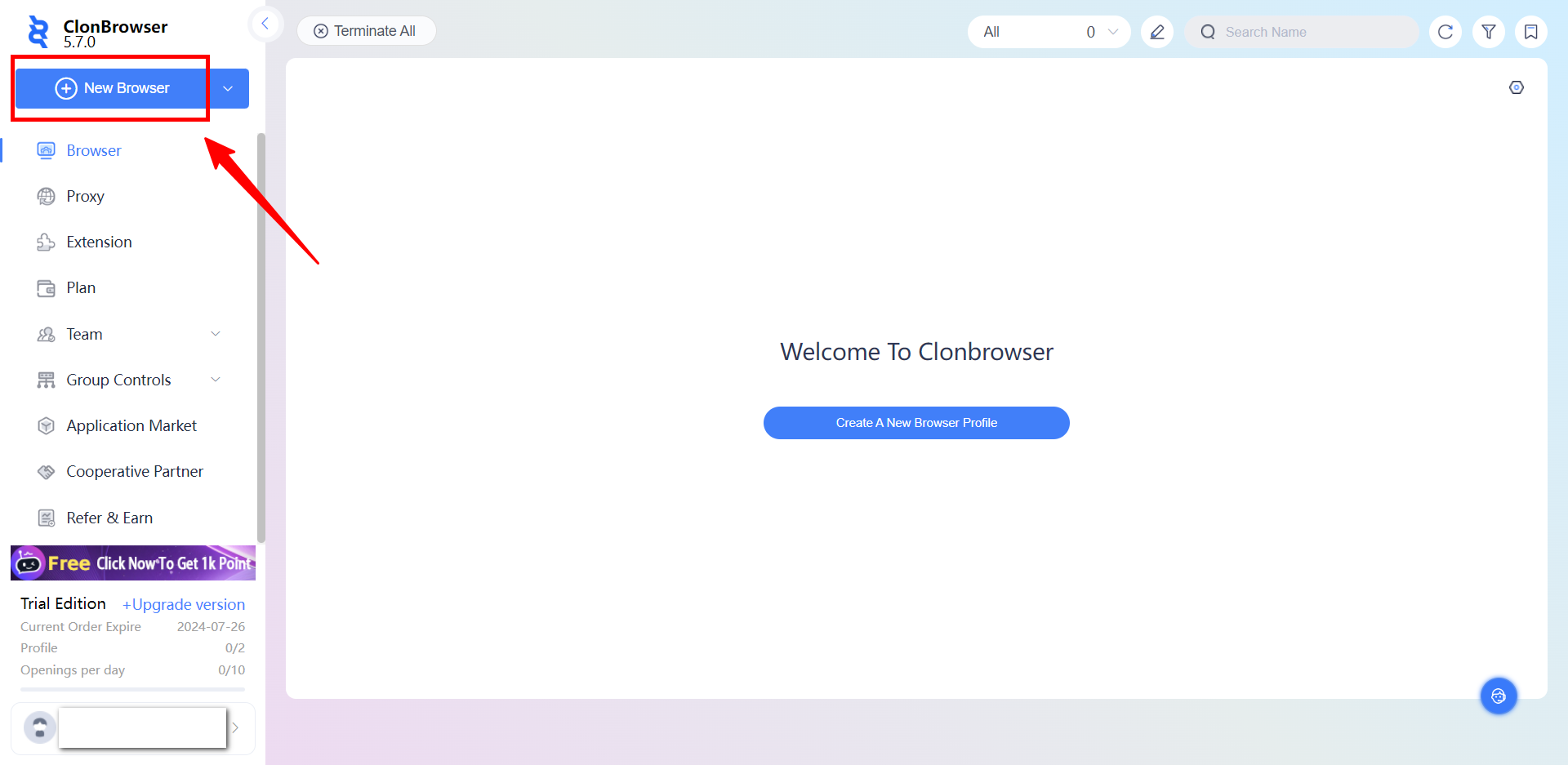
First,Click[New Browser].

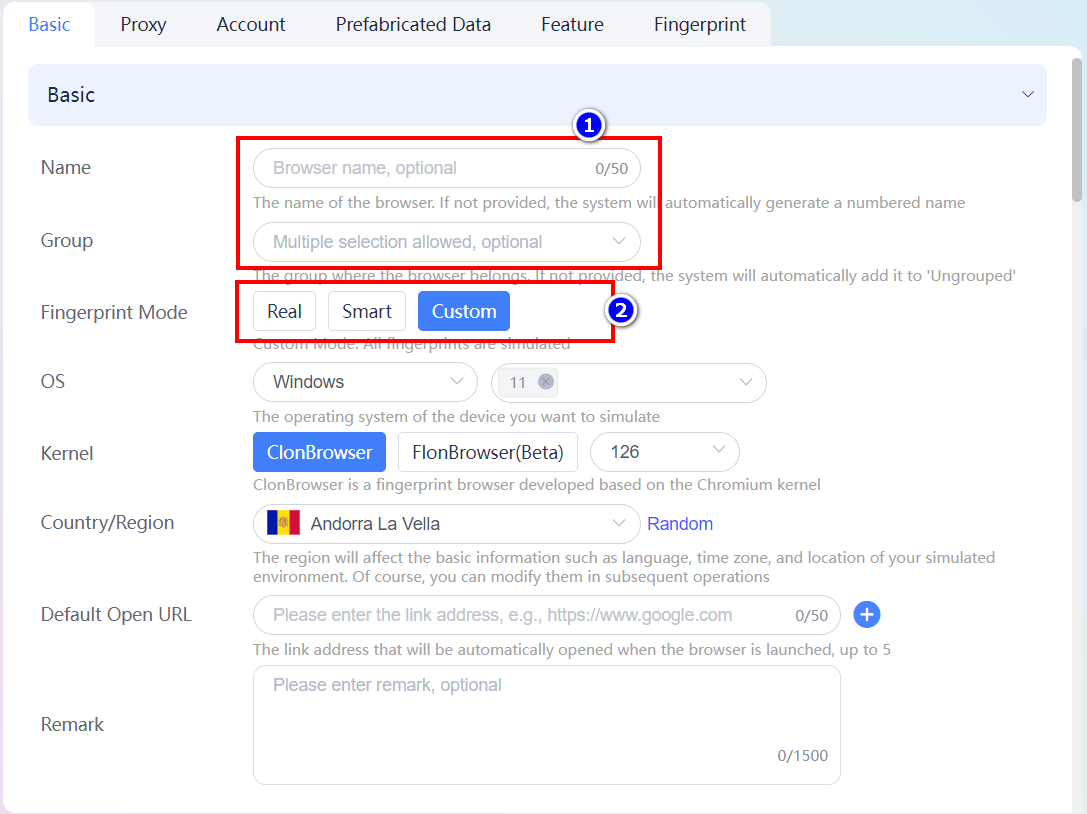
1.In order to facilitate the subsequent management, you can fill in the browser name, select the group, but these are non-required items.

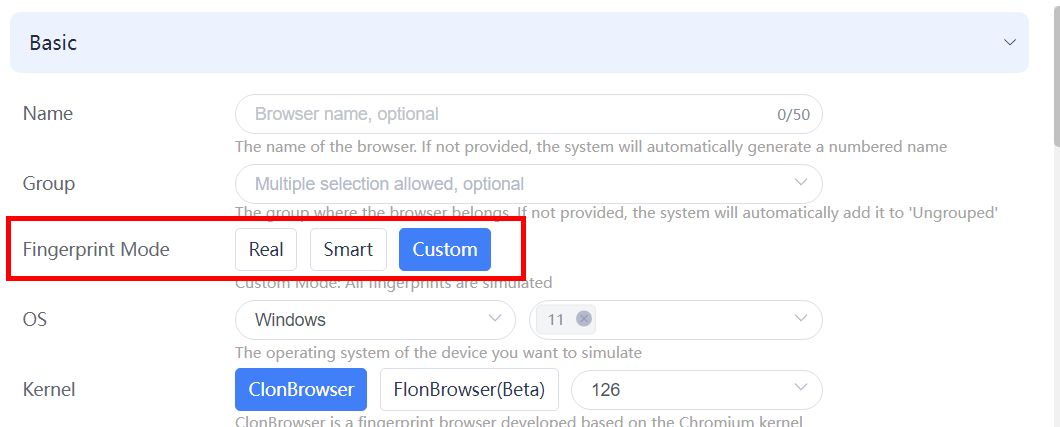
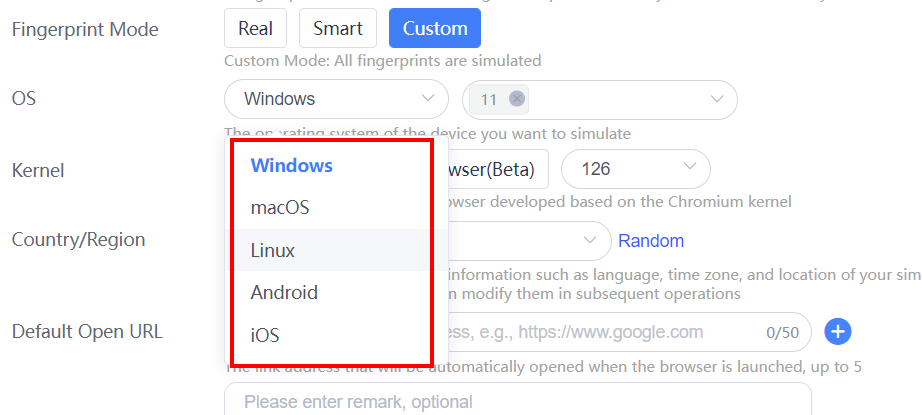
2.Fingerprint mode, custom by default, it can also be selected according to your business needs.

3.Supports multiple systems, Windows 11 by default, Windows 10 is also available, choose the operating system according to your specific needs.

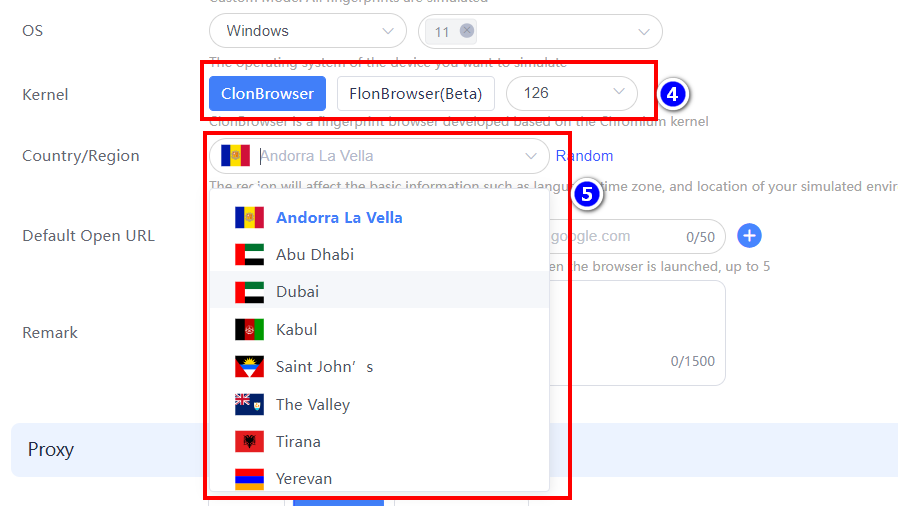
4.The kernel can be Chromium (ClonBrowser) kernel, Firefox (FlonBrowser) kernel and kernel version, the default kernel version is 126.

5.The country/region can be selected according to the IP/proxy you will use.

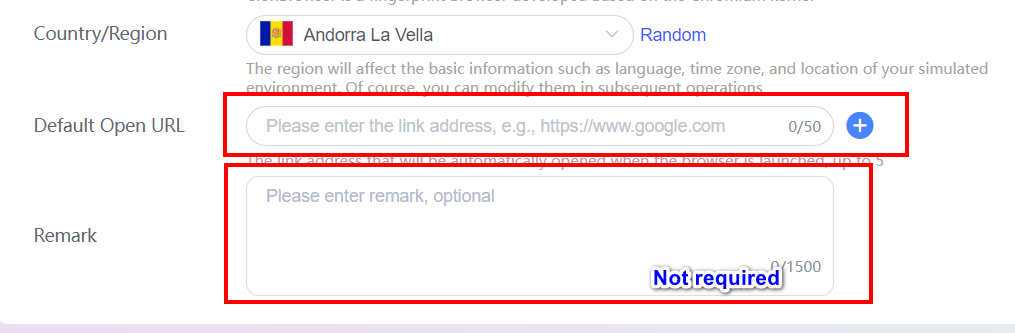
6.In the default open link, you can fill in the link address you need to automatically jump to the target website when the browser starts.

7.Remarks can be filled in according to your needs.

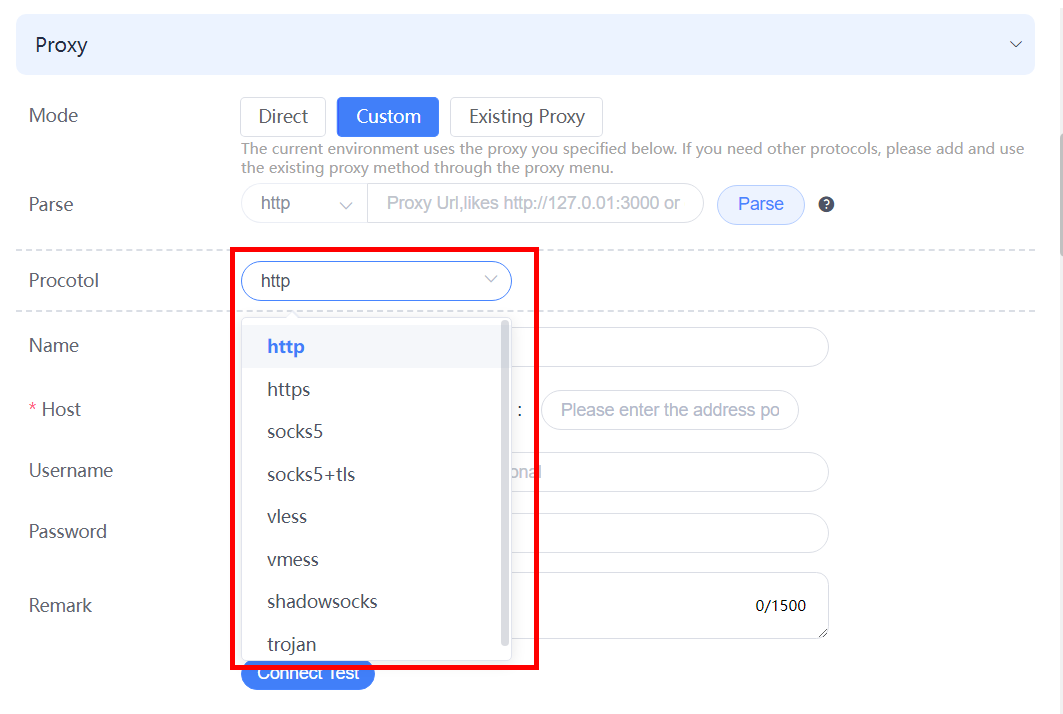
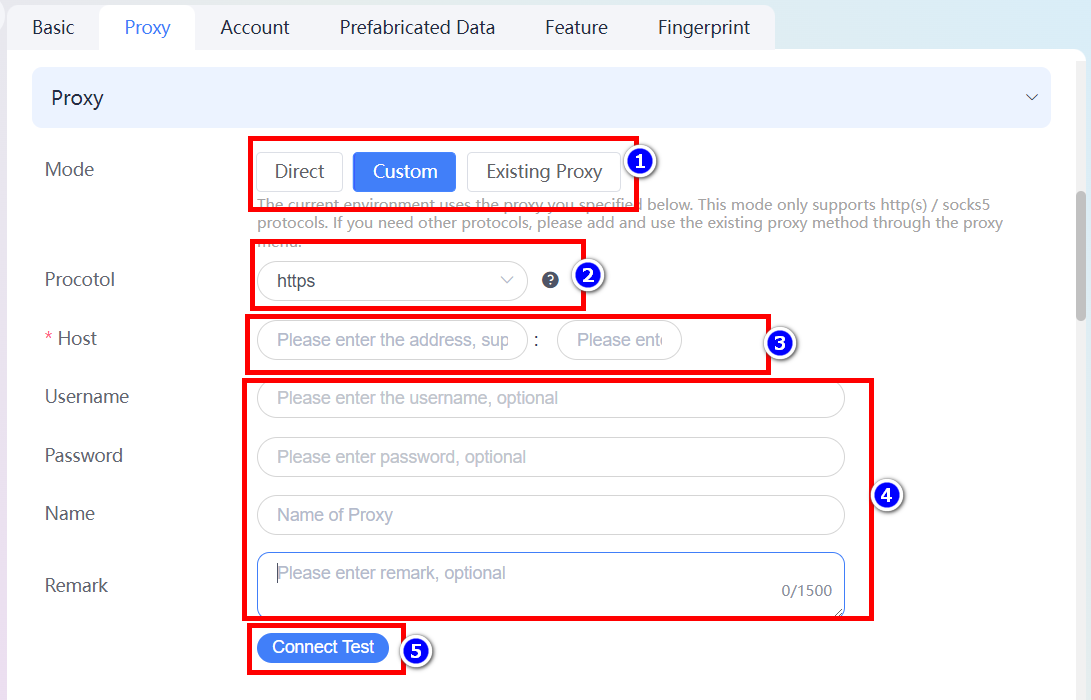
8.In the proxy settings you can choose between Direct, Custom, and Existing proxy.

  • In Customize Proxy, select the protocol type your proxy belongs to, fill in the proxy IP/Domain name and port.
  • Fill in user name and password according to your IP/proxy.
  • Fill in the name of the Proxy to facilitate subsequent management.
  • Click [Connect Test] to see if the proxy connection is successful (after success, the following actions will follow).

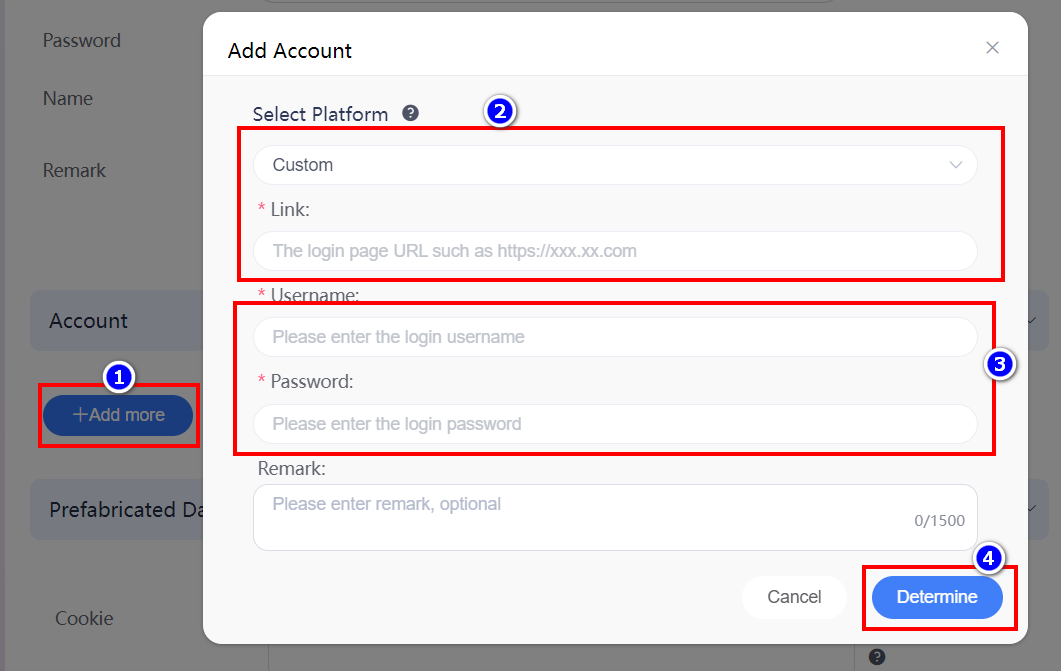
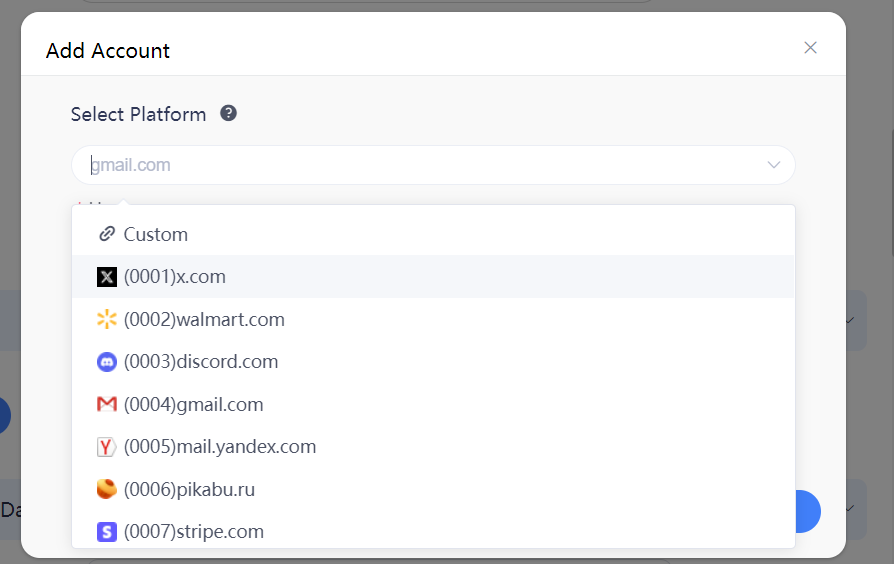
9.In the account management, click [Add more] to add account information, select the platform you need; if there is no target platform in our system, you can fill in the URL of the target platform, and fill in the username and password, then click [Determine] to save.

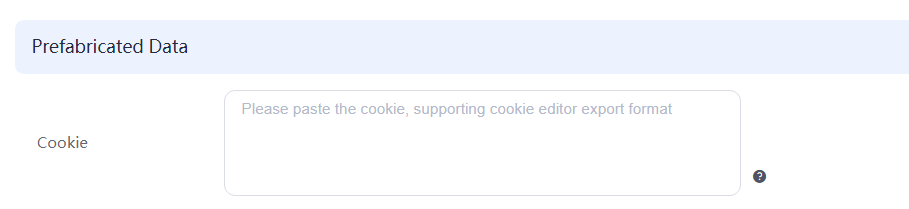
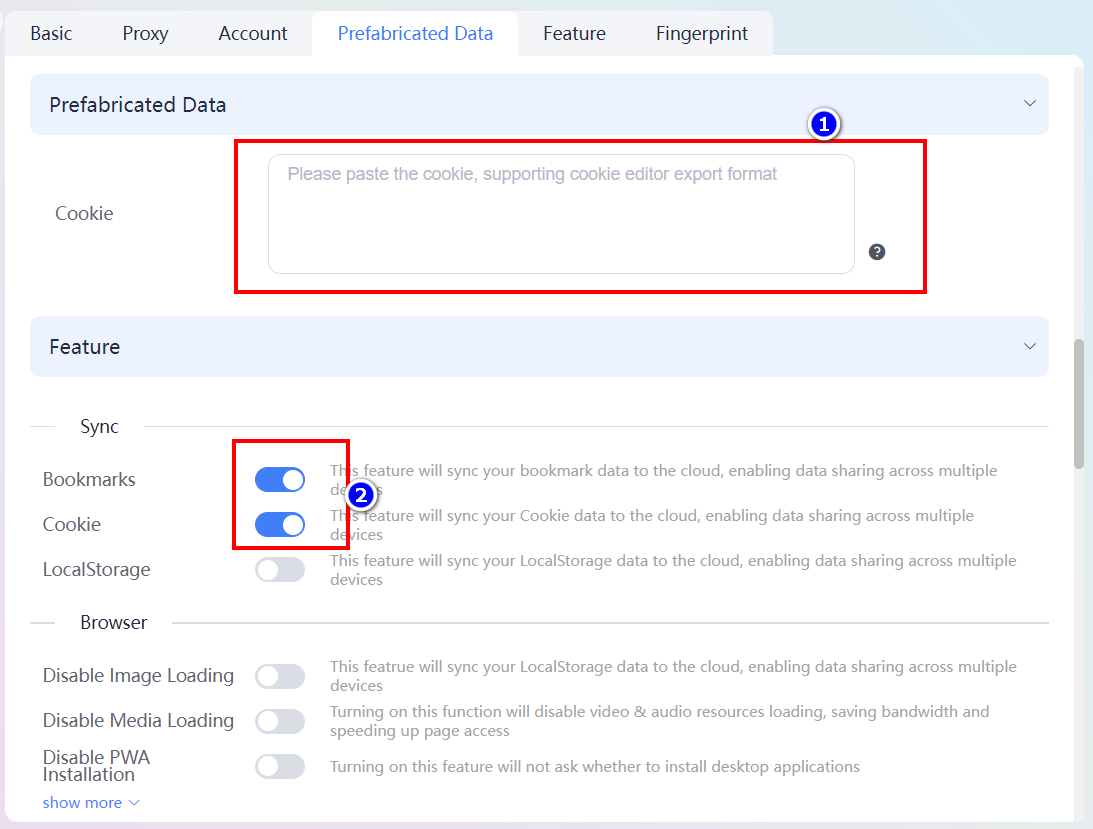
10.In the prefabricated data, you can fill in the cookie information, after filling in the bookmarks and cookie synchronization function in the function settings will be turned on, the use of your data will be synchronized to the cloud, so as to achieve the data sharing of multiple devices.
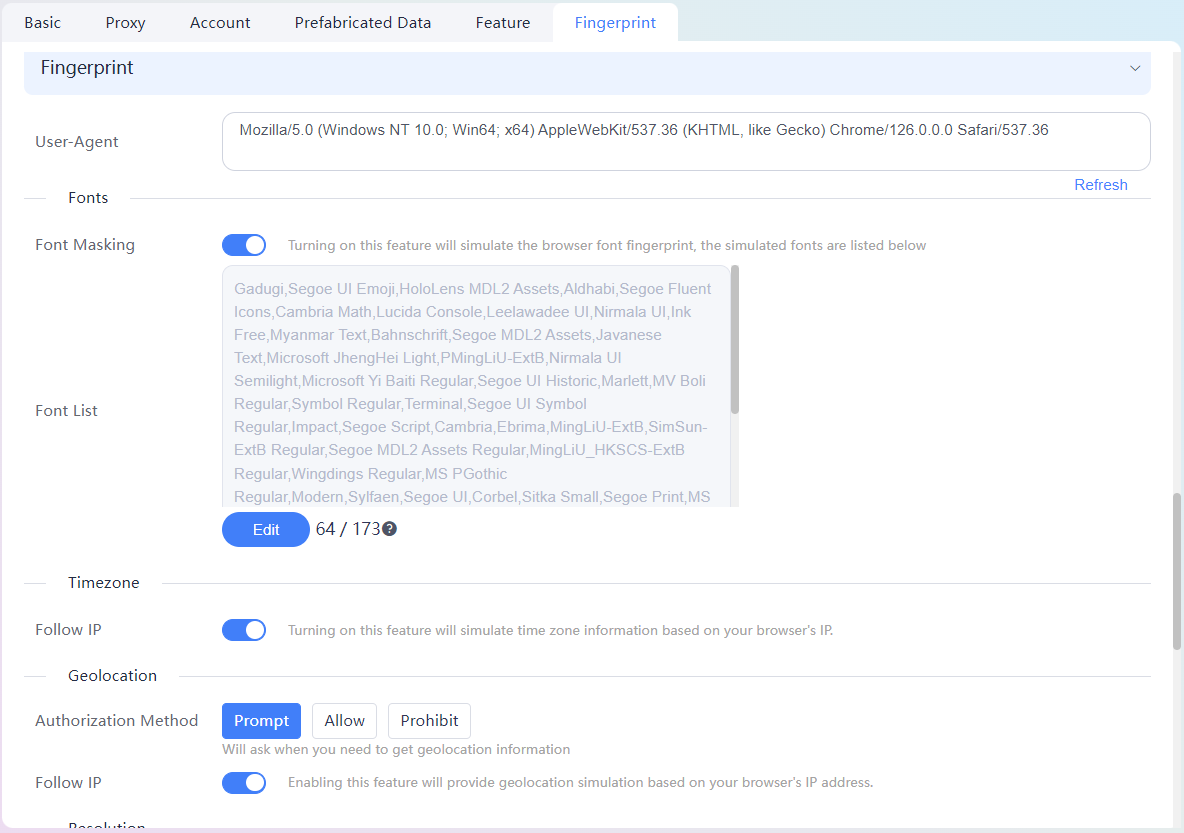
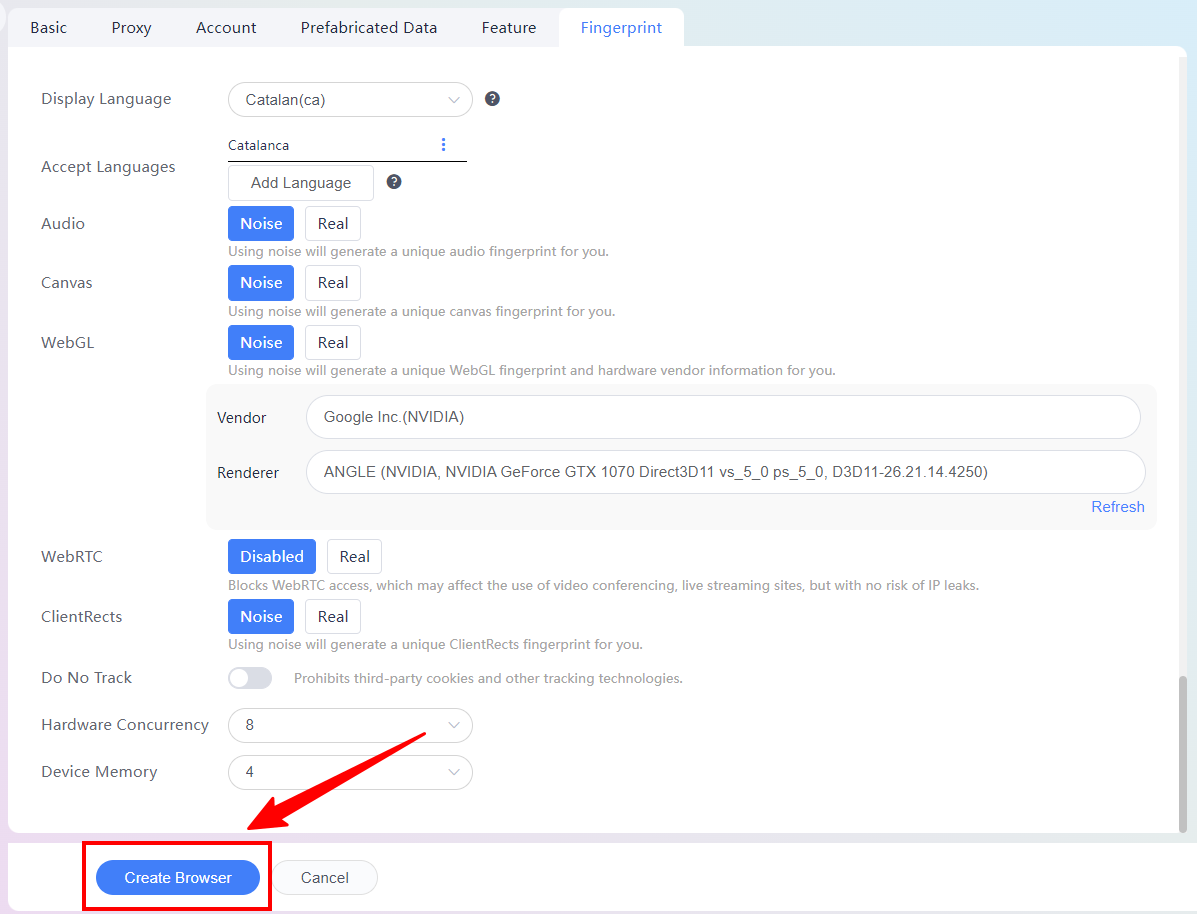
11.The following settings can be customized to fill in and select according to your own IP situation and business needs.

12.Click [Create Browser] when all settings are completed.

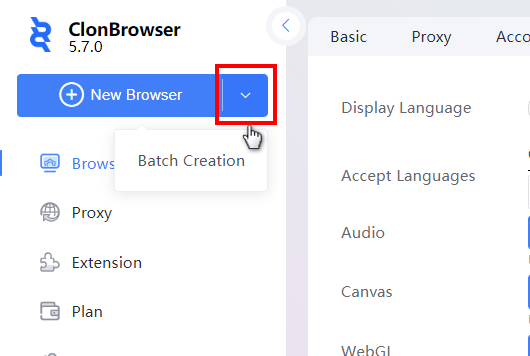
If you want to create batch browsers, you can find [Batch Creation] in the drop-down button of the New Browser button.

If you encounter any problems in using, or have more needs and ideas, please feel free to contact the official customer service privately!

Telegram Customer Service: https://t.me/clonbrowser

Heavily upgraded for efficiency and safety, the experience is enhanced again!

ClonBrowser released 5.7.0 on 27 June 2024, in this update we have heavily upgraded the fingerprinting environment, the browser core and the synchroniser, and the new version will protect your account assets with a new look.

Upgrades and Innovations: Intelligent Security Upgrades for Your Protection

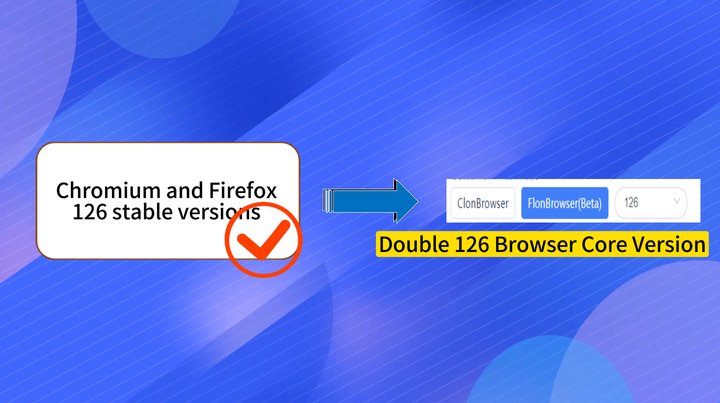
Browser Core Upgrade: Chrome and Firefox Dual Core Synchronised Upgrade to Version 126

Based on the 126 stable versions of Chromium and Firefox, we have released ClonBrowser 5.7.0 Dual 126 Browser Core Version. This new version will provide better privacy management, as well as significant improvements in stability and speed, this upgrade will bring you a safer and more efficient experience.

二、fingerprint environment upgrade: AI fingerprint technology to reduce security risks

Fingerprint Emulation Upgrade: Version 5.7.0 further optimises the fingerprint emulation technology. We apply the most advanced AI technology in fingerprint emulation to achieve smarter and more accurate emulation results, ensuring that your data and privacy are always protected in the most reliable way.

三、Window synchronisation further upgraded: Overlapping arrangement improves efficiency

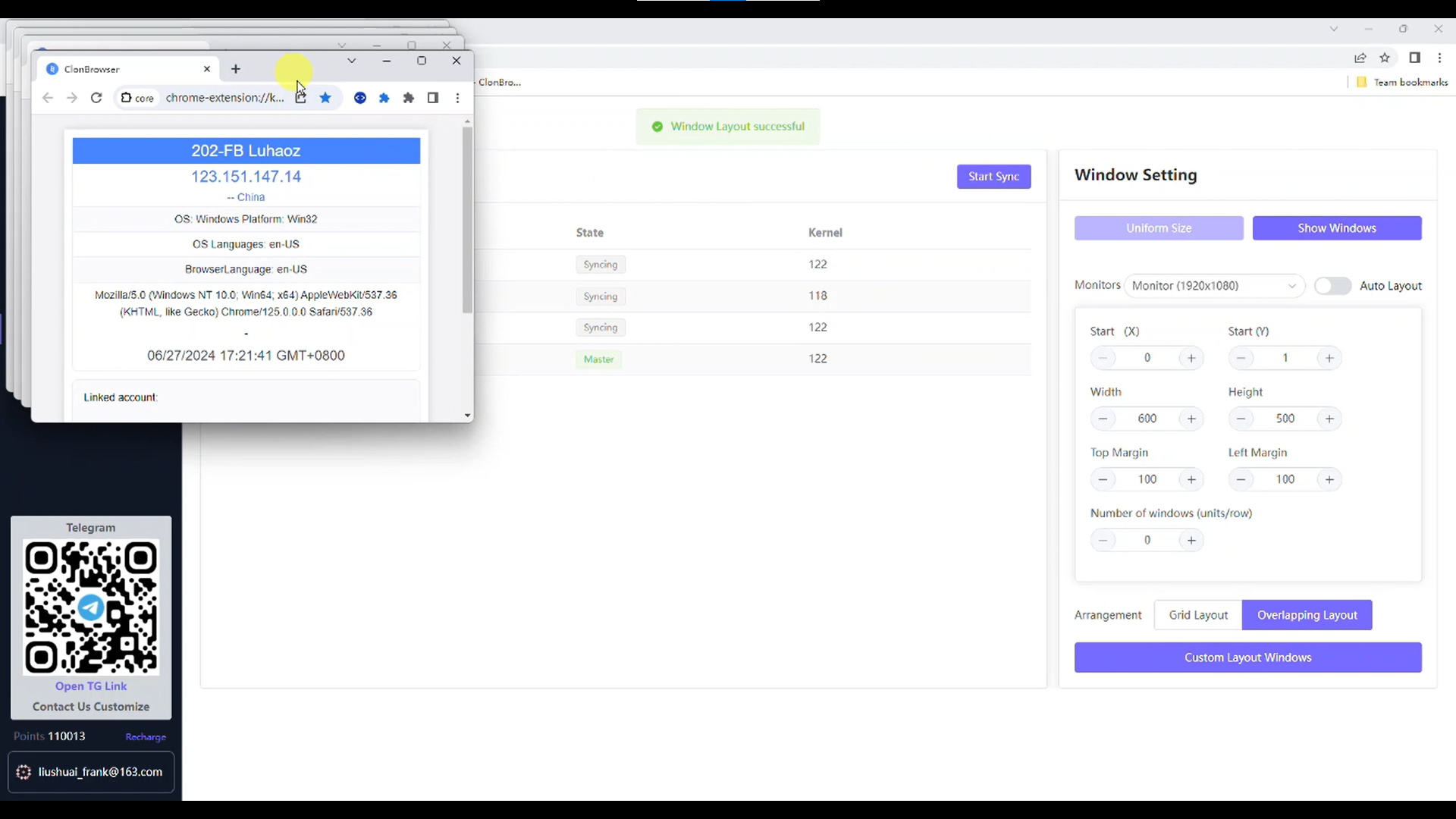
Synchroniser Update: The new version of Synchroniser has added Overlap Arrangement, which can achieve synchronisation even when the windows overlap, and combined with the existing Grid Arrangement and Auto Arrangement, it can satisfy your diversified arranging needs; meanwhile, it has also optimised the synchronisation effect, and the synchronisation can cover the homepage, plug-ins, subforms, and so on.


How to set up Swiftproxy in ClonBrowser?

Learn how to use the proxy from Swiftproxy with ClonBrowser.

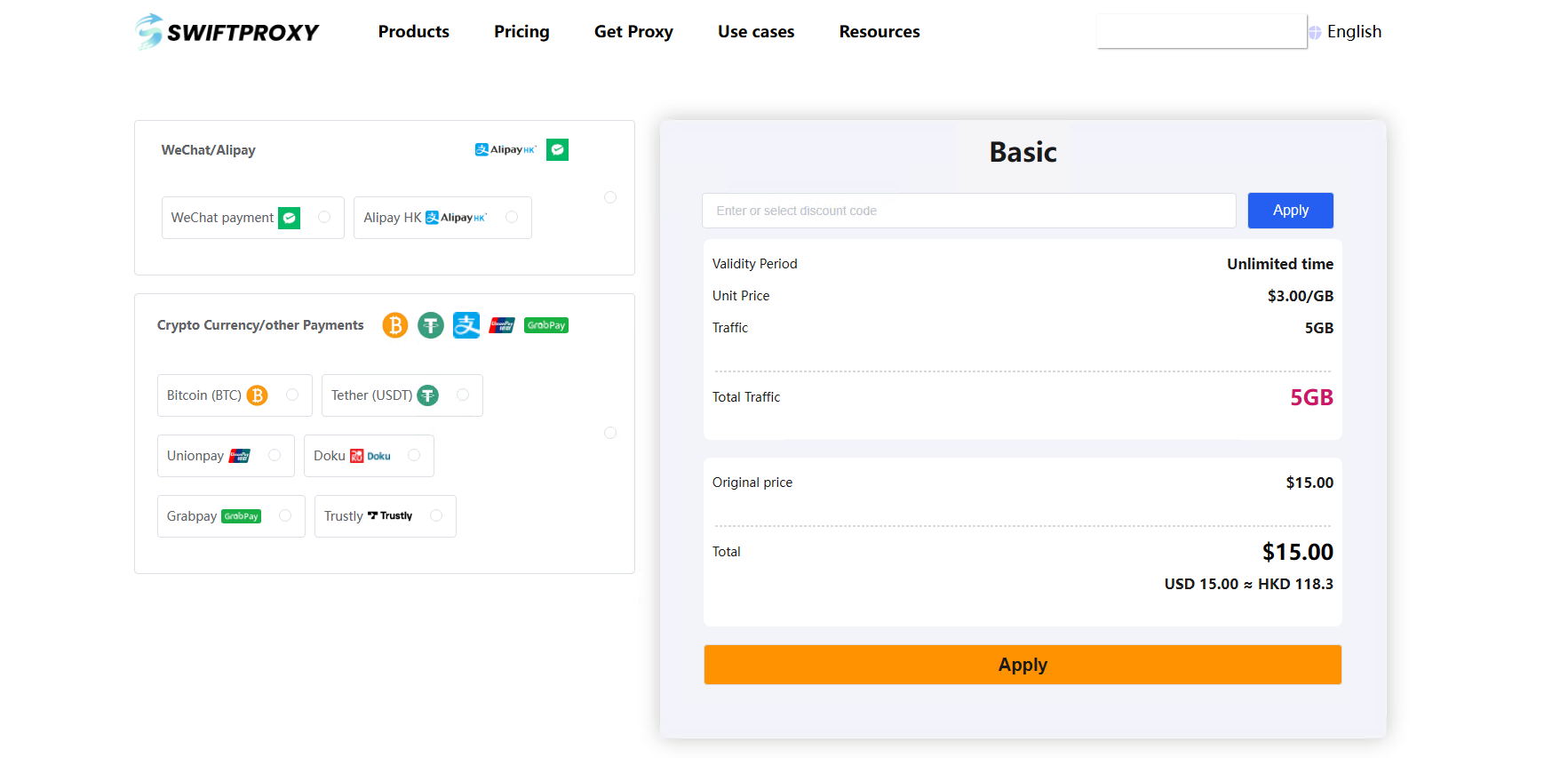
1. Purchase Swiftproxy Proxies

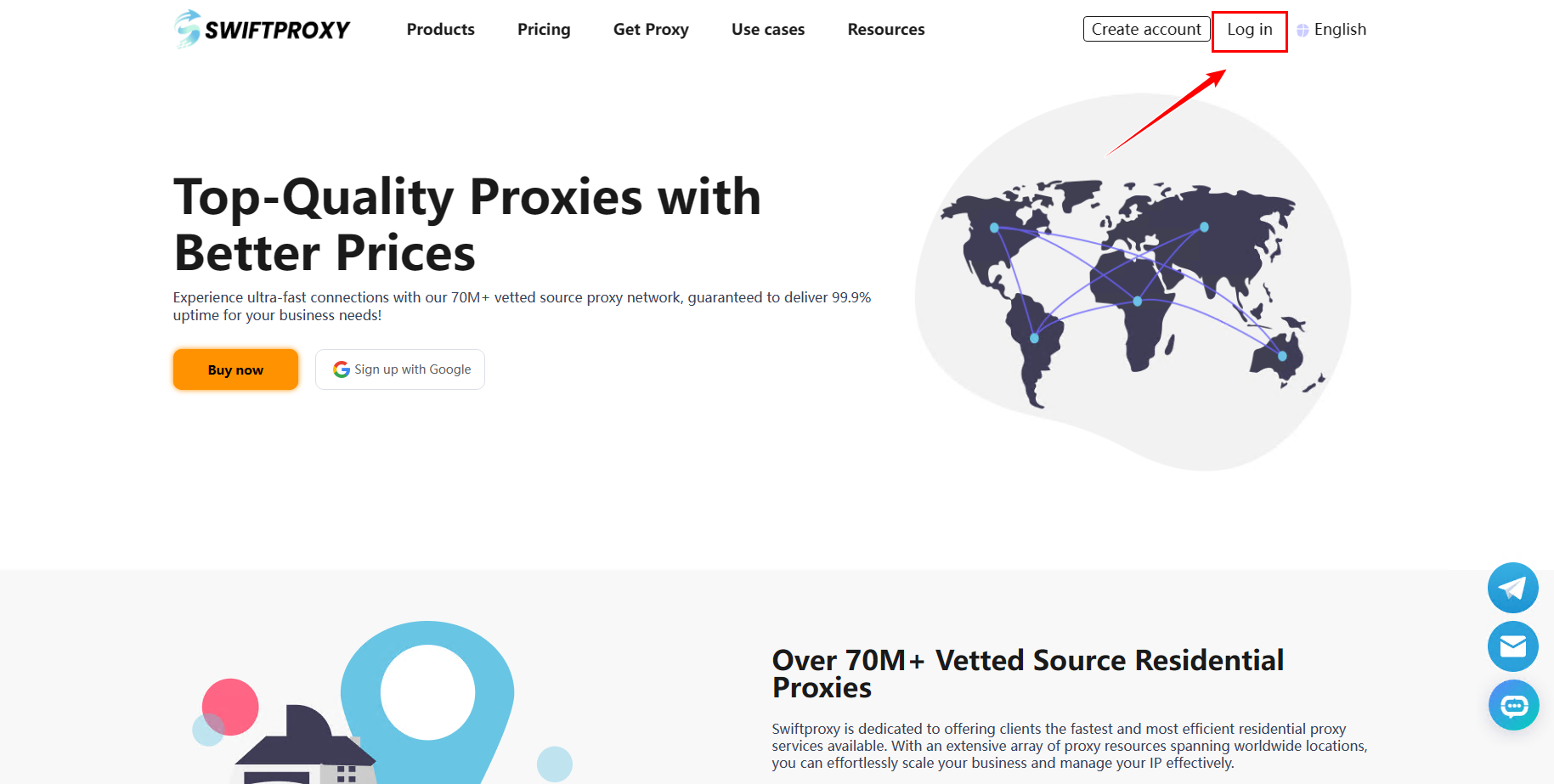
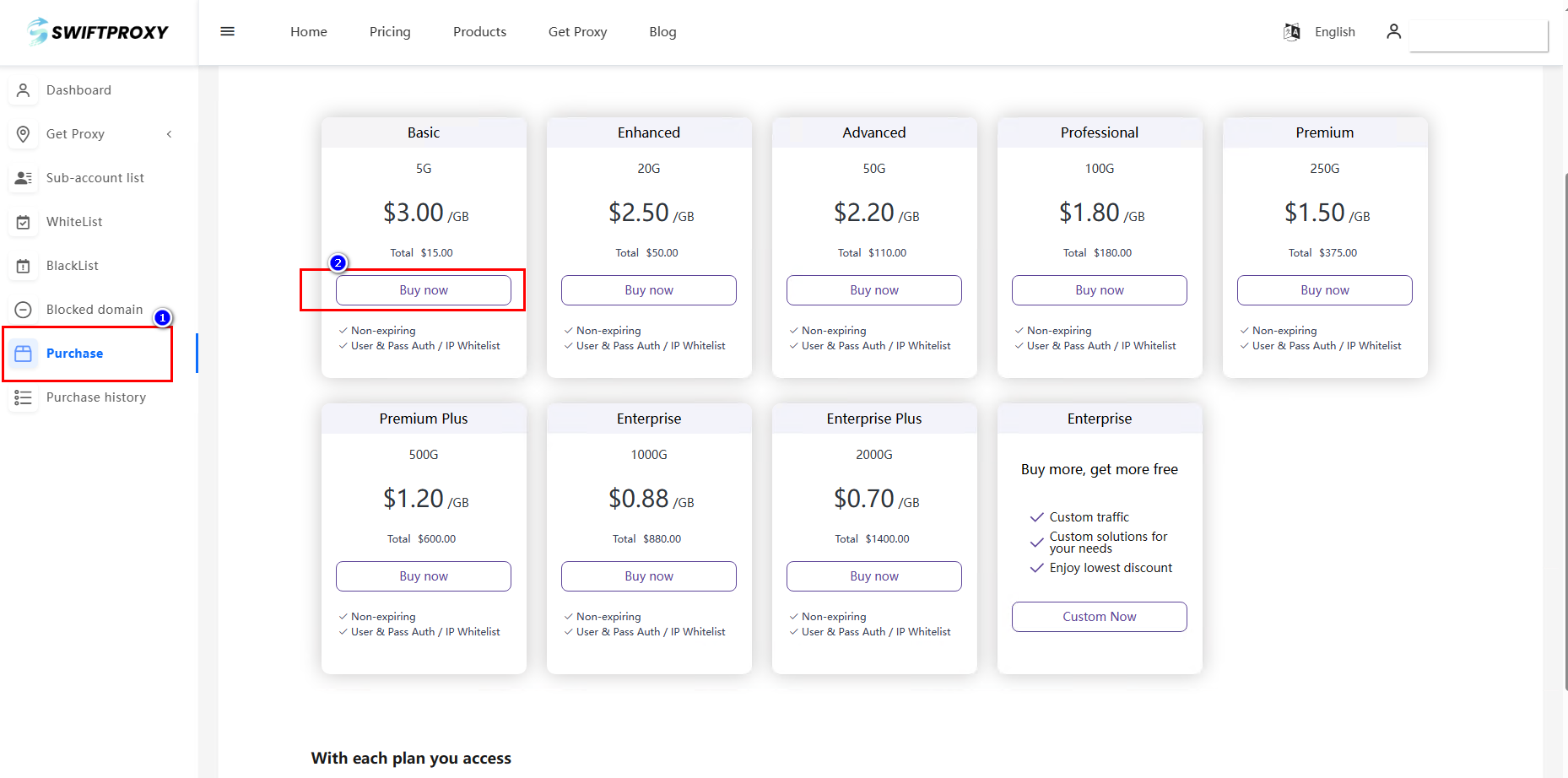
Open the Swiftproxy website (https://www.swiftproxy.net), log in to your account and click [Purchase].

Choose the agent according to your situation, choose the payment method and buy the agent.

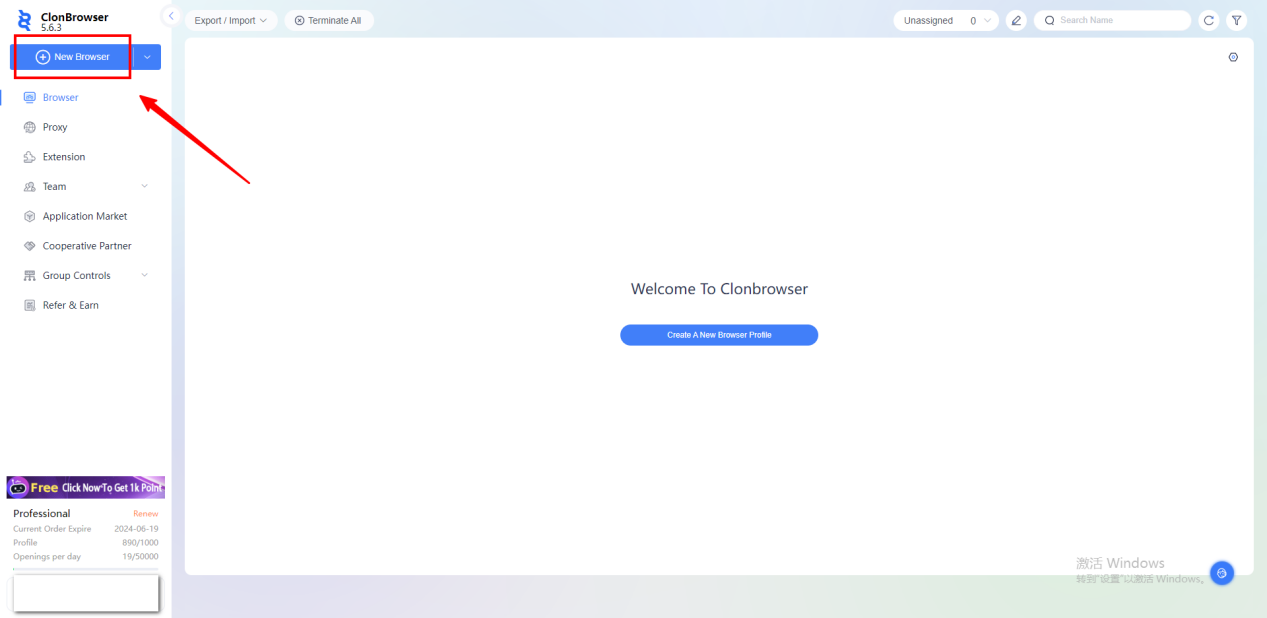
2.Open ClonBrowser

click [New Browser].

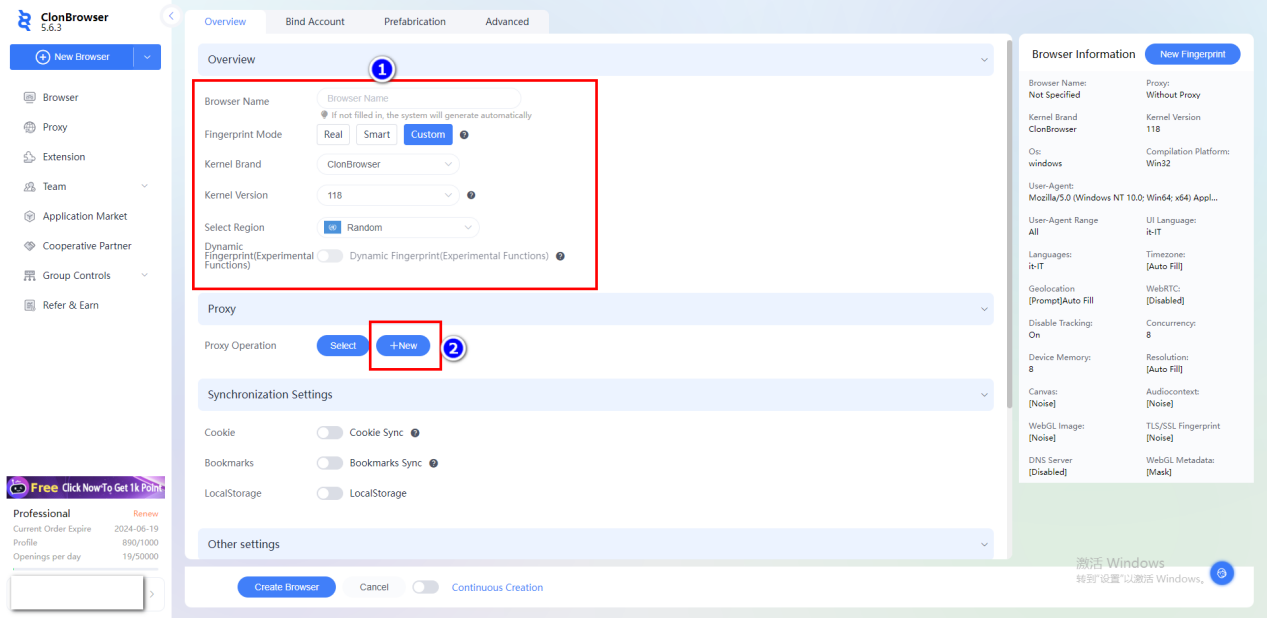
Enter the name, select the country and region, click [New] and select the proxy type.

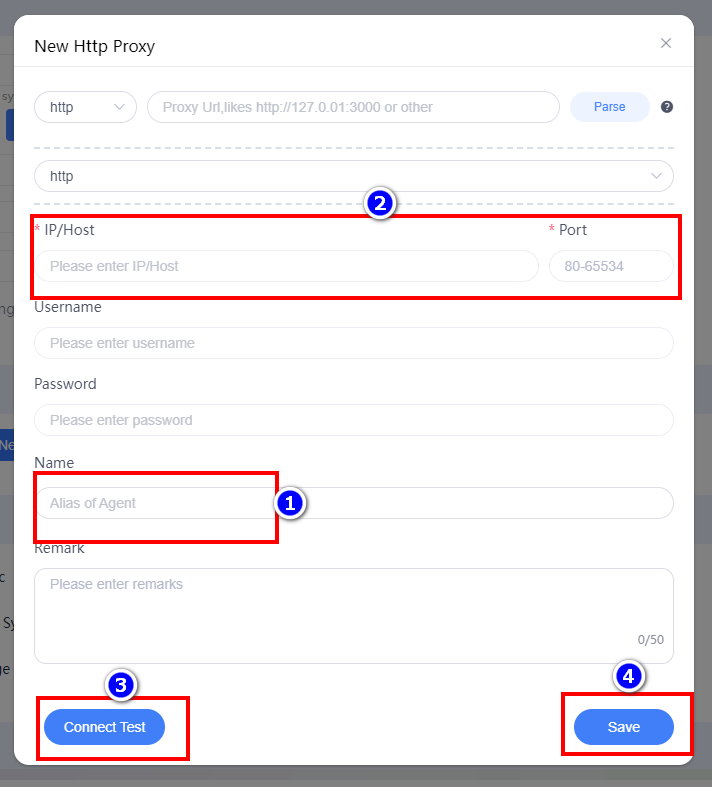
Edit the proxy name, then paste the proxy IP and port to fill in, click [Connect Test], and click [Save] when finished.

After the configuration is created, click [Launch] to use it.

Updated | New ClonBrowser: Flexible package options for you to experience!

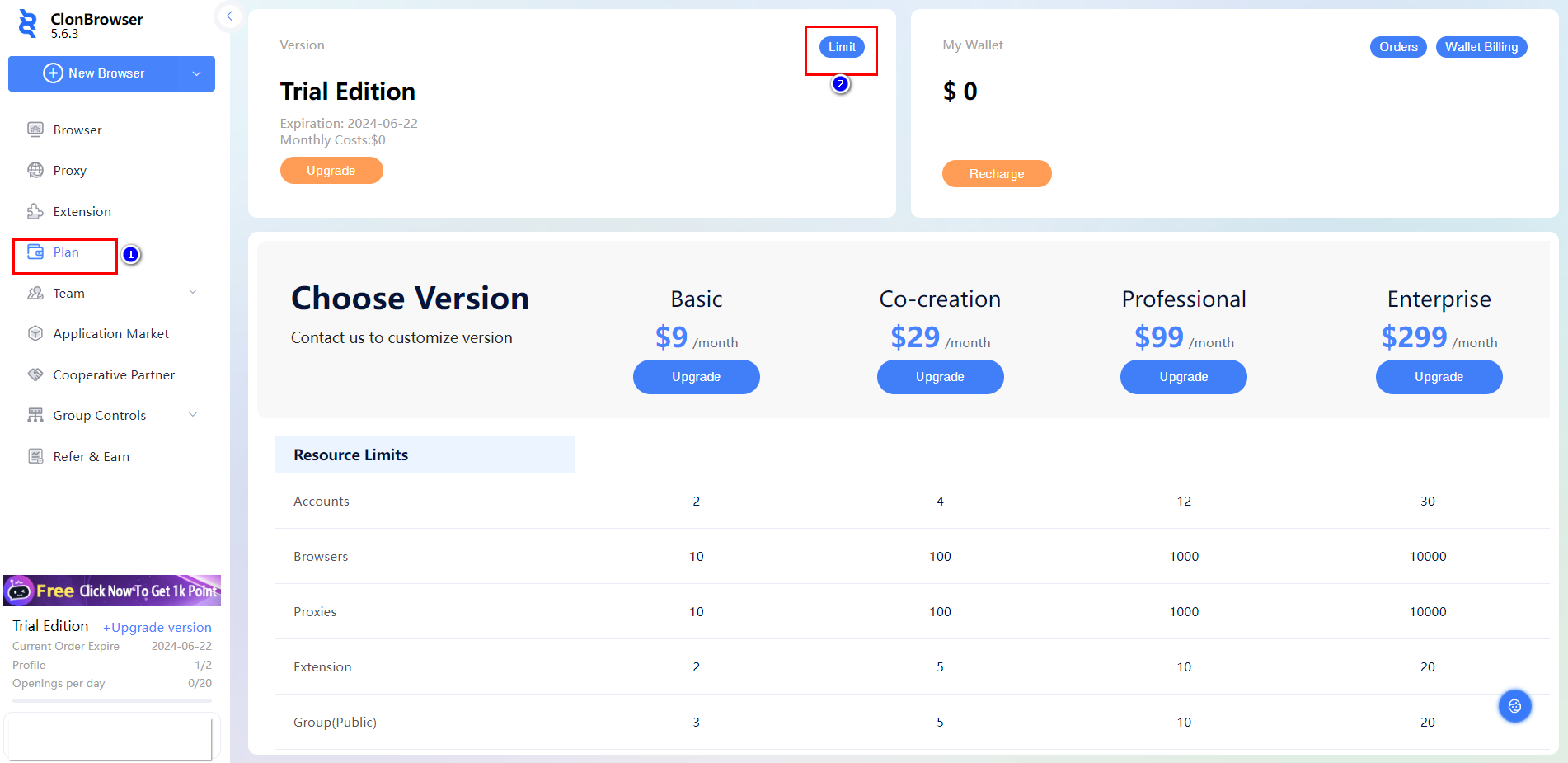
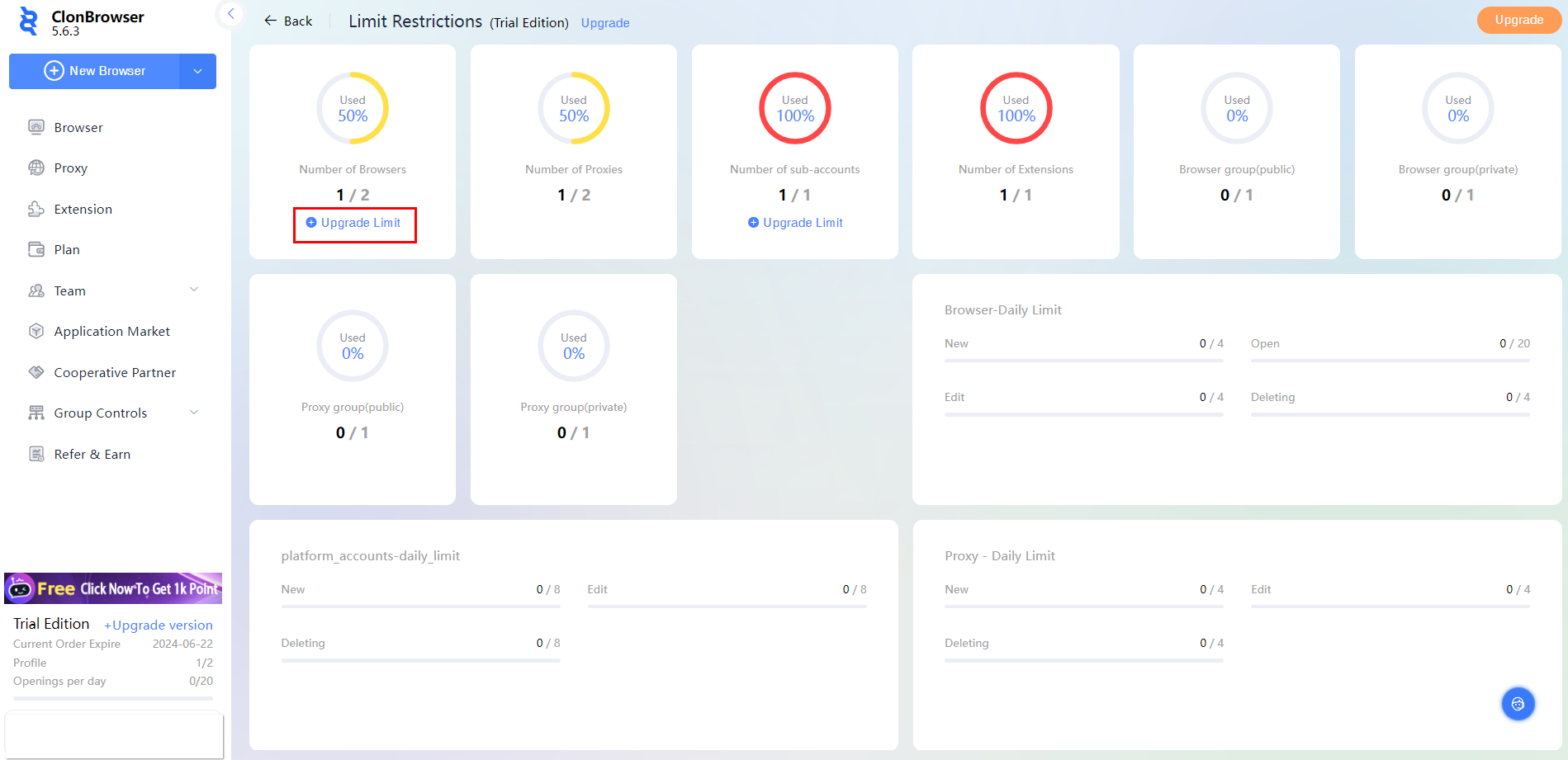
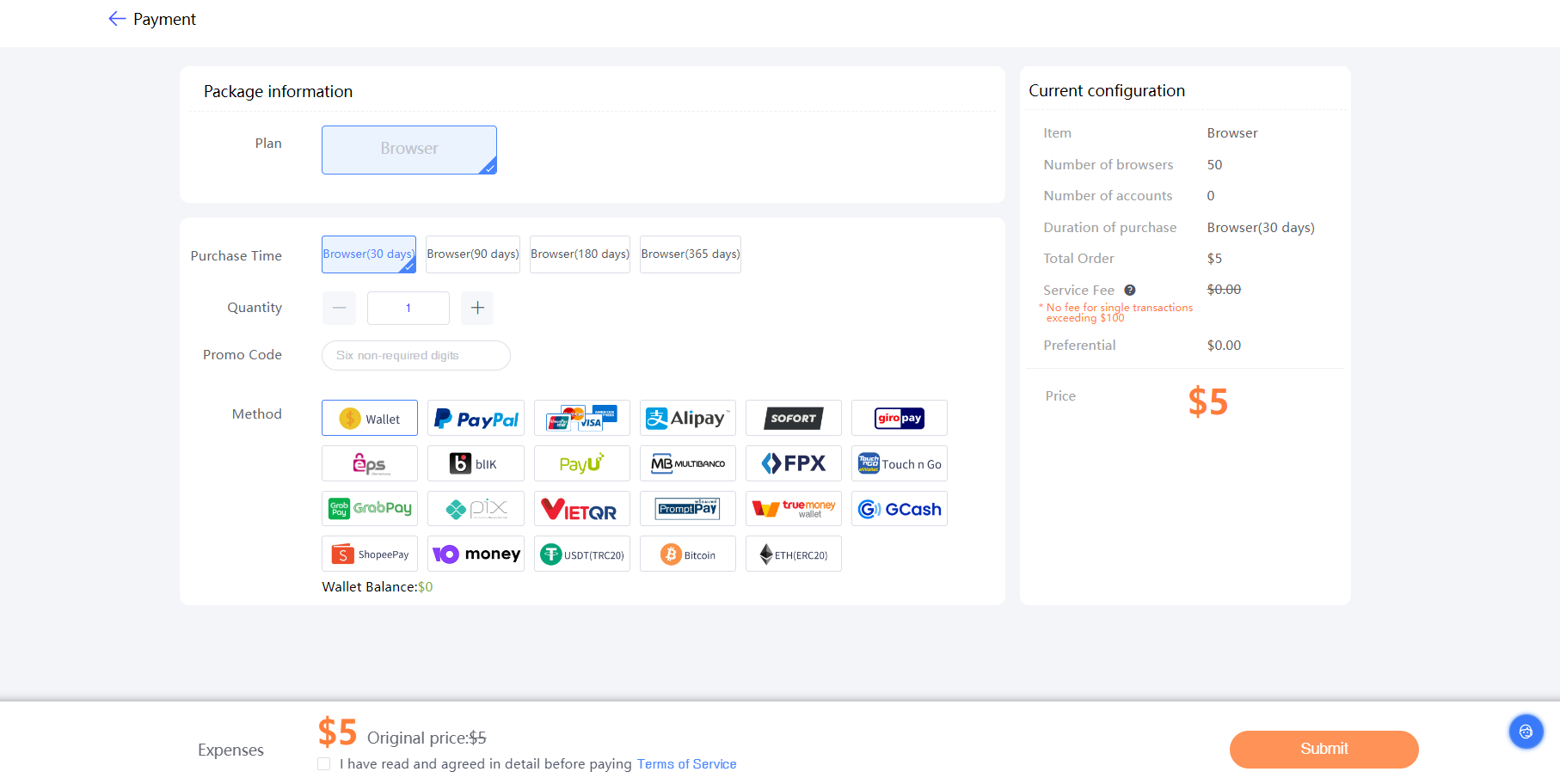
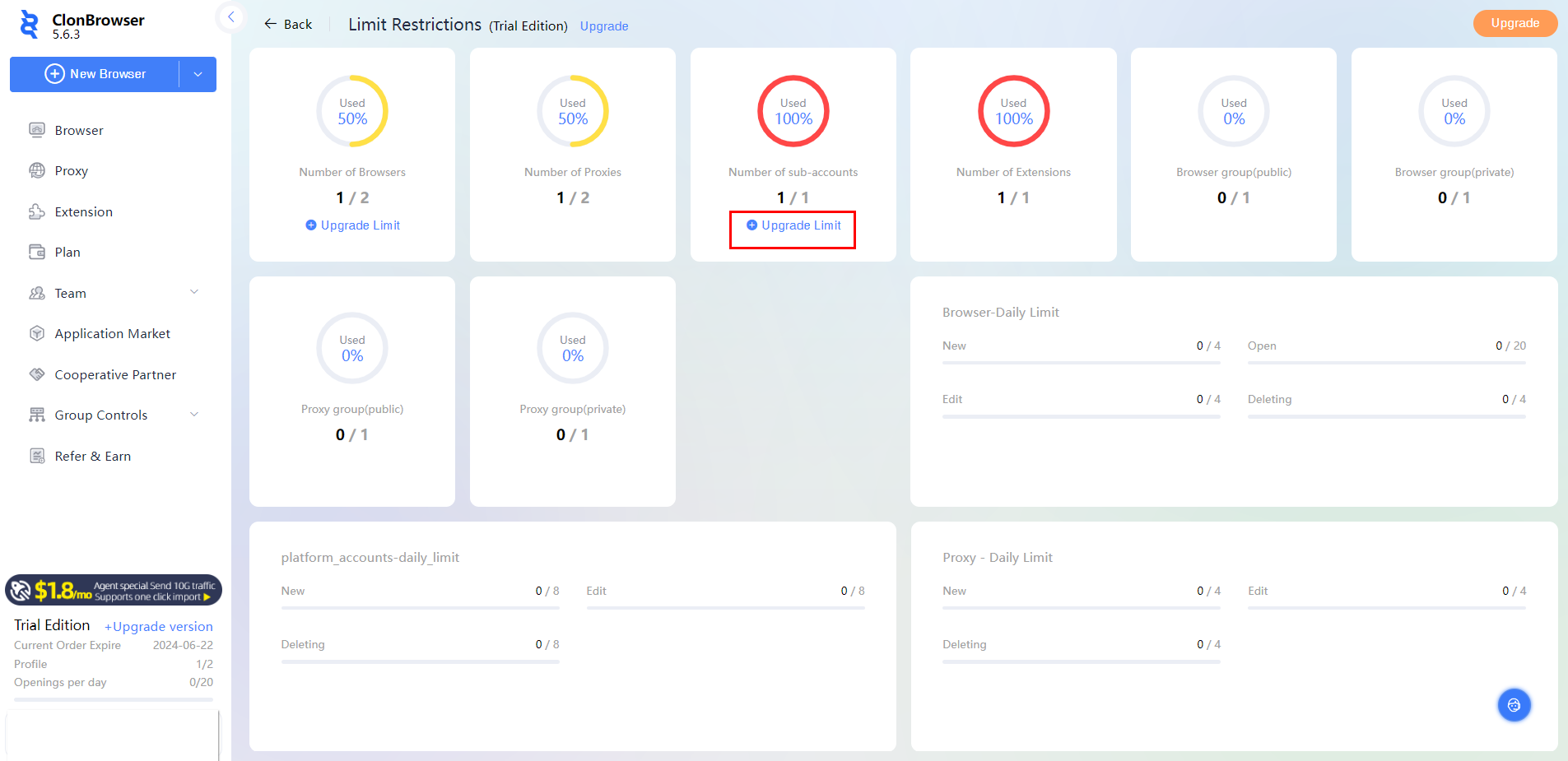
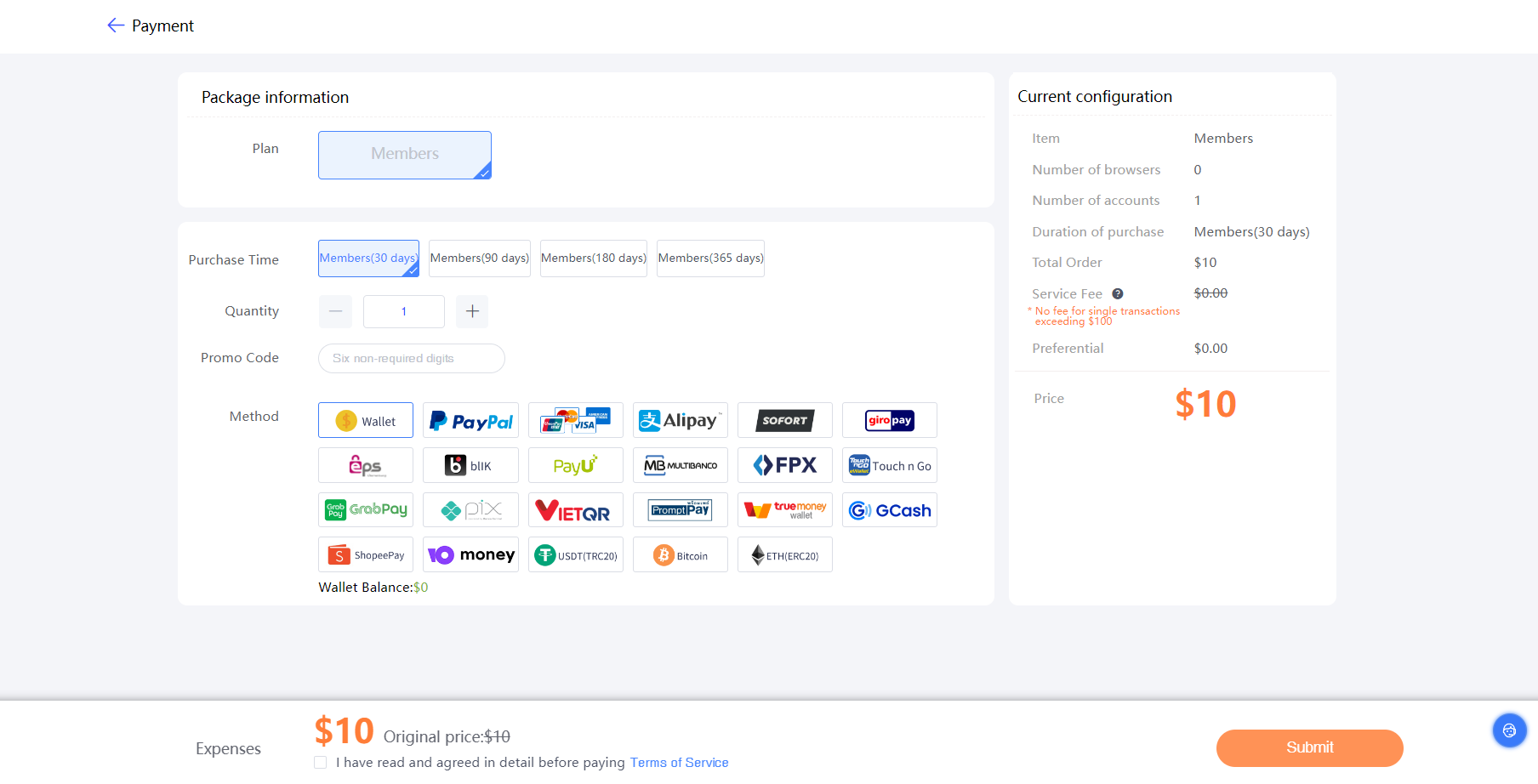
ClonBrowser’s new package update brings you a new experience of personalised management. With this update, the free trial version also allows you to flexibly purchase any number of browser windows and sub-account quotas, precisely controlling resource usage and enhancing the efficiency of multi-account management. Upgrade your ClonBrowser software today and experience the convenience and innovation of this new feature!Personalised configuration for precise control of resources!

Custom Browser Windows: Customise the number of browser windows on demand. In this new version, you can purchase browser windows according to your needs and optimise your budget allocation.

Manage sub-account quotas: Flexibly adjust the number of sub-accounts you need. In this new version, you can control and purchase the exact number of sub-account quotas you need to ensure the most efficient account management.

Upgrade ClonBrowser and experience a new standard in personalised account management!

How to set up 9Proxy in ClonBrowser

Learn how to use the proxy from 9Proxy with ClonBrowser.

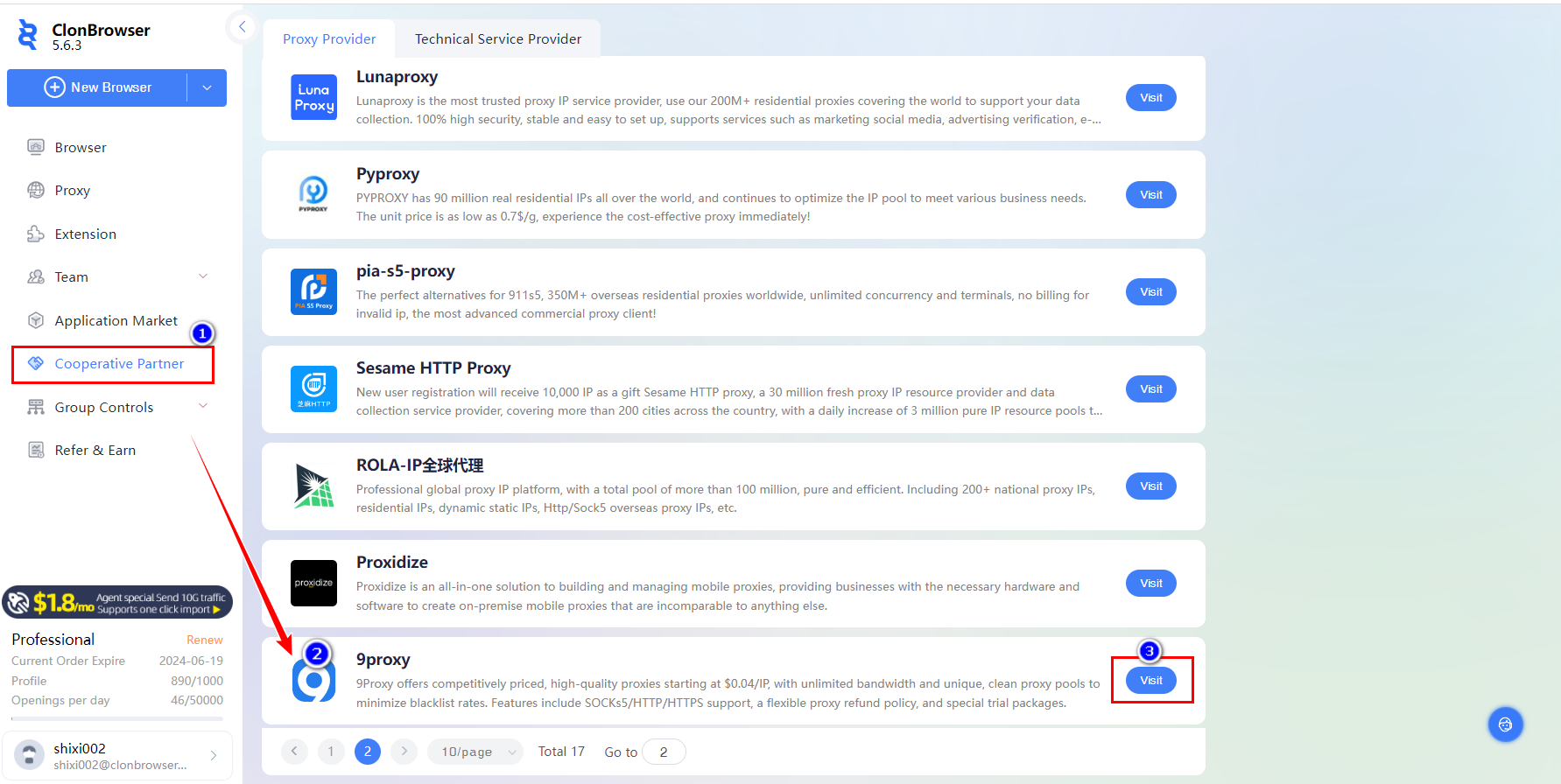
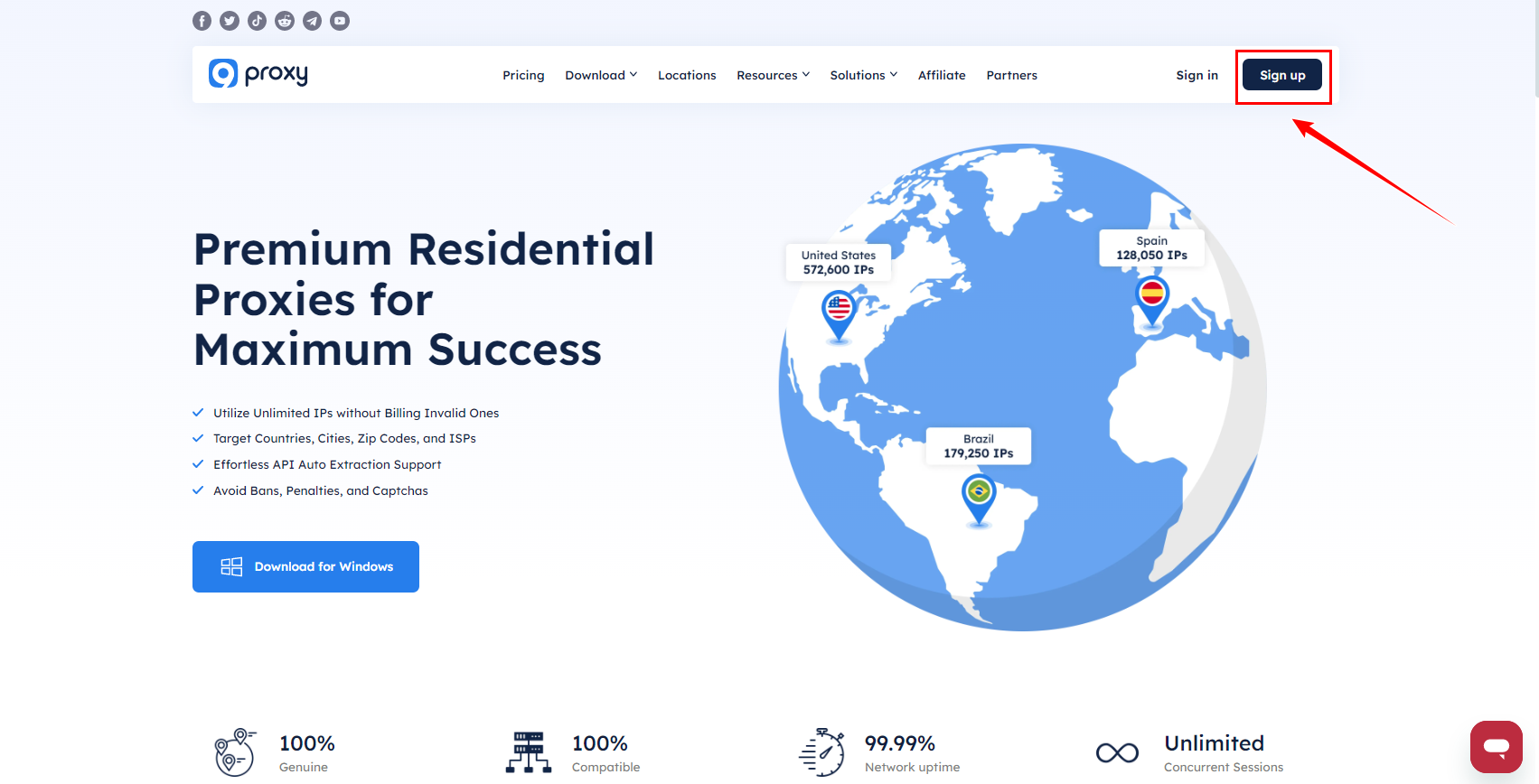
1.Open the ClonBrowser client,Click[Cooperative Partner],Find the official website of 9Proxy,click [Visit].

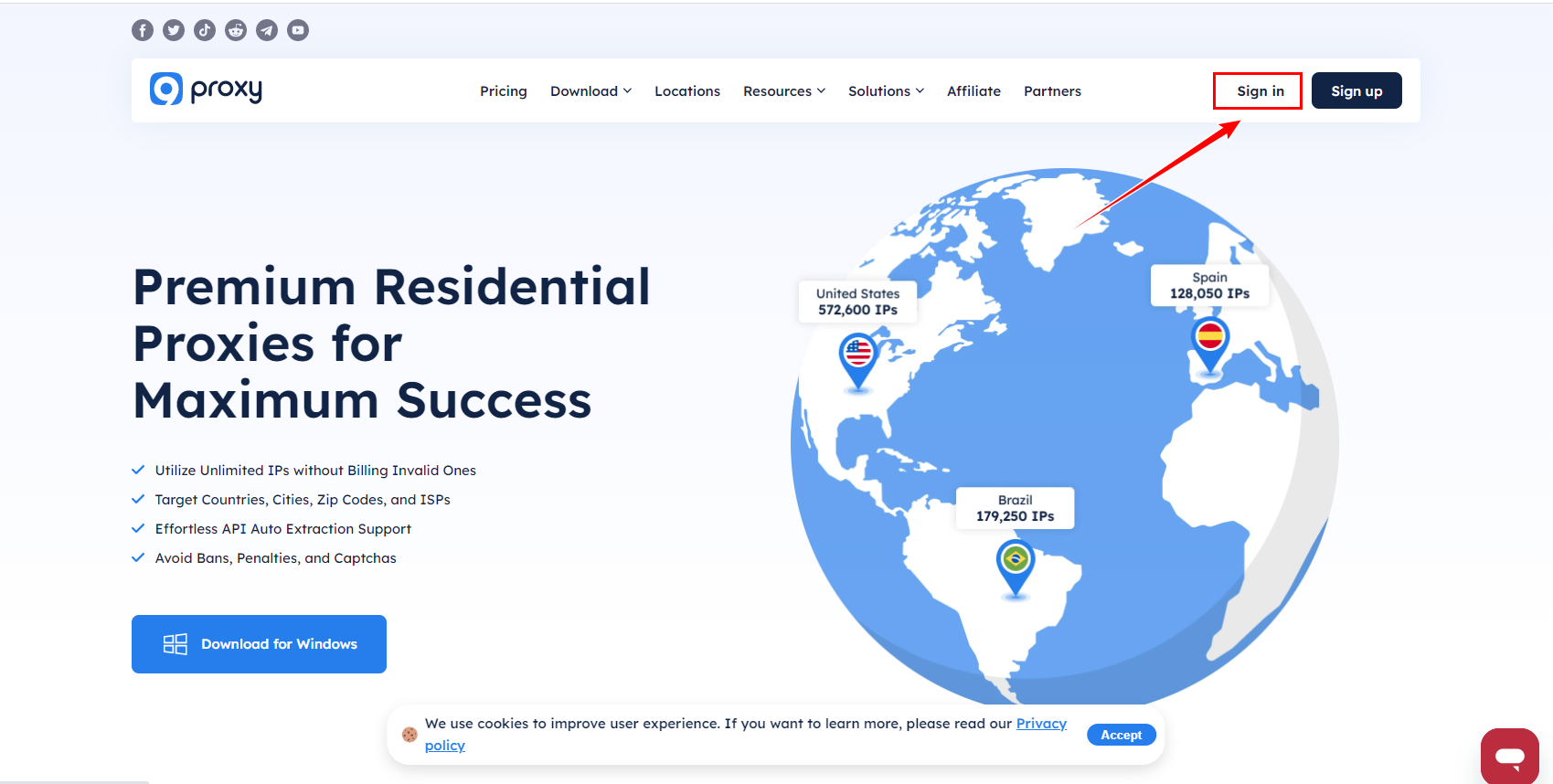
2.Go to the 9Proxy official website (https://9Proxy.com), Log in to your account.

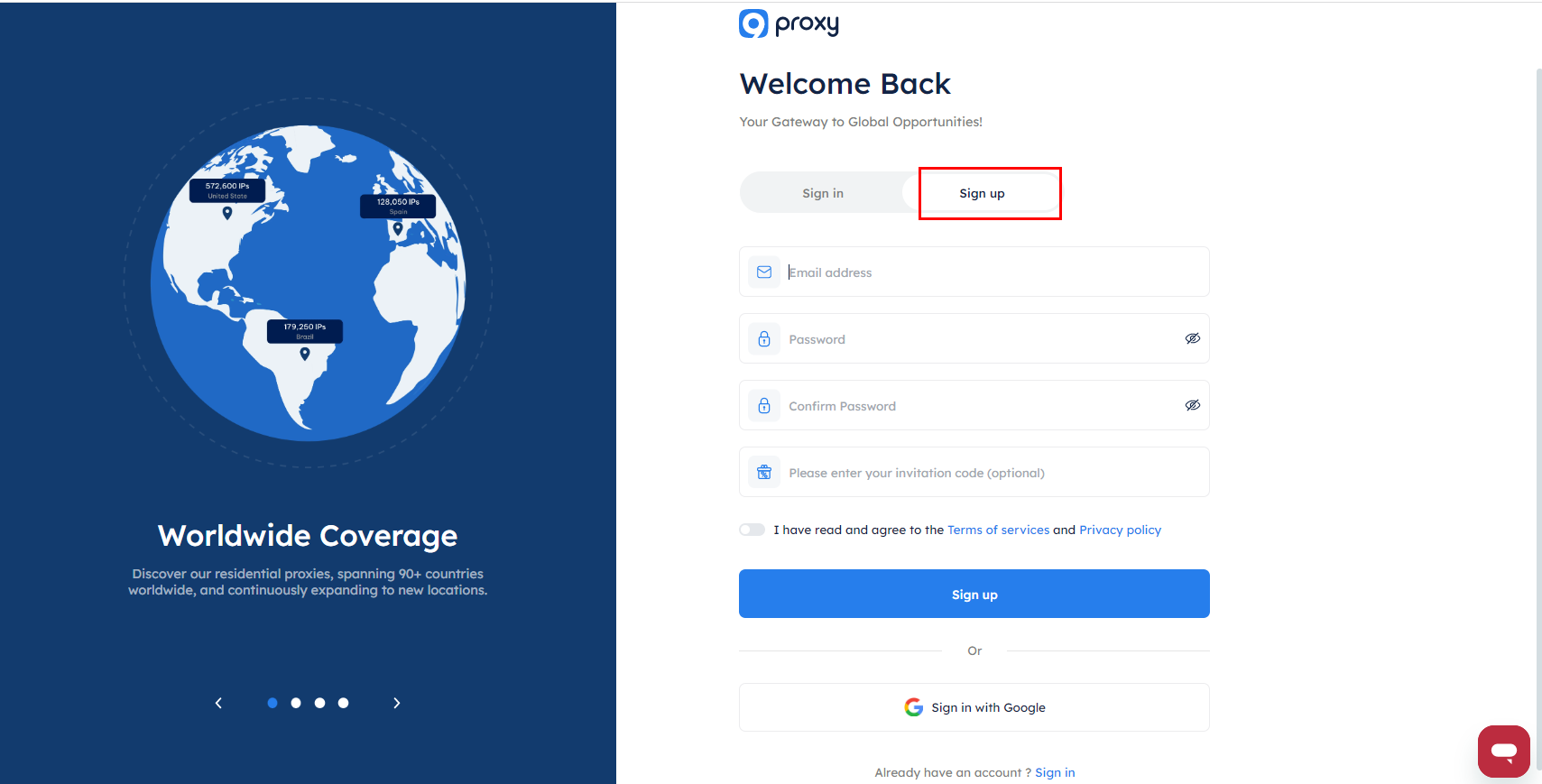
If you don’t have an account, please register first.

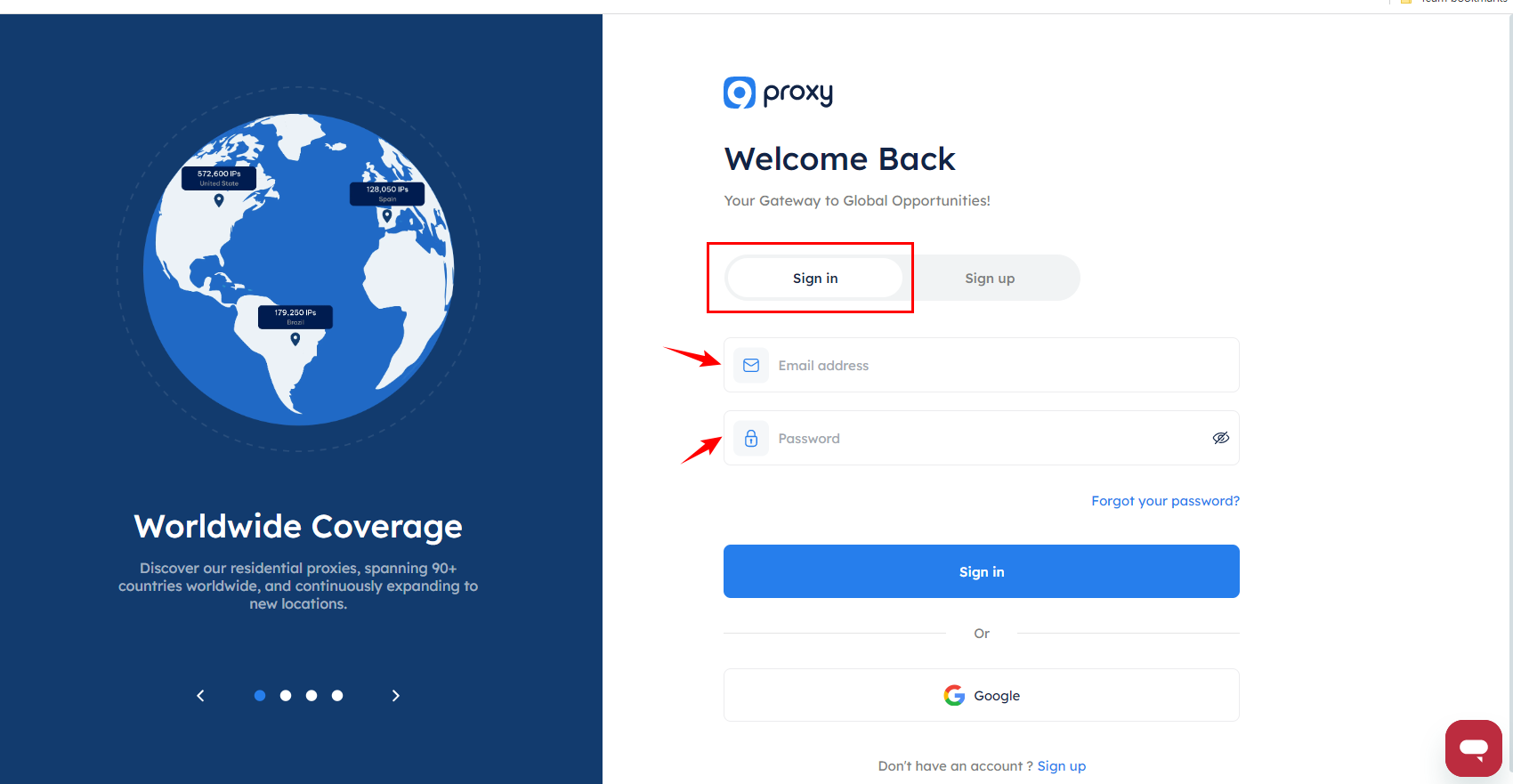
Or ①Enter your email address ②Enter your password ③Confirm password ④Please enter your invitation code(optional).

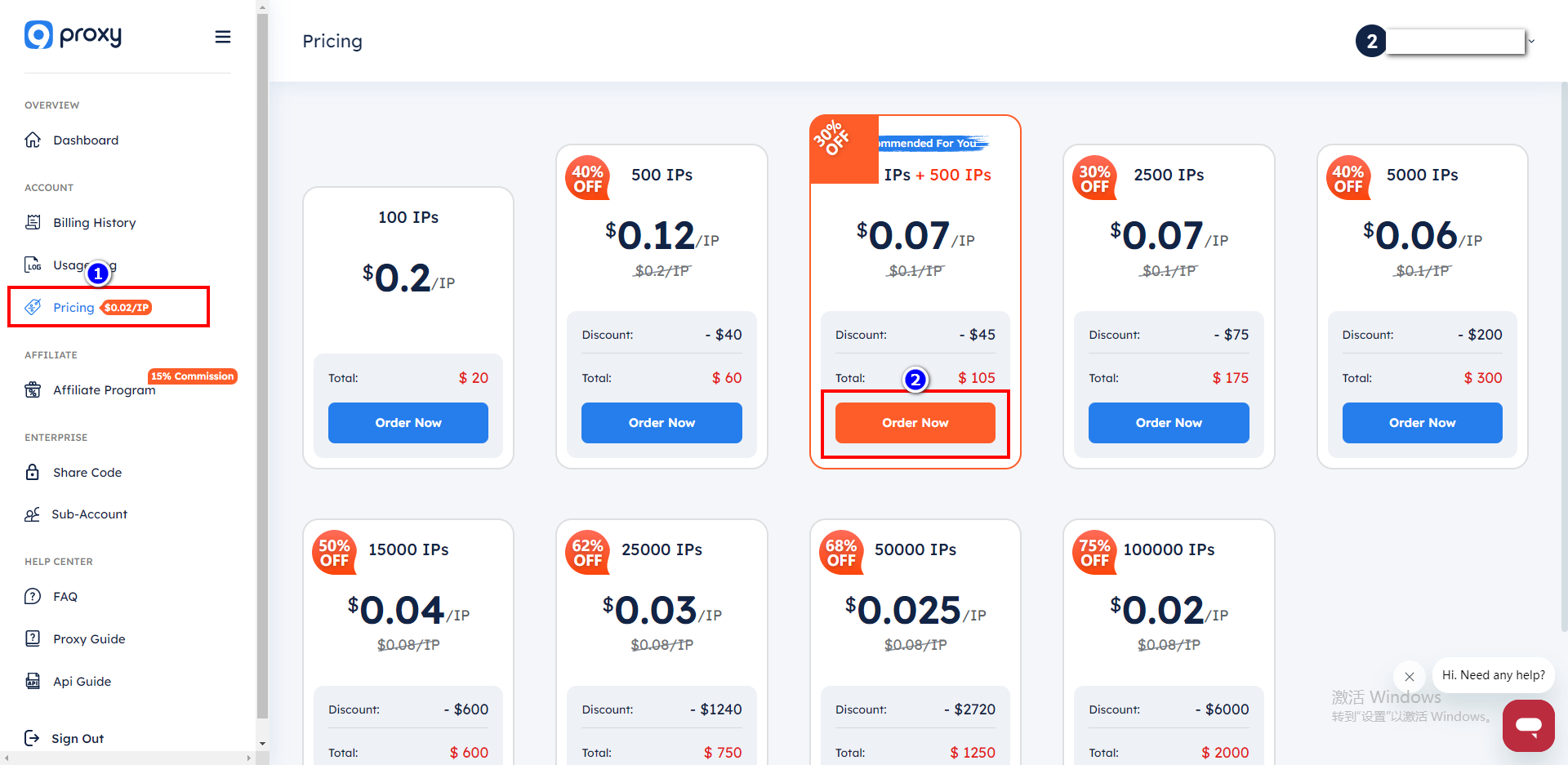
3.Click on [Pricing], choose the appropriate agent to purchase.

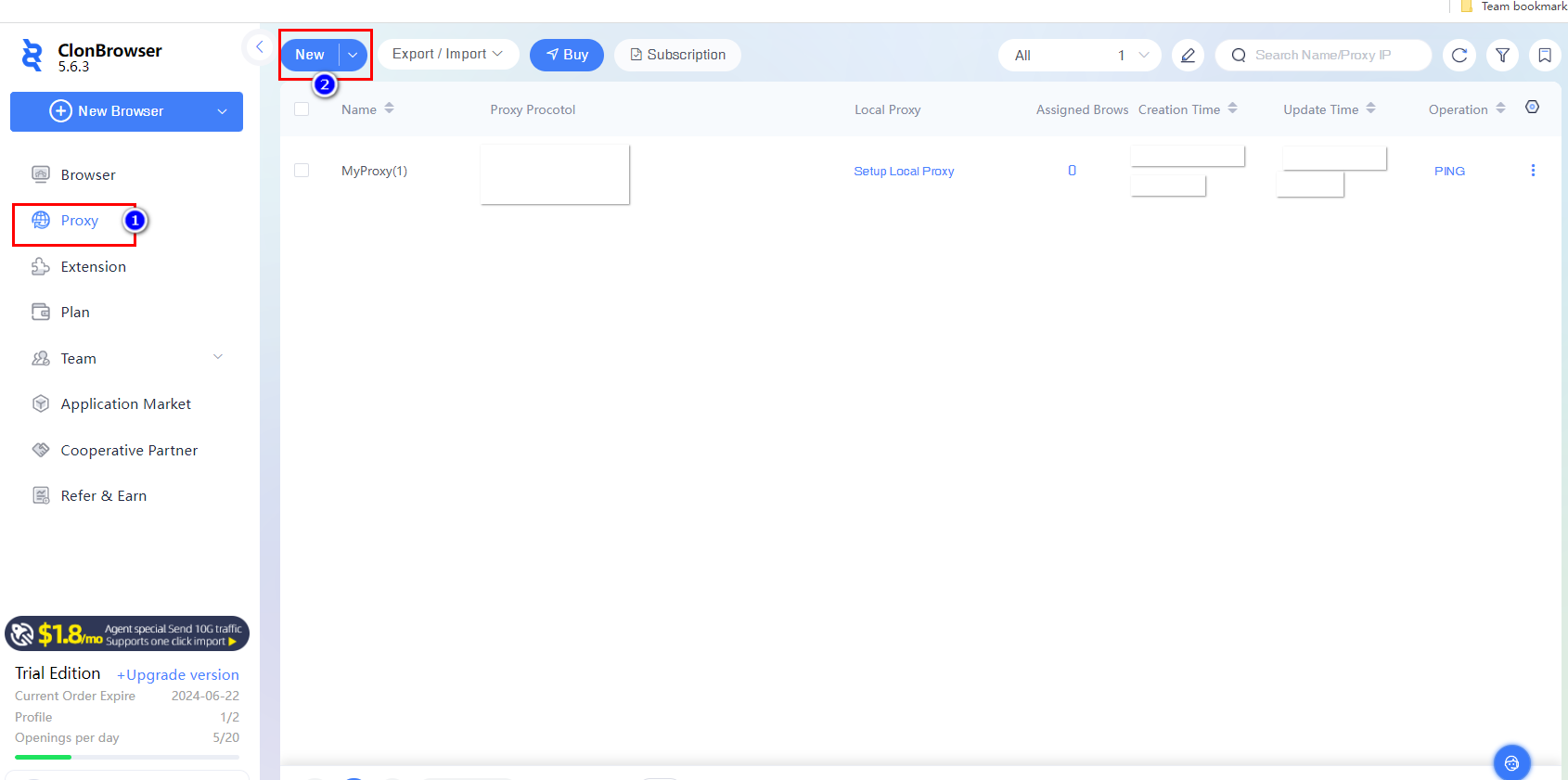
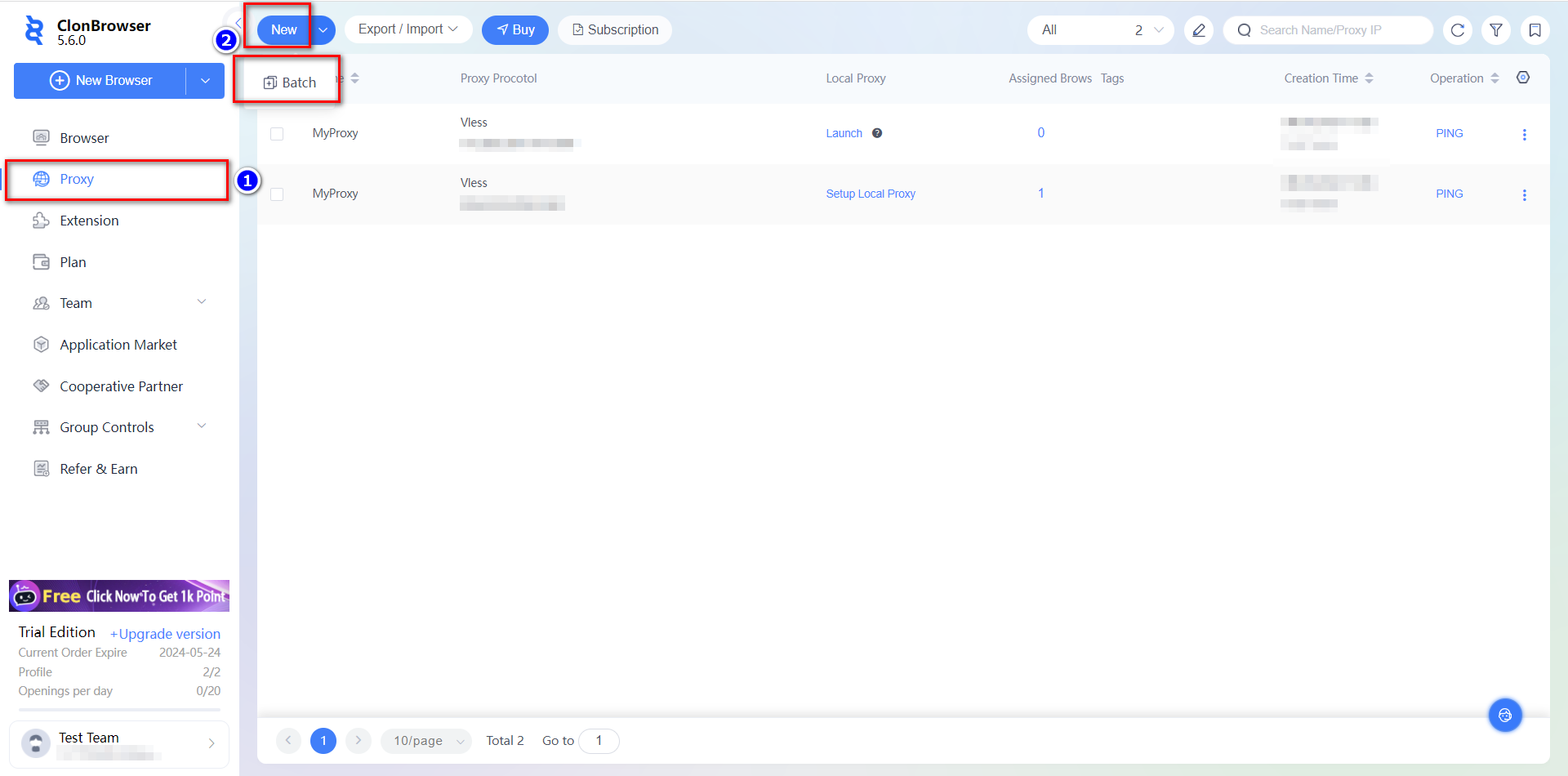
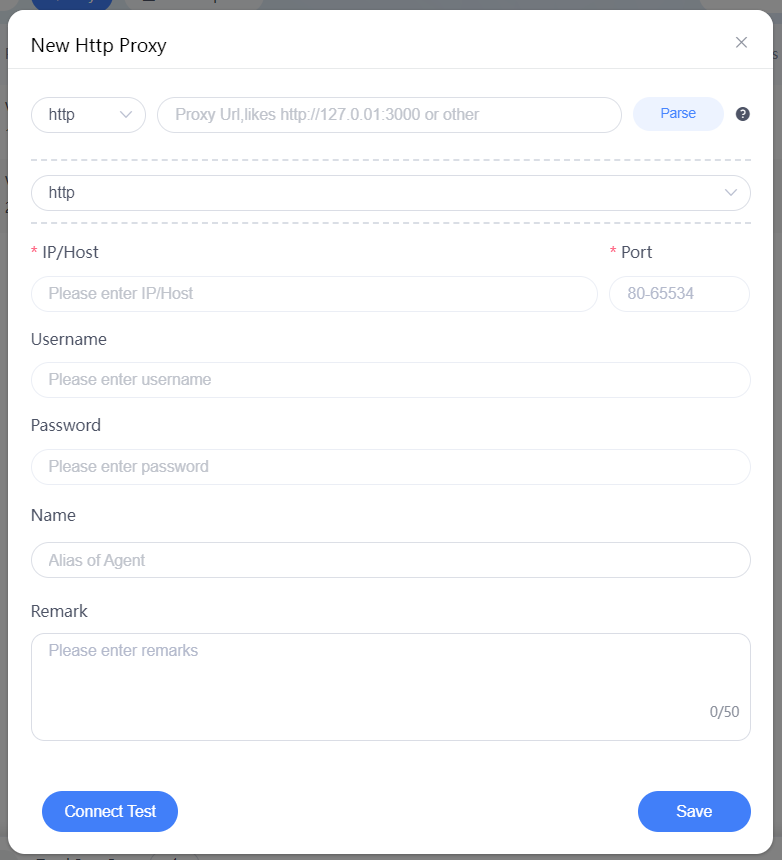
4.Go back to ClonBrowser,click [Proxy] and click [New],Paste the proxy information as required.

Test if the connection is successful, [Save] to start using your proxy!

Tutorial | How to set up MASSIVE in ClonBrowser?

Learn how to use the proxy from MASSIVE with ClonBrowser.

1. Purchase MASSIVE Proxies

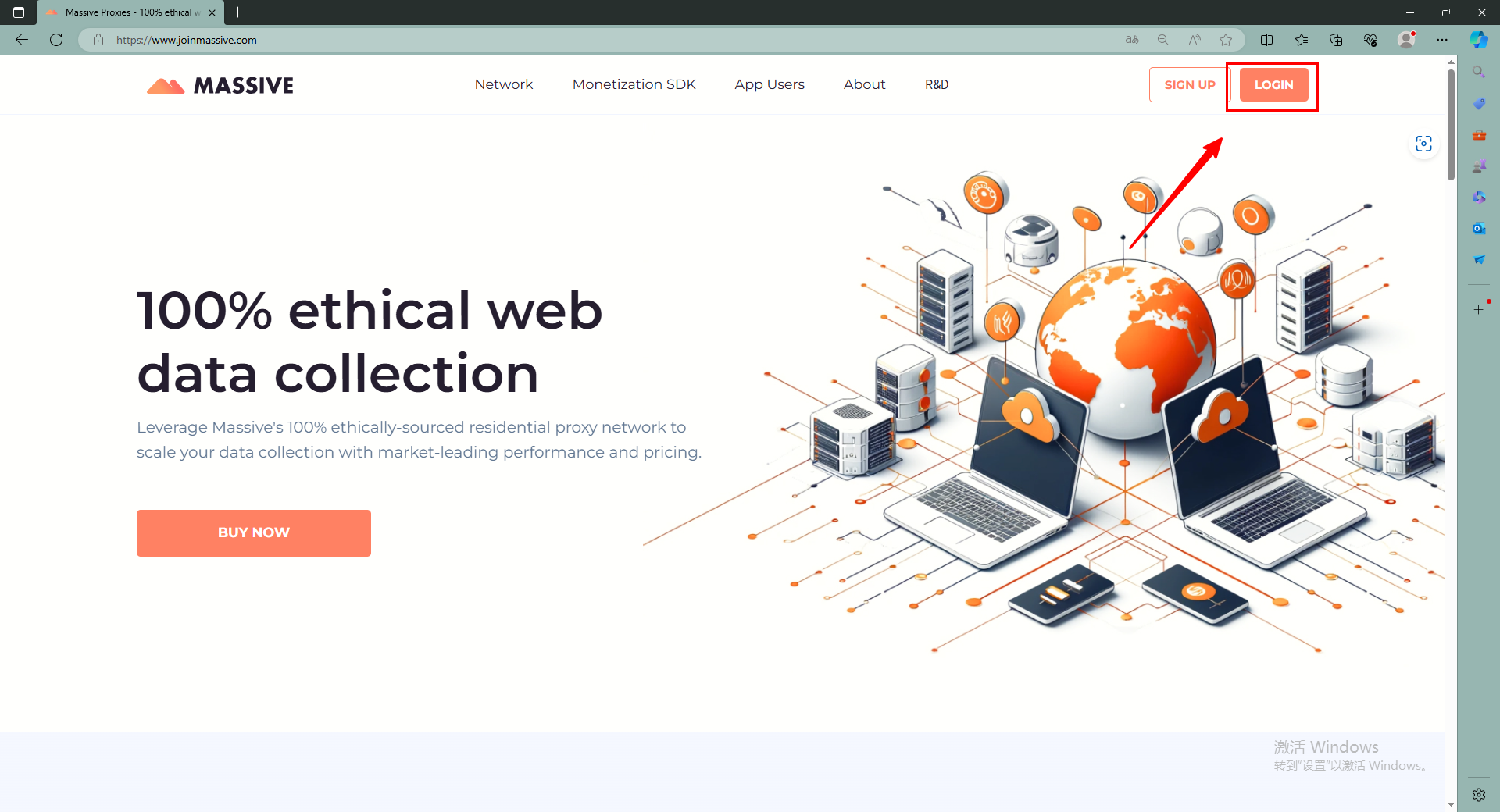
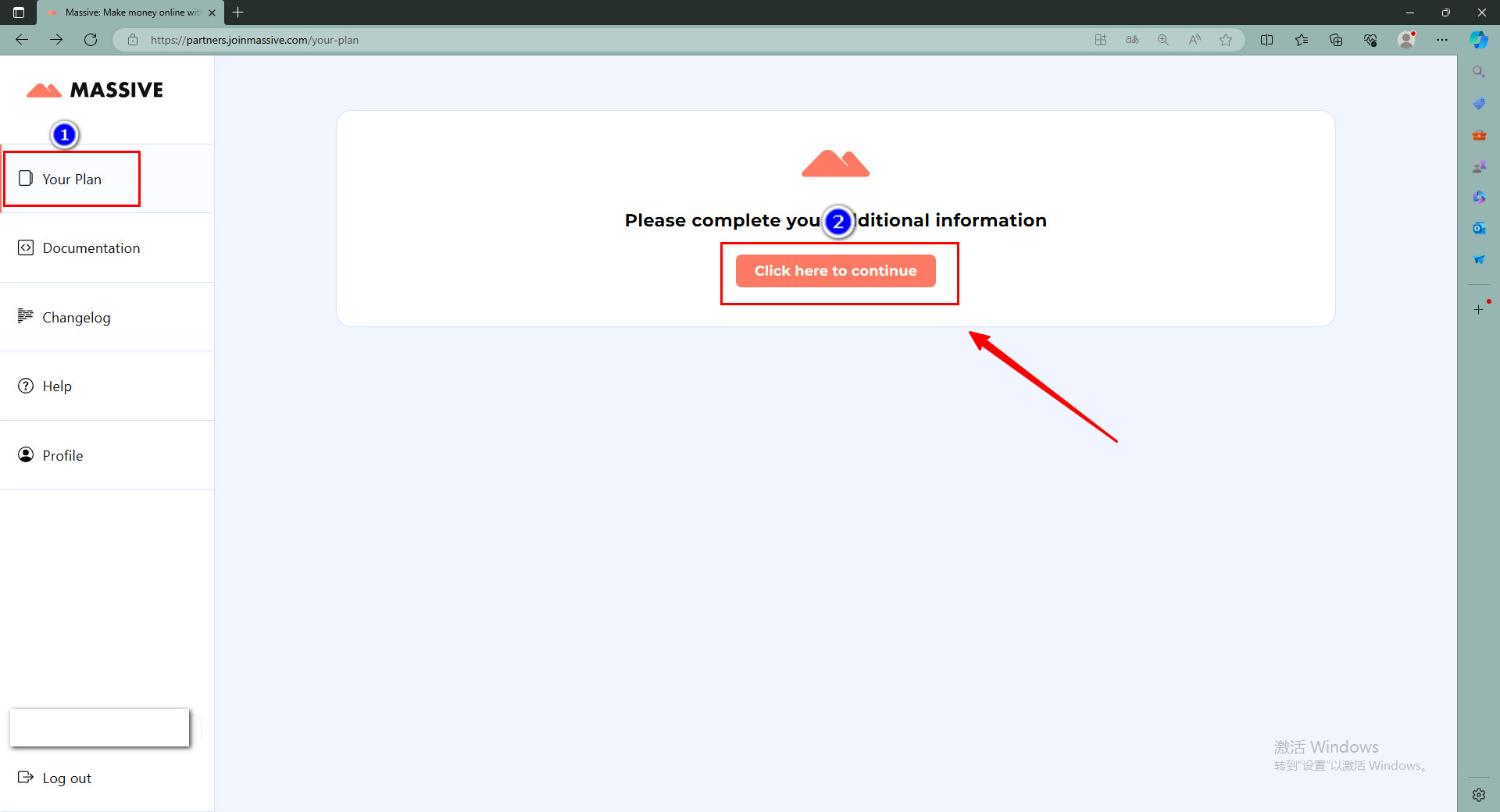
Open the MASSIVE website (https://Www.joinmassive.com), log in to your account and click [Click here to continue].

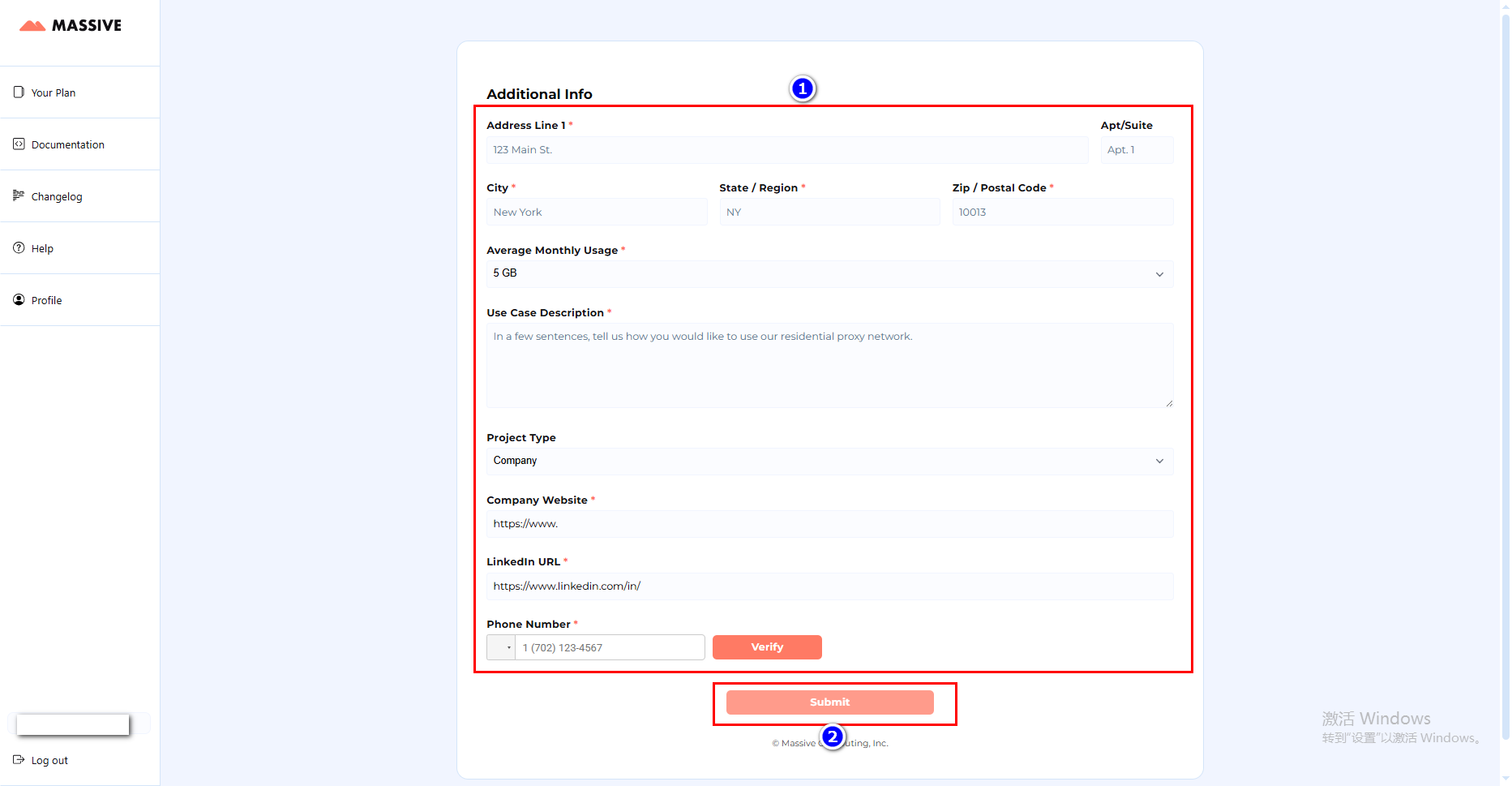
Fill in the information according to your own situation, then submit, submit the purchase success, copy the agent details.

2.Open ClonBrowser

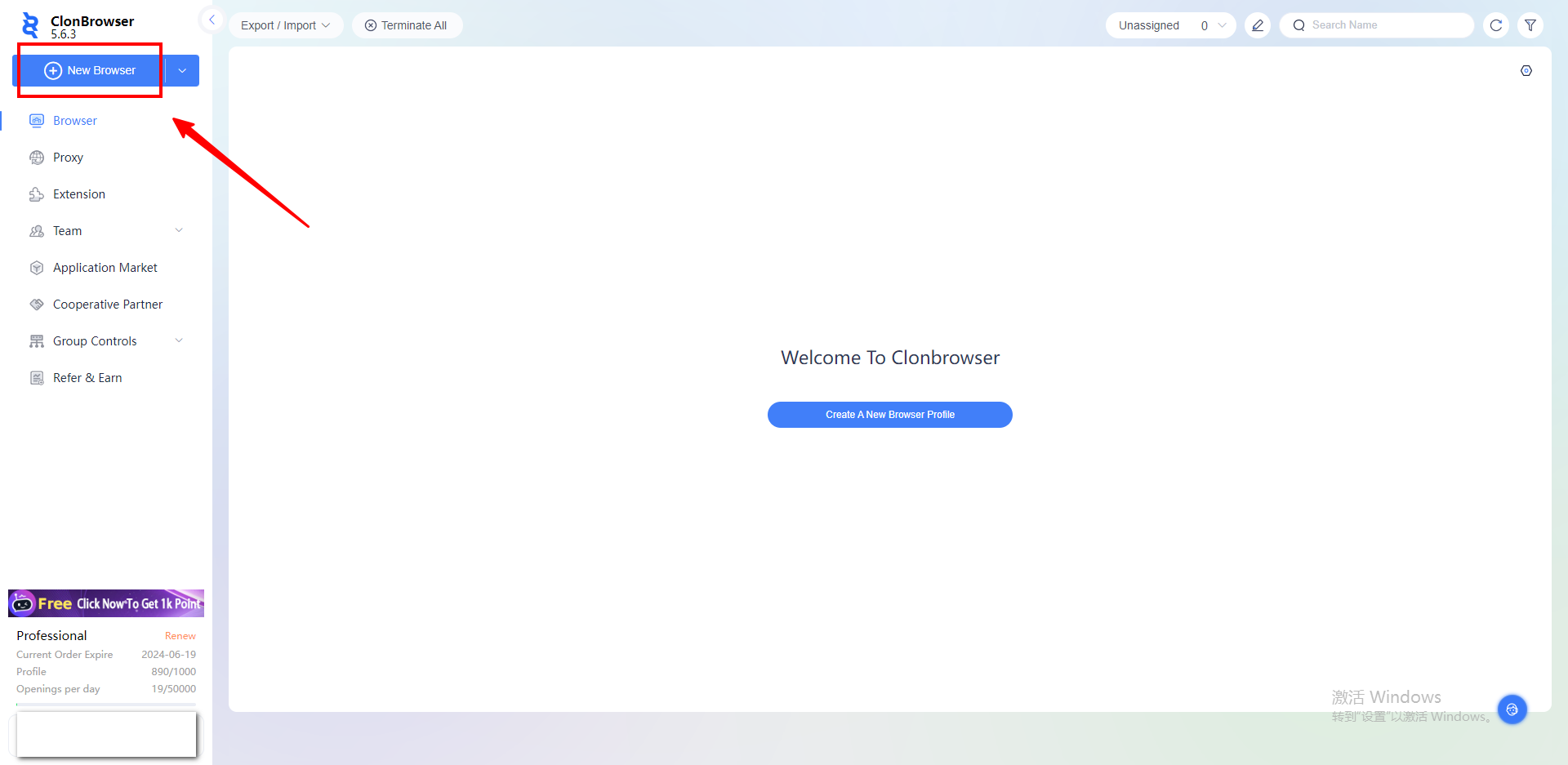
click [New Browser].

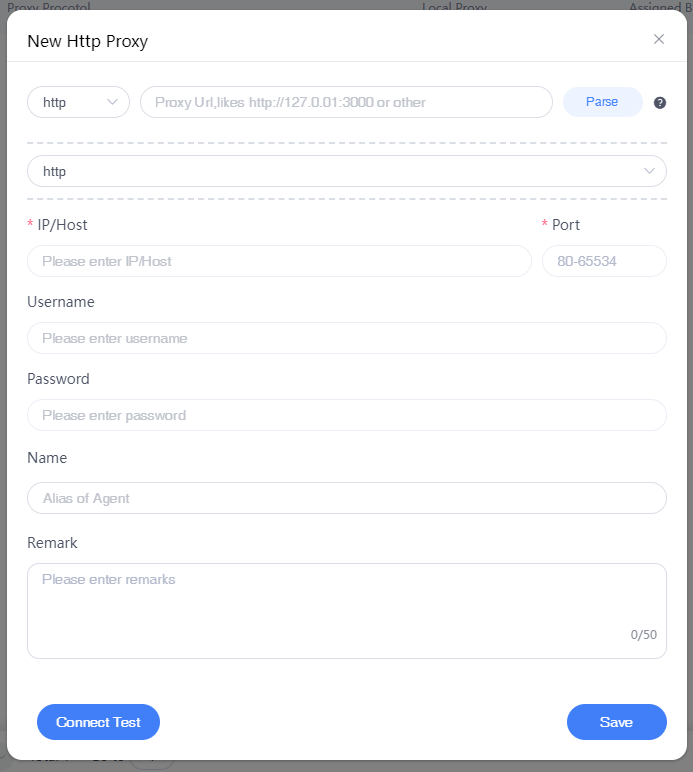
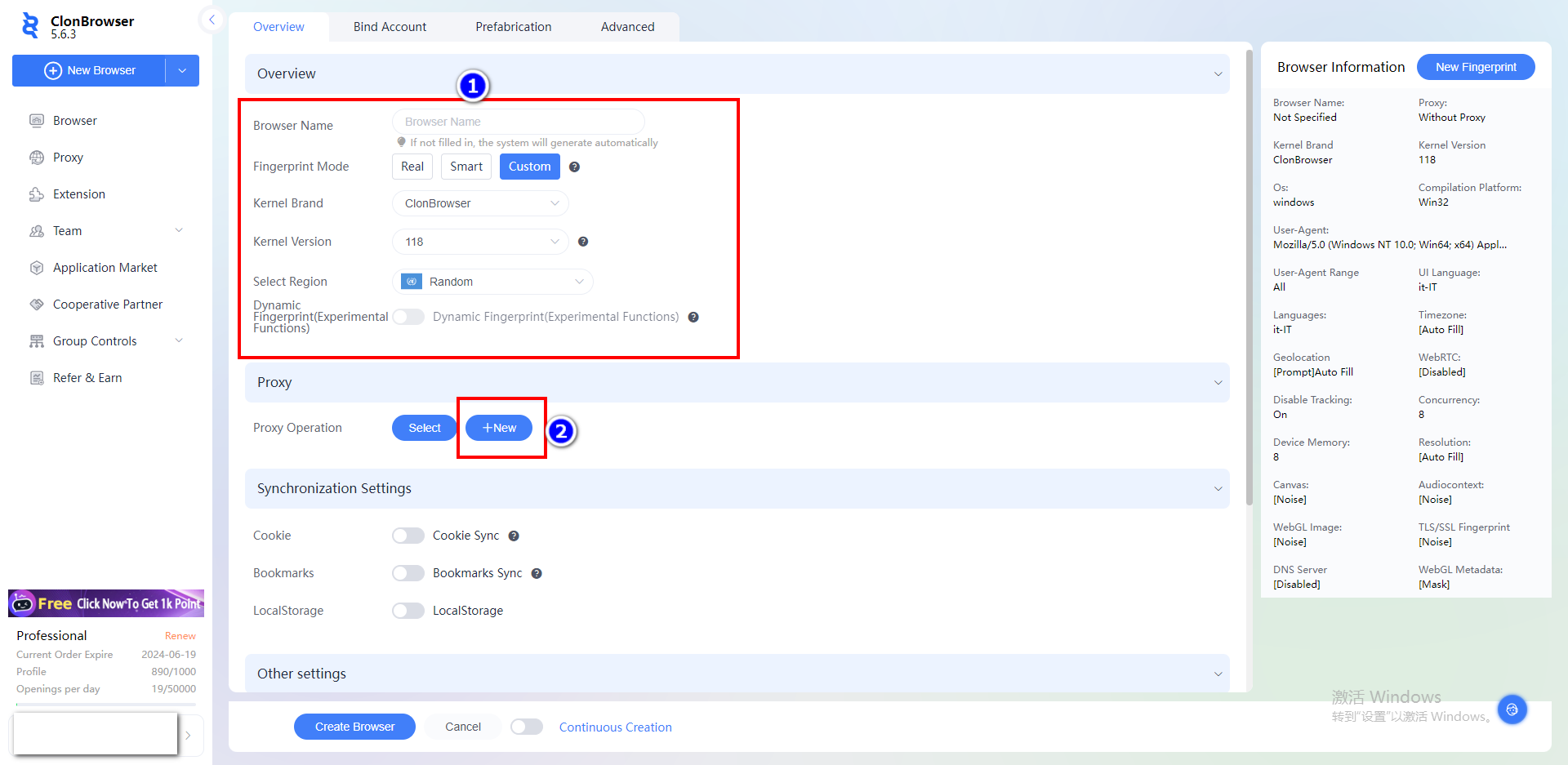
Enter the name, select the country and region, click [New] and select the proxy type.

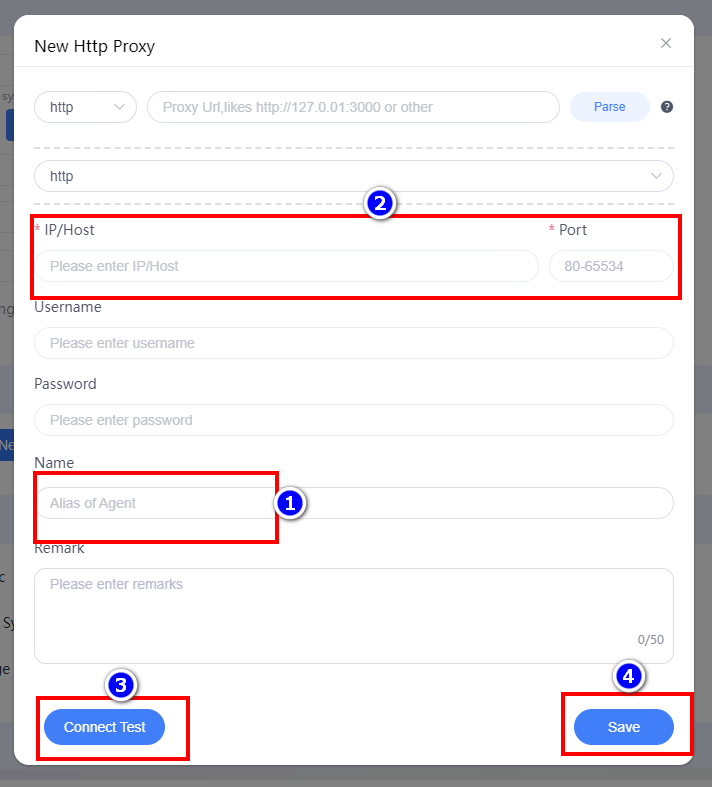
Edit the proxy name, then paste the proxy IP and port to fill in, click [Connect Test], and click [Save] when finished.

After the configuration is created, click [Launch] to use it.
How to set up GoProxy in ClonBrowser

Learn how to use the proxy from Goproxy with ClonBrowser.

1.Purchase Goproxy Proxies

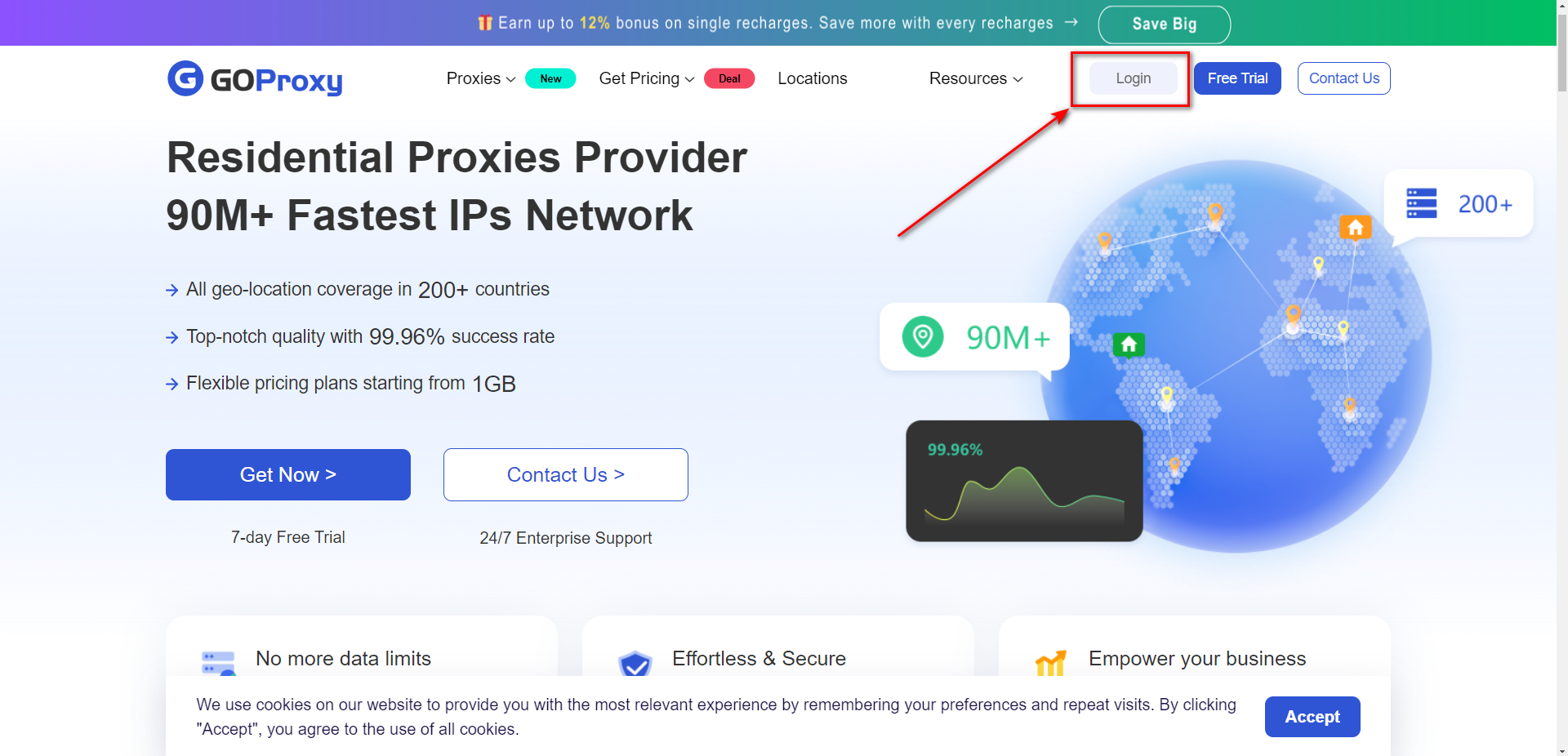
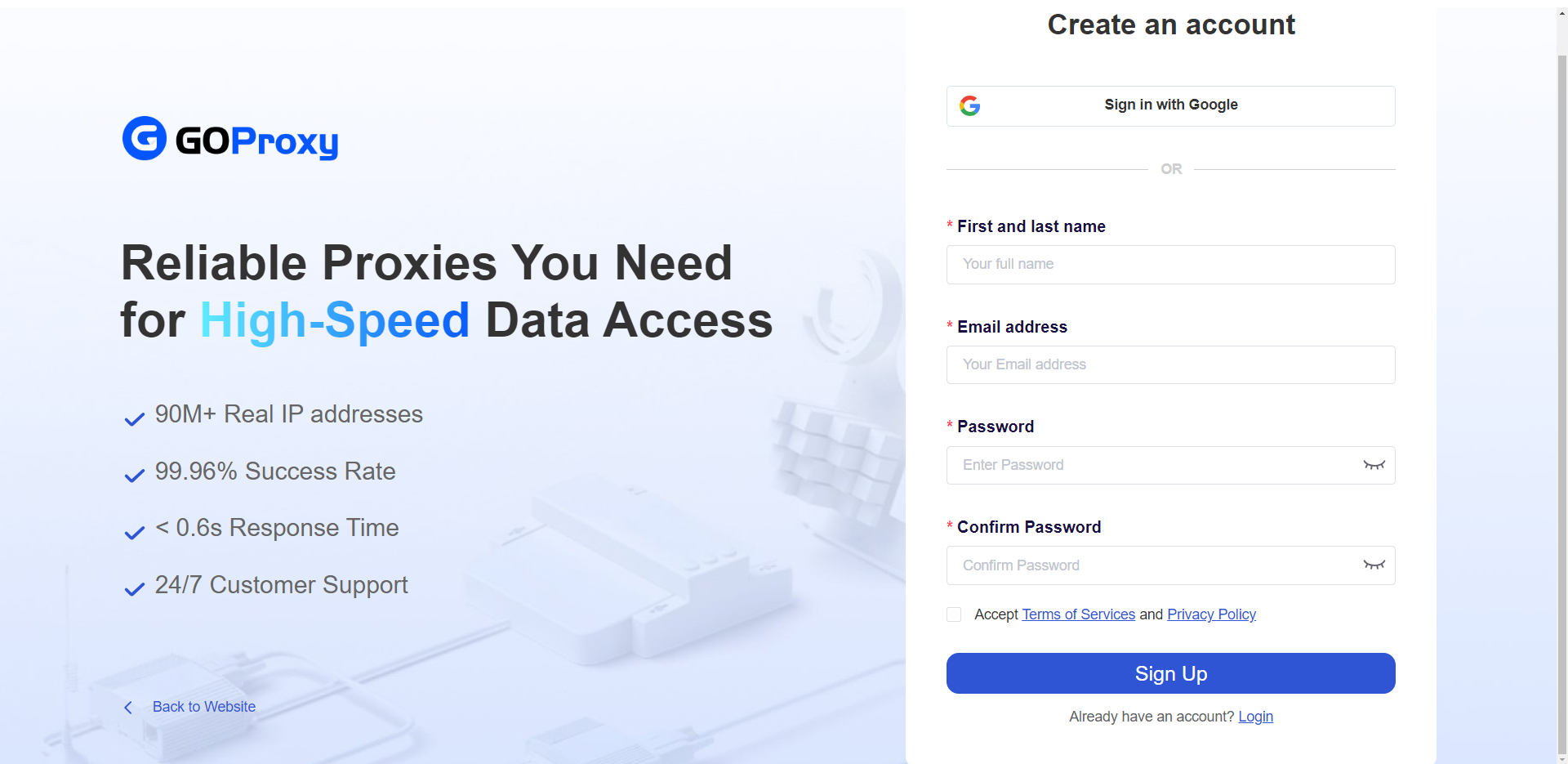
Go to the Goproxy official website (https://www.goproxy.com), register an account.

You can choose to register directly with Google

Or ①Enter your last name ②Enter your email address ③Enter your password

Log in and go to the Dashboard.
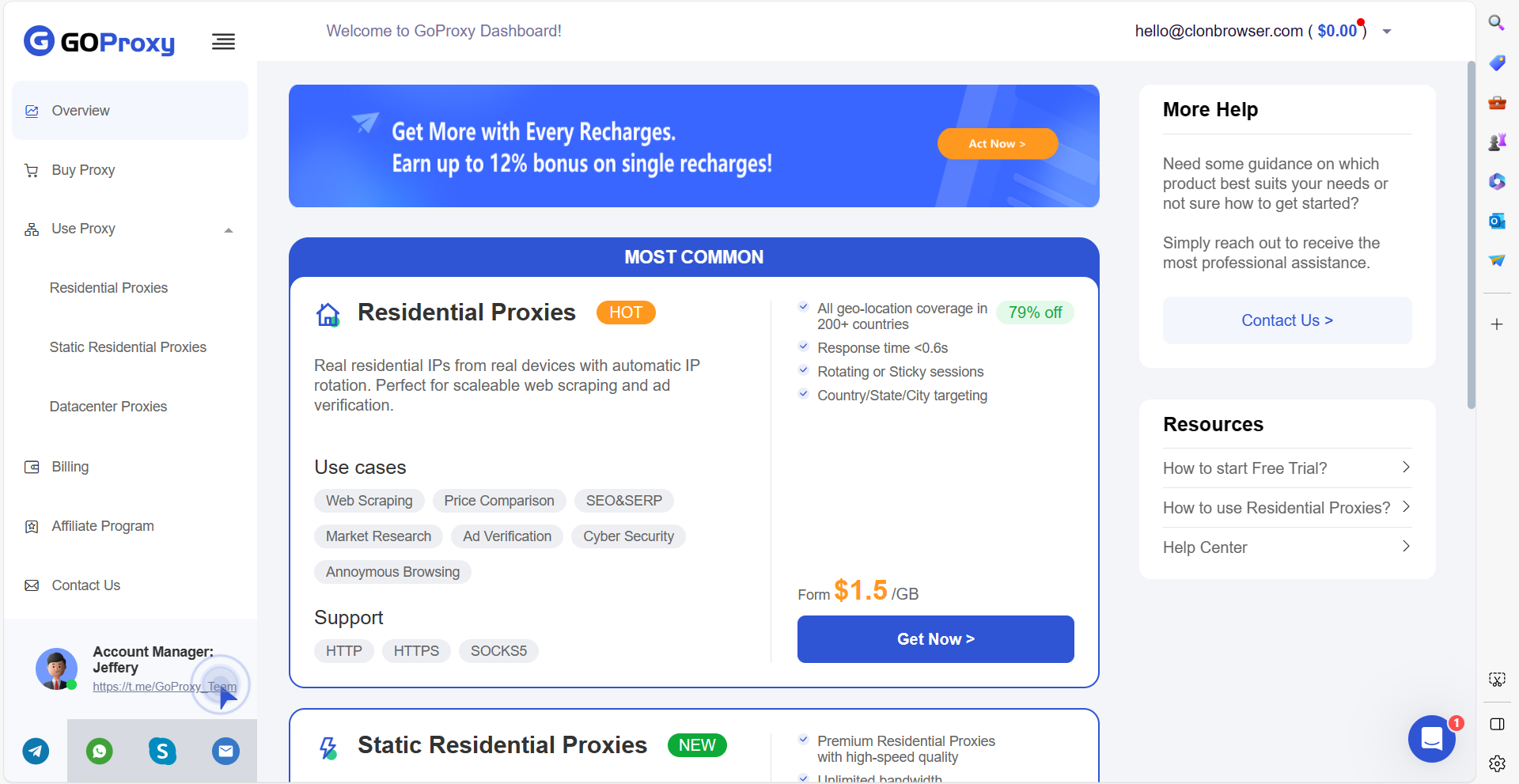
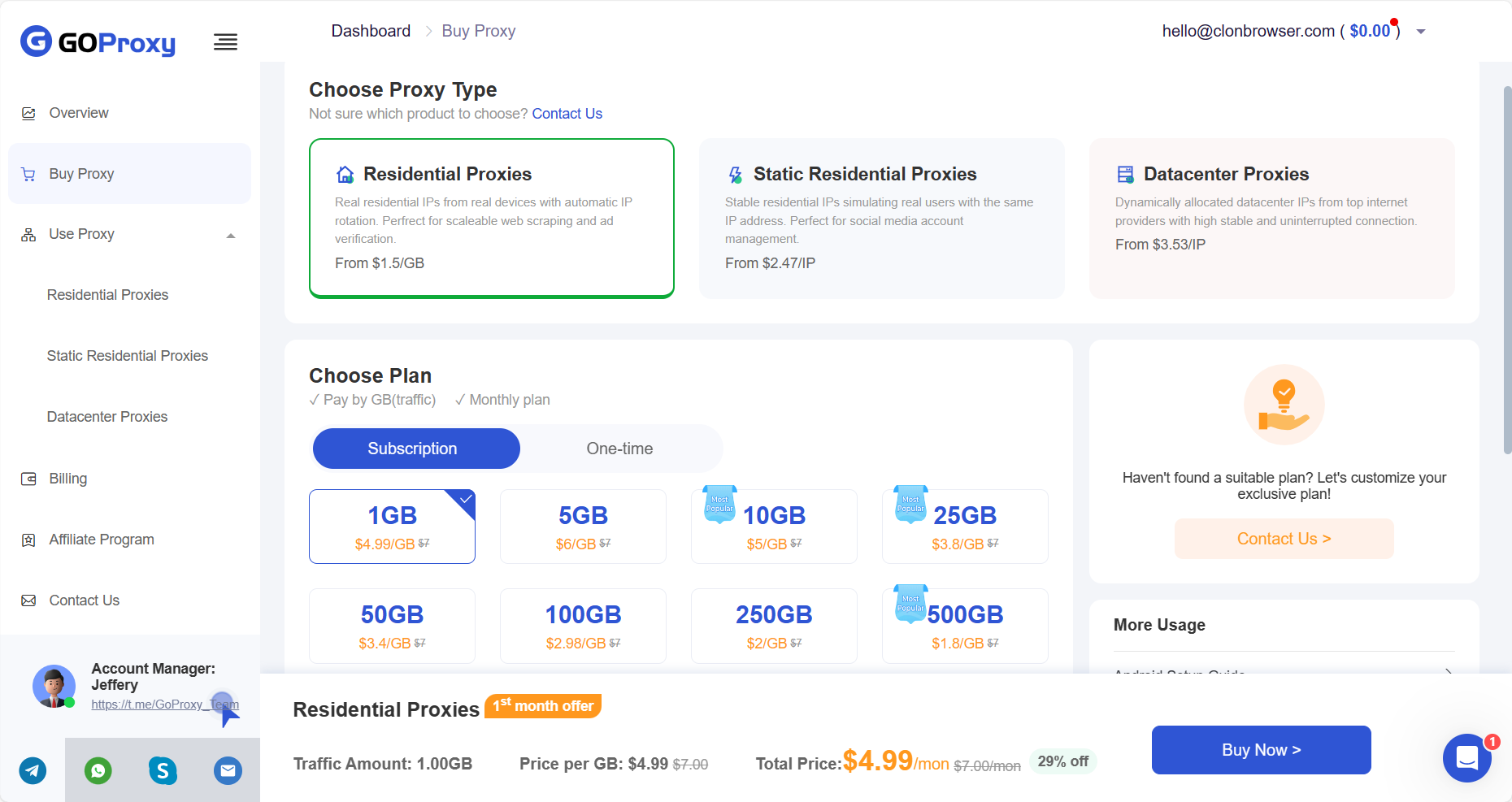
Choose the type of proxies you need. There are more detailed package options on the [Buy Proxy] page to purchase the desired proxy.
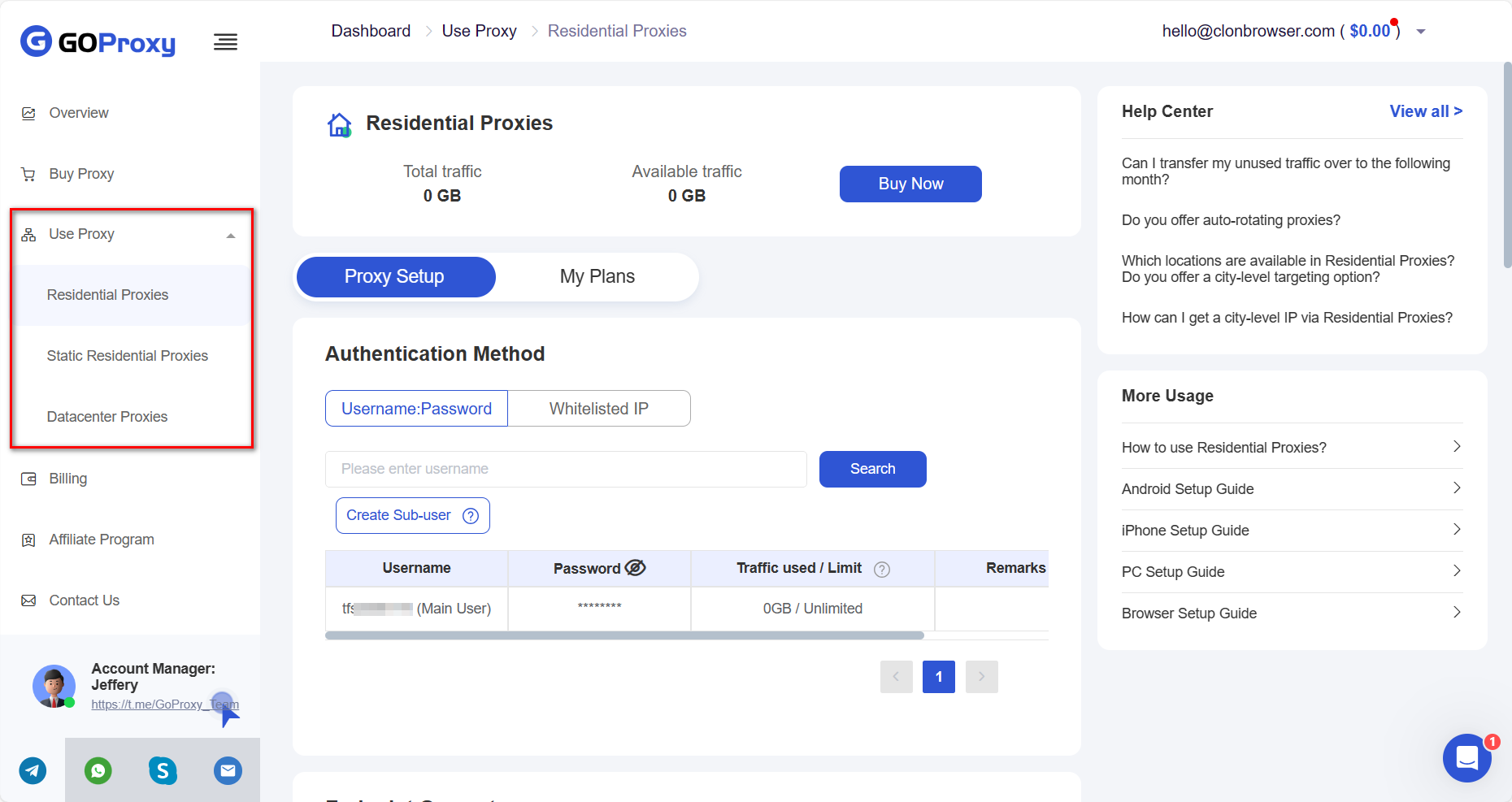
Get the proxy information. Copy the generated proxy host, port, login and password on the [Use Proxy] page.
2.Open ClonBrowser
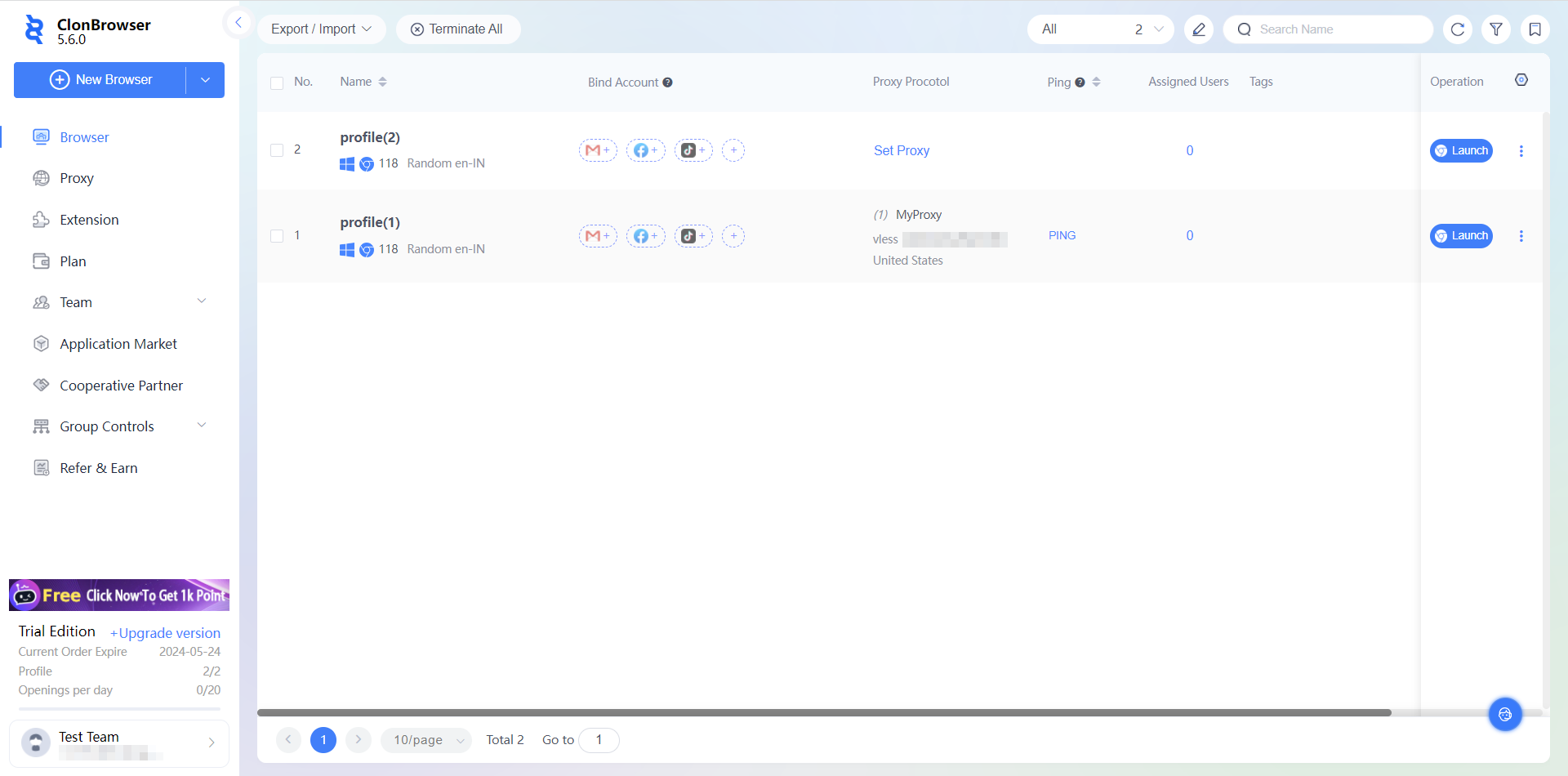
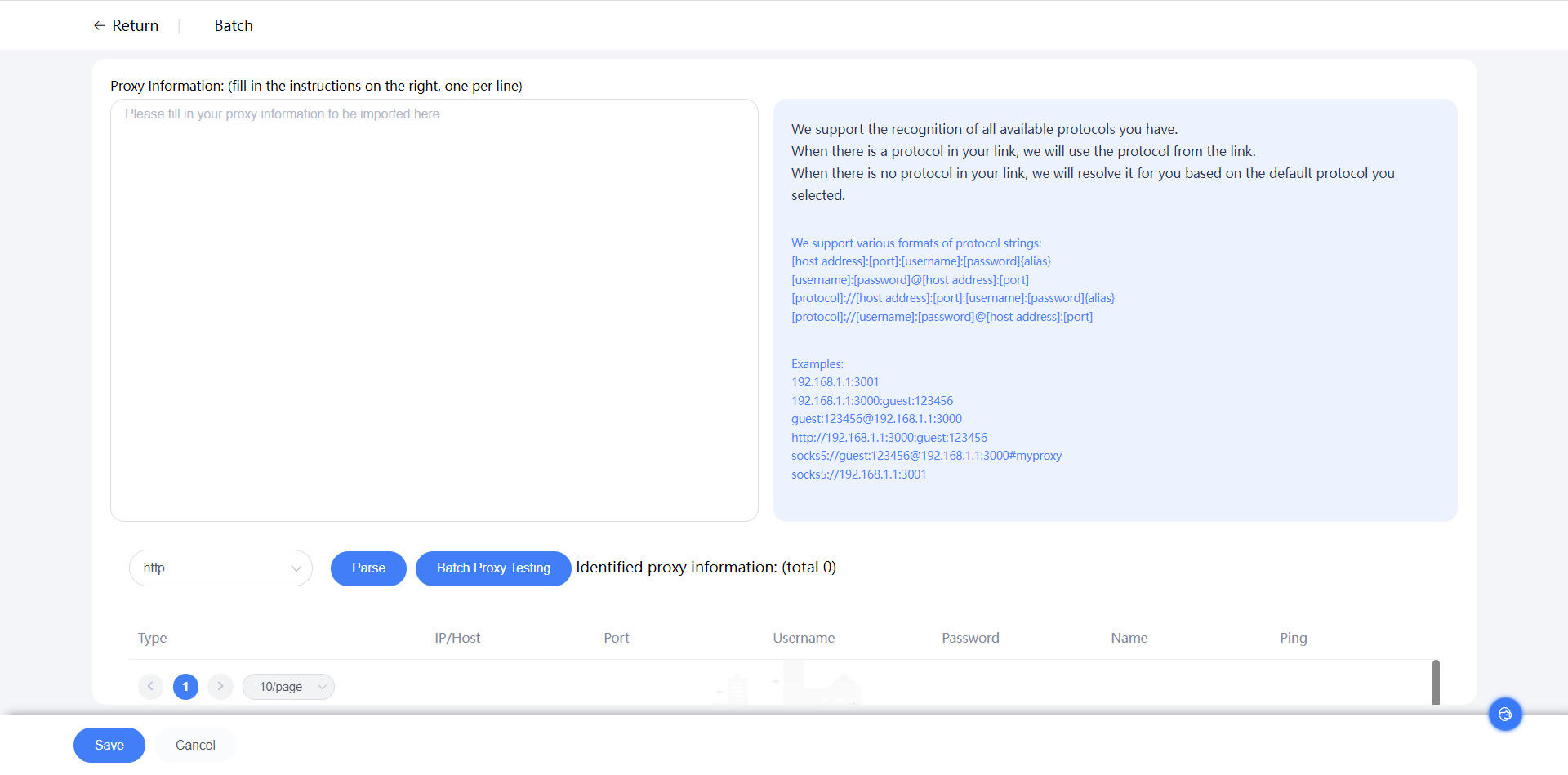
Go to the [Proxy] page and click [New], or [Batch]. Paste the proxy information as required.
Test if the connection is successful, [Save] to start using your proxy!